Call our helpline
0300 180 0028Short guide:
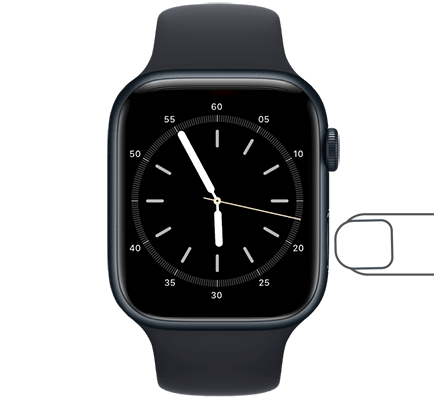
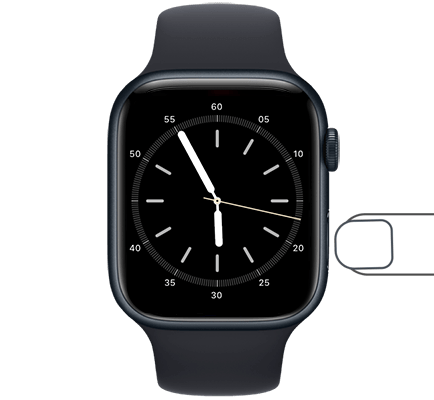
- Press the Side Button on your Apple Watch to open the Control Centre.
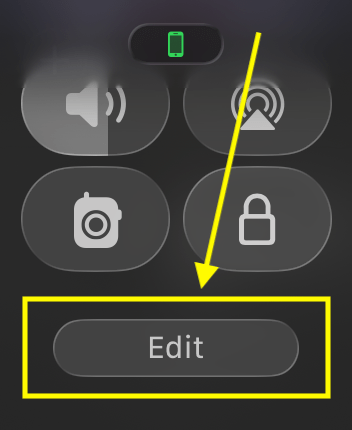
- Scroll to the bottom of the Control Centre and tap Edit.
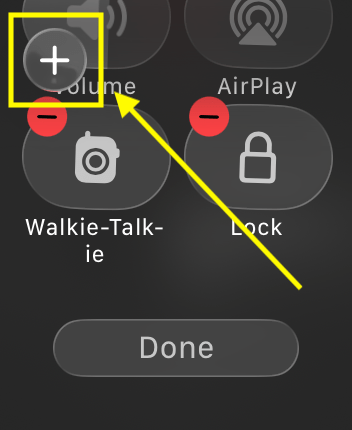
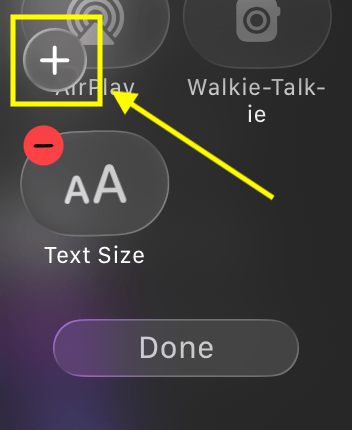
- Tap the + (plus) button in the top-left of the screen.
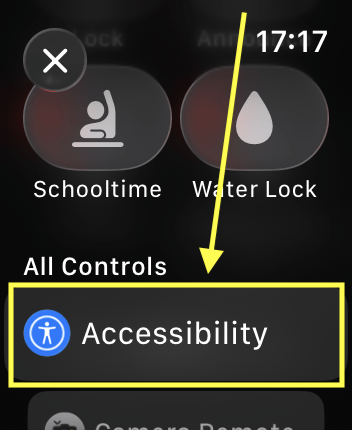
- Scroll down to the All Controls section and tap Accessibility.
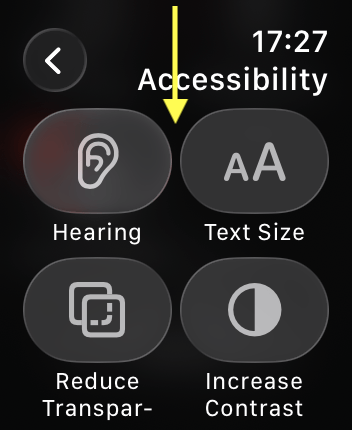
- Tap an item to add it to the Control Centre.
- To add more items, tap the + (plus) button again and repeat steps 4 and 5.
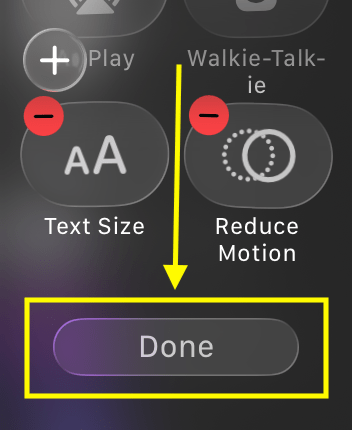
- When you have finished, tap the Done button.
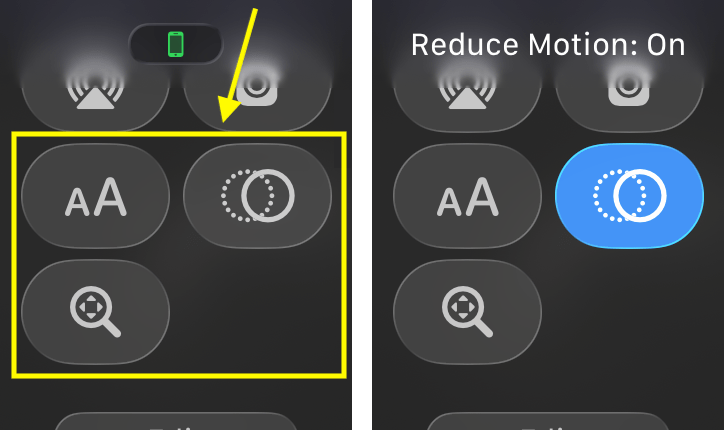
- To use the accessibility items in the Control Centre, press the Side Button.
- Tap the item you wish to enable.
Before and after
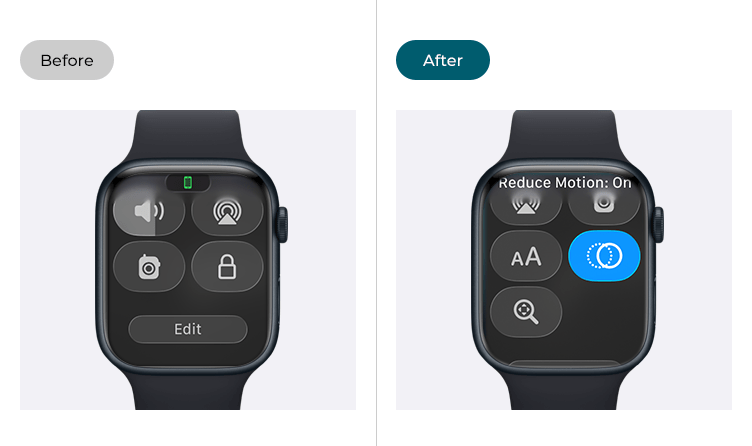
This section gives you step by step instructions on how to add Accessibility shortcuts to the Control Centre in watchOS 26, with pictures of the screens to help.
Open the Control Centre
1. Press the Side Button on your Apple Watch to open the Control Centre. Note: The Side Button is located just below the Digital Crown on your Apple Watch.
Edit the Control Centre items
2. Scroll to the bottom of the Control Centre and tap Edit.
3. Click the + (plus) button in the top-left of the screen.
Find the Accessibility options
4. On the next screen, scroll down to the All Controls section and tap Accessibility.
Add an accessibility item to the Control Centre
5. Tap an item to add it to the Control Centre. Note: You can drag the new item to reposition it within the list of Control Centre buttons.
Add more accessibility items to the Control Centre
6. To add more accessibility items to the Control Centre, tap the + (plus) button again and repeat steps 4 and 5.
7. When you have finished adding items to the Control Centre, click the Done button.
Return to the clock face
8. When you are happy with your settings, you can return to the clock face by pressing the Digital Crown.
How to use the Control Centre shortcuts
9. Press the Side Button on your Apple Watch. Note: The Side Button is located just below the Digital Crown on your Apple Watch.
10. Tap the item you wish to enable. Depending on the accessibility feature, it will either be enabled immediately or show a screen for you to customise the options for that feature.
Need some more help?
Call our helpline 0300 180 0028 or email enquiries@abilitynet.org.uk
Need free IT Support at Home?
If you are older or disabled and need IT support at home, you can book a free home visit.