Call our helpline
0300 180 0028Short guide
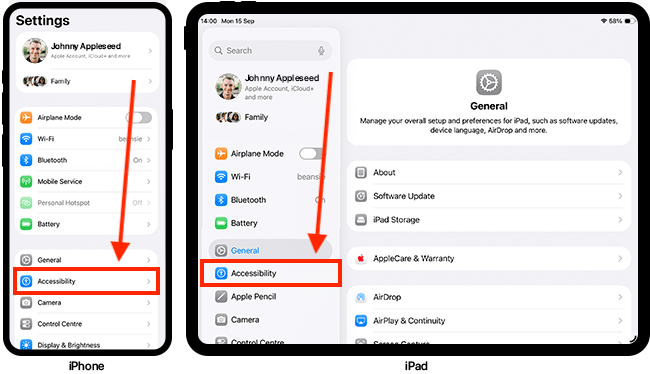
- Open the Settings app. Scroll down and tap Accessibility.
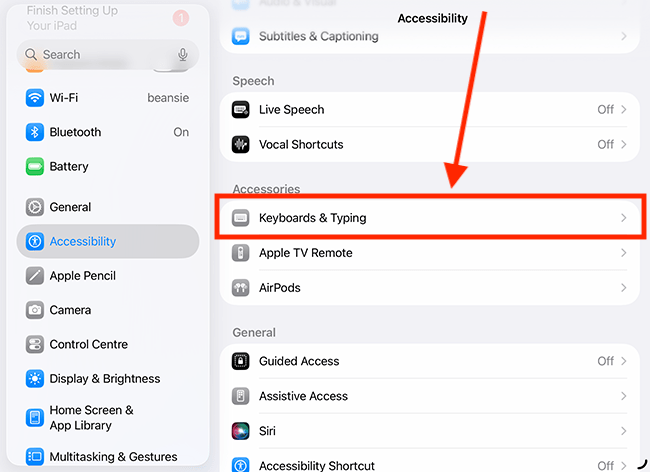
- Scroll down to the Accessories section and tap Keyboards & Typing.
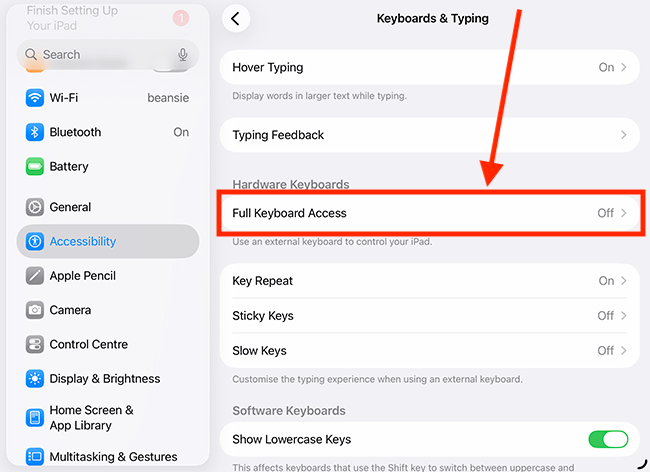
- Tap Full keyboard Access, then tap the toggle switch for Full Keyboard Access to turn it on.
- You will now see a blue border around the area of the screen you’re working on, and a blue highlight over the active item or selection.
- Tap Commands to view a list of all the commands you can use to control your device. To customise a command, tap it, then enter a new keyboard combination using your keyboard.
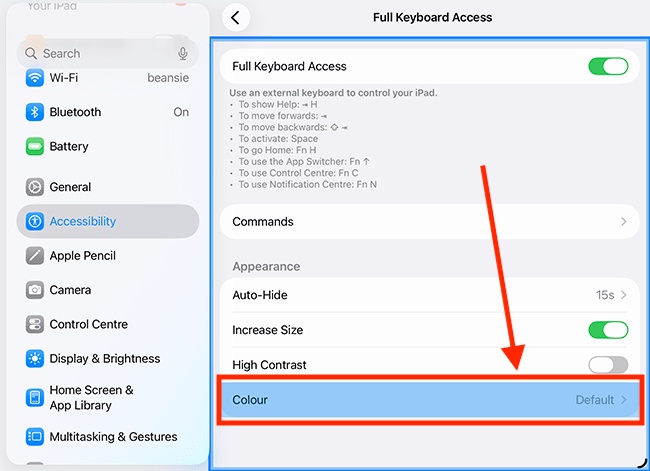
- Use the Auto-Hide, Increase Size, High Contrast, and Colour settings to customise how Full Keyboard Access looks and operates.
Before and after
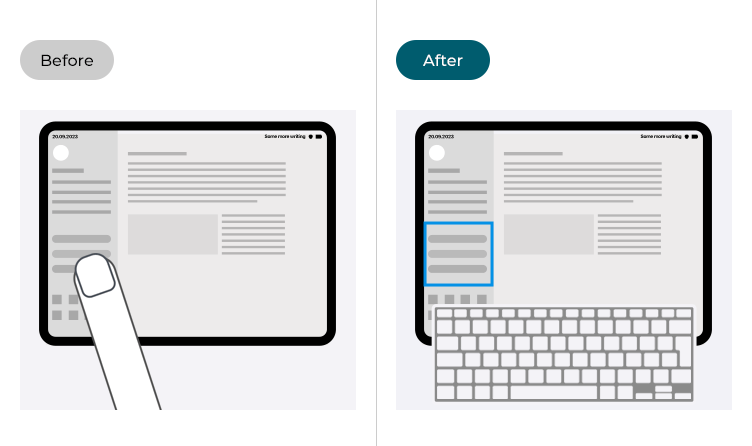
This section explains how to control your iPhone or iPad using an external keyboard in iOS 26. This is a step-by-step guide with pictures of the screens to help.
Open the Accessibility settings
1. Tap the Settings icon to launch the Settings app. Scroll down and tap Accessibility from the list.
Find the Keyboard settings
2. On the Accessibility screen, scroll down to the Accessories section and select Keyboards and Typing.
Select Full Keyboard Access
3. On the Keyboards & Typing screen, tap Full Keyboard Access.
Enable Full Keyboard Access
4. Tap the toggle switch for Full Keyboard Access to turn it on.
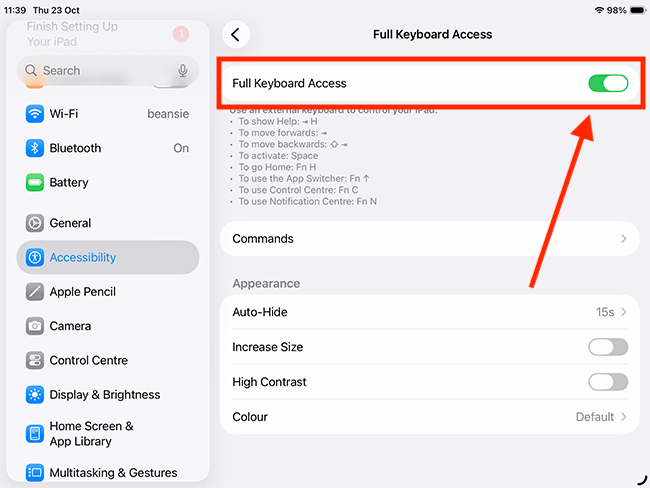
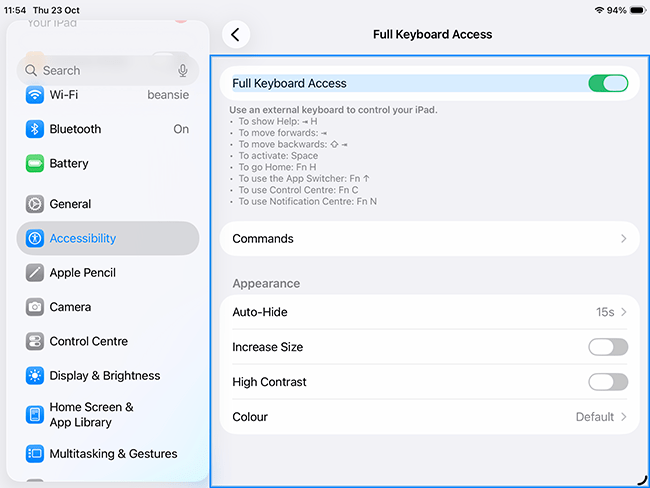
Using Full Keyboard Access
5. You will now see a blue border around the area of the screen you’re working on, and a blue highlight over the active item or selection. A list of basic commands for controlling your device is shown at the end of this guide.
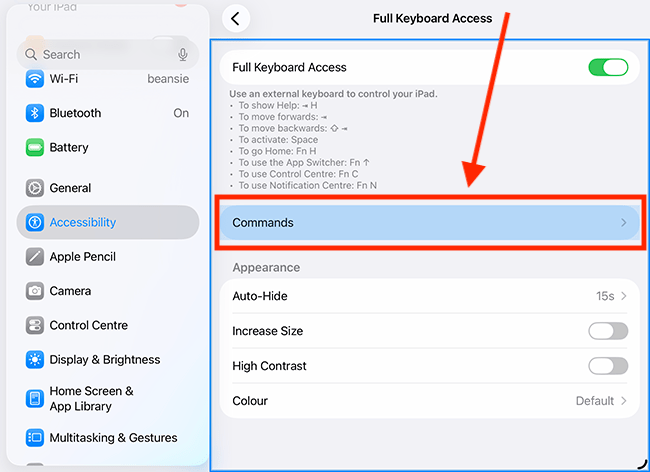
View the commands and shortcuts
6. To view a list of all the commands and keyboard shortcuts you can use to control your device, tap or select Commands. Note: A list of basic commands is shown at the end of this guide.
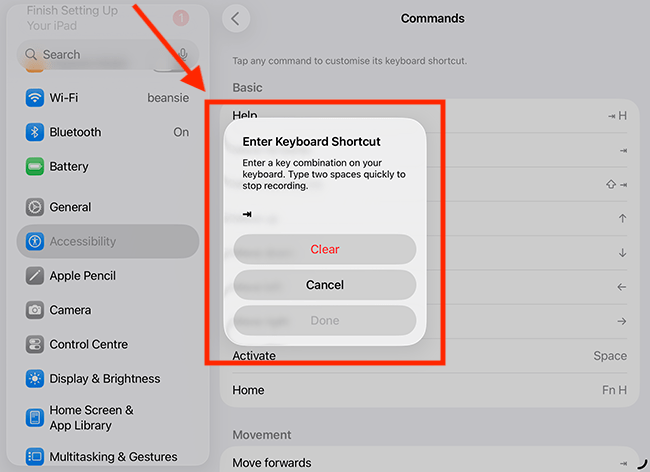
Customising commands
7. To customise a command, select an item, then enter a new keyboard combination using your keyboard.
Adjust the auto-hide timer
8. Tap the back arrow button ( < ) to get back to the other settings. By default, the blue border and the blue highlight will auto-hide after 15 seconds of inactivity. To change this, tap Auto-Hide.
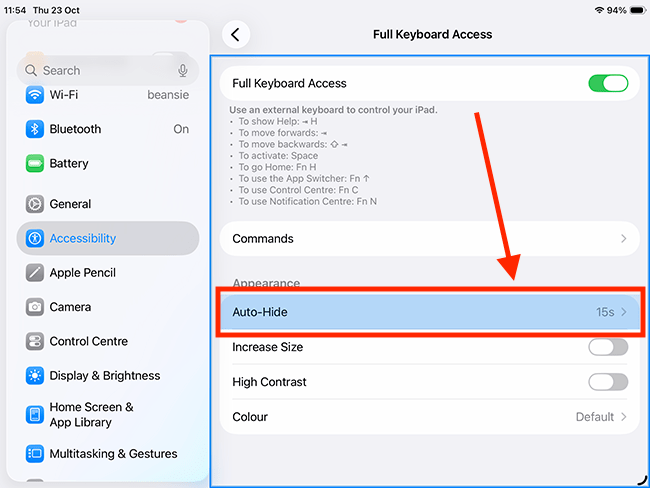
Set a new time limit
9. On the next screen, you can either turn Auto-Hide off using the toggle switch or choose a new time limit using the + (plus) and - (minus) buttons. Tap the back arrow button ( < ) to get back to the other settings.
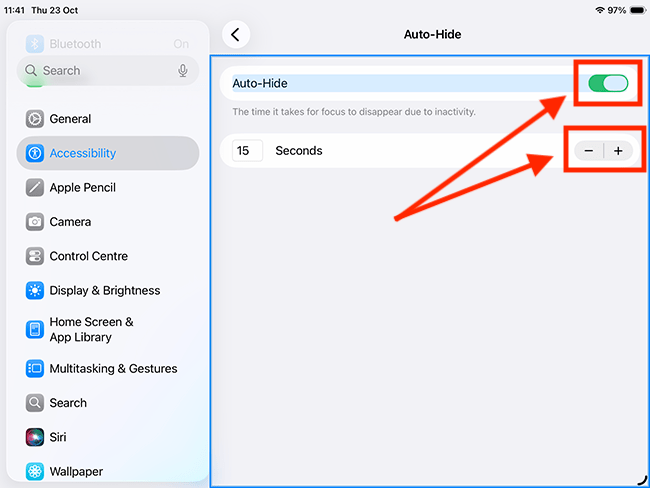
Make the border more prominent
10. To make the border more prominent, turn on the toggle switch for Increase Size. This makes the border thicker, helping it stand out more clearly.
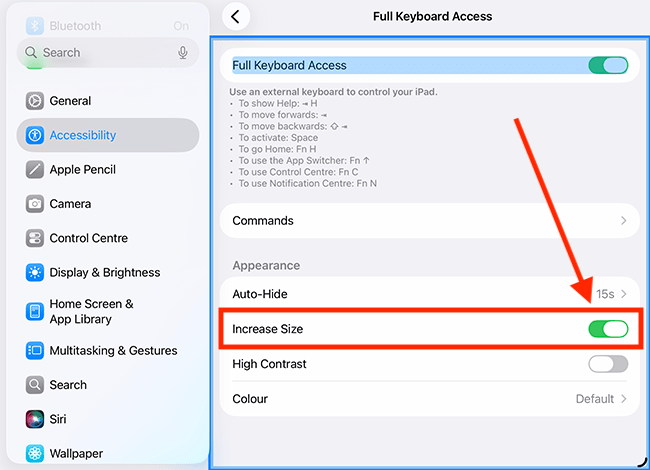
Use a high contrast scheme
11. If you find the coloured border or highlight difficult to see, turn on the toggle switch for High Contrast. This changes the border colour to black, and the highlighted item will appear with a bold black outline, as shown in the screenshot below.
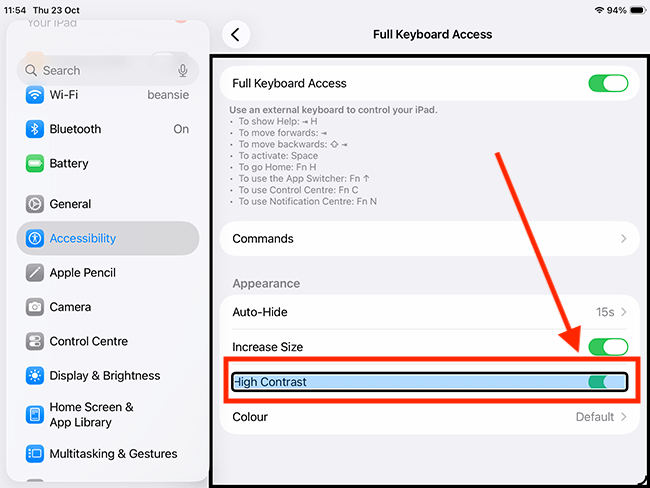
Change the border and highlight colour
12. To change the colour of the border and highlight, tap or select Colour.
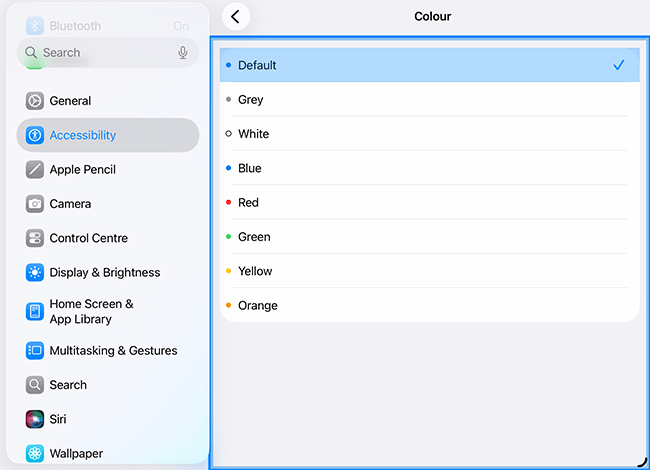
13. On the next page, choose from the available colour options. Note: If you have enabled High Contrast, the border will remain black, whatever colour you choose. Tap the back arrow button ( < ) to get back to the other settings.
Return to the Home screen
14. When you are happy with your settings, you can return to the Home screen by swiping up from the bottom of the screen or pressing the Home button if your device has one.
Keyboard commands for navigating your device
15. Below is a list of basic commands to help you get started with controlling your device using a keyboard. For the full list of commands, press Tab + H on your device.
| Action | Command / Shortcut + indicates pressing the two keys at the same time |
| Help | Tab + H |
| Move forwards | Tab |
| Move backwards | Shift + Tab |
| Move up | Up arrow key |
| Move down | Down arrow key |
| Move left | Left arrow key |
| Move right | Right arrow key |
| Activate the selected item | Space bar |
| Go to the Home Screen | Fn + H |
| Open the App Switcher | Fn + Up arrow key |
| Open Control Center | Fn + C |
| Open Notification Center | Fn + N |
Need some more help?
Call our helpline 0300 180 0028 or email enquiries@abilitynet.org.uk
Need free IT Support at Home?
If you are older or disabled and need IT support at home, you can book a free home visit.