Call our helpline
0300 180 0028Short guide:
- Press and hold on the current watch face to open the watch face editor.
- Swipe to the right, and tap the large + (plus) sign for New.
- Scroll to the bottom of the list of suggested watch face groupings and tap All Watch Faces.
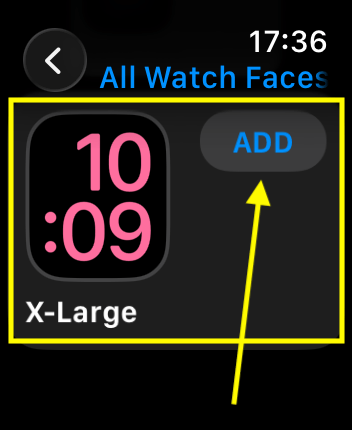
- Scroll to the bottom of the list of all watch faces and tap X-Large.
- Tap Add Face.
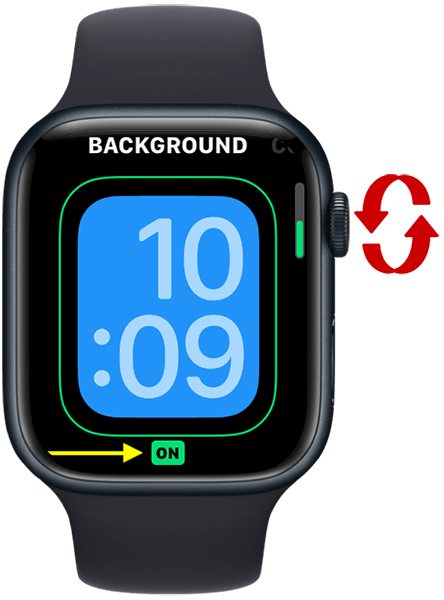
- Rotate the digital crown to determine whether the background is Off or On.
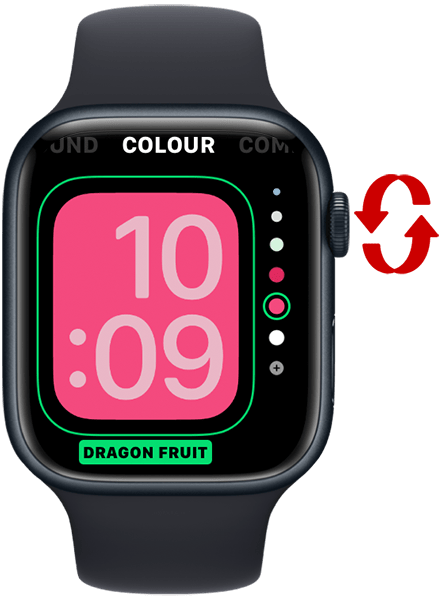
- If you choose Off, the background colour will be black and you can choose the text colour. Swipe from right to left, then rotate the digital crown to pick a colour for the text.
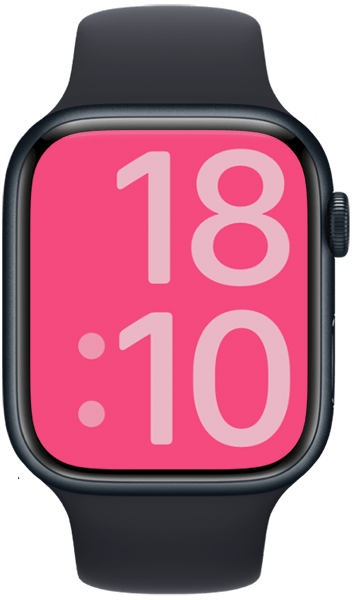
- If you choose On, you can choose the background colour. Swipe from right to left, then rotate the digital crown to pick a colour for the background.
- Press the digital crown to make the X-Large watch face your current watch face.
Before and after
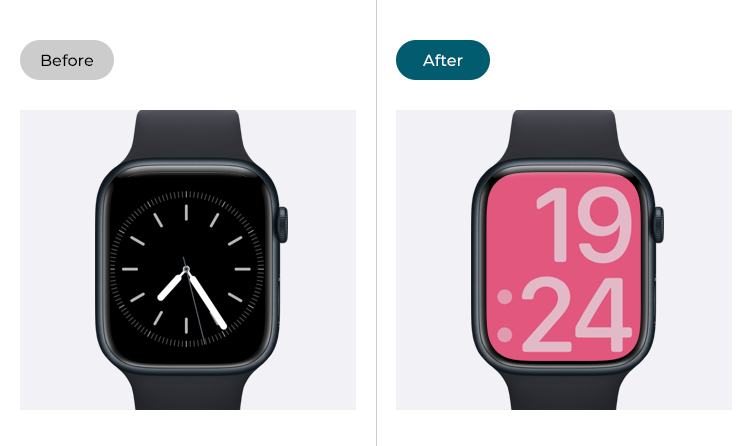
This section gives you step by step instructions on how to display the X-Large watch face in watchOS 26, with pictures of the screens to help.
Open Apple Watch face editor
1. Press and hold on your current watch face to open the watch face editor.
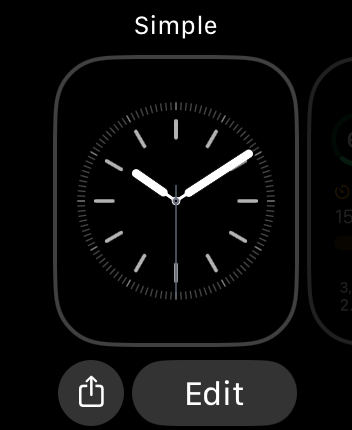
Add a new watch face
2. To add a new watch face, keep swiping the screen from right to left. When New appears, tap the large + (plus) sign.
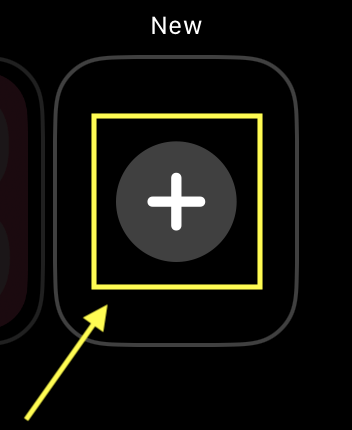
Find the all the available watch faces
3. Scroll to the bottom of the list of watch face groupings and tap All Watch Faces.
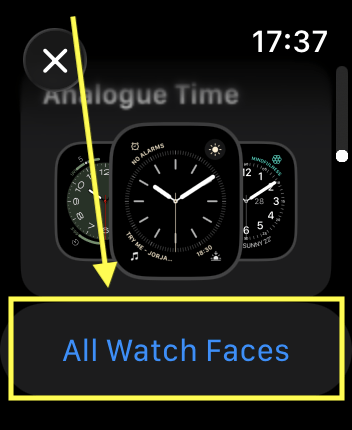
Add the X-Large watch face
4. Next, scroll to the bottom of the list of all watch faces to find the X-Large option. Tap the Add button next to the X-Large option.
Edit the watch face colours
5. You can choose to have the background On or Off. If the background is off, the background colour will be black and you can choose the text colour. If the background is On, you can choose the background colour - the text colour will be determined automatically, based on your choice of background colour.
Rotate the Digital Crown to choose background Off or On.
Choose the background colour or text colour
6. To choose the background colour or text colour (depending on what you chose in step 5, above), swipe the screen from right to left. Rotate the Digital Crown to pick a colour.
Add a complication widget
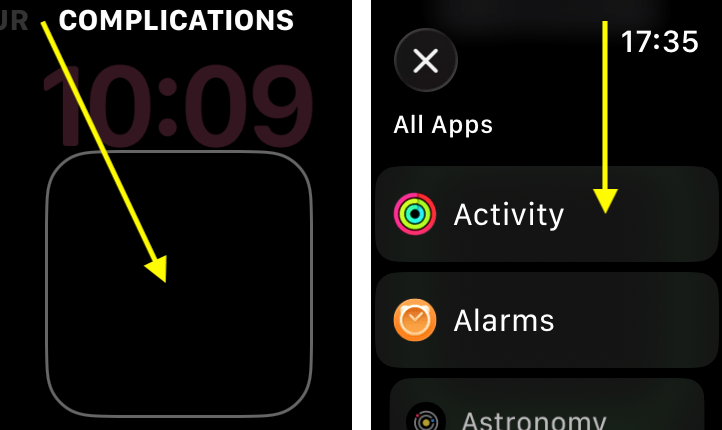
7. If you want to add a watch complication (weather, calendar, alarm, etc.), swipe the screen from right to left. Tap the blank box shown under Complications, then choose from the list of available complications.
Display the new watch face
8. When you are happy with the X-Large watch face settings, press the Digital Crown twice to make it the current watch face.
Need some more help?
Call our helpline 0300 180 0028 or email enquiries@abilitynet.org.uk
Need free IT Support at Home?
If you are older or disabled and need IT support at home, you can book a free home visit.