Call our helpline
0300 180 0028Short guide:
- Open a web page in the Safari web browser.
- Press and hold the Safari options button
 in the address bar to activate Reader mode.
 - To customise the reader view, tap the Reader button
 in the address bar.
 - You can change the font, increase the font size, and choose a colour scheme to suit your preferences.
Before and after

This section explains how to make web pages easier to read in the Safari web browser in iOS 26. This is a step-by-step guide with pictures of the screens to help.
Open the web page you want read aloud
1. Tap the Safari icon  on the home screen of Apps, then open a web page you'd like to view in Reader mode.
Open the web page options
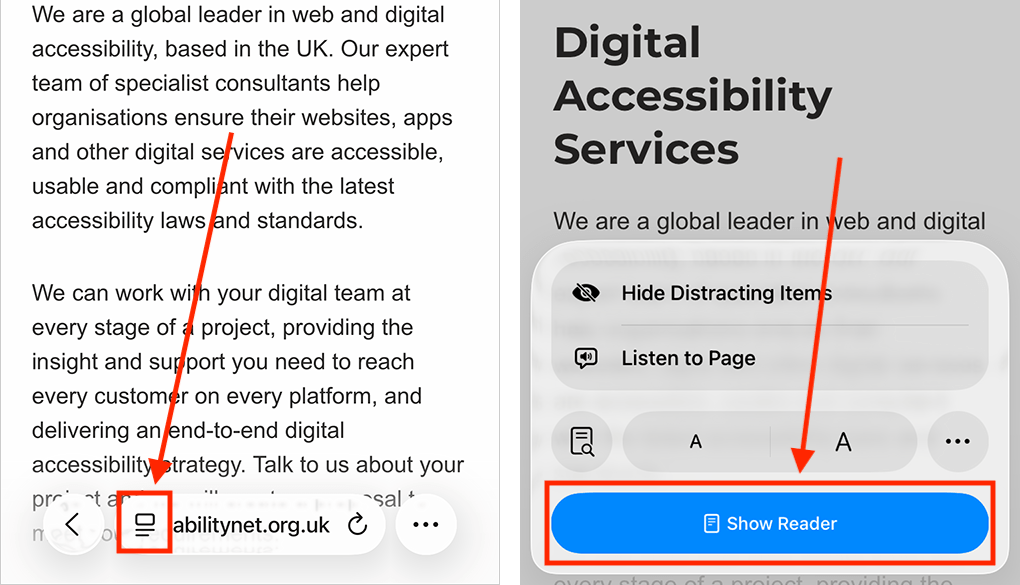
2. To go straight into Reader mode, press and hold the Safari options button located in the left corner of the browser address bar.
Alternatively, tap the Safari options button to open the options panel, then tap the Show Reader button..
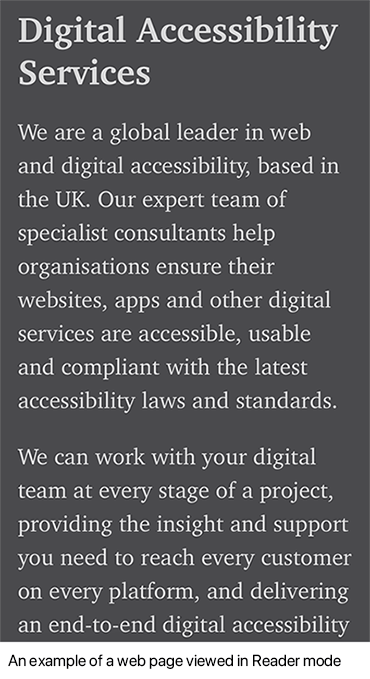
3. The web page will be reformatted into an easier-to-read layout (see an example below).
Customise the reading experience
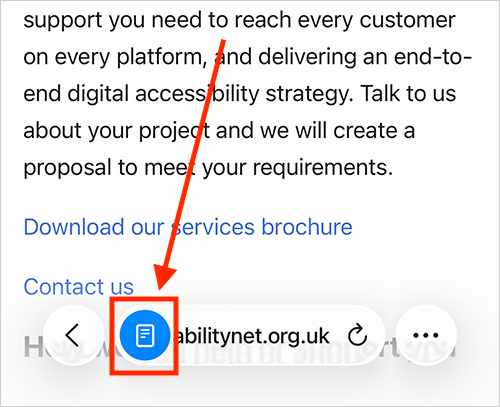
4. You can customise Reader mode to suit your preferences – adjust the font style and size, and select a light or dark theme for a more comfortable reading experience. To open the Reader options, tap the Reader button  in the left corner of the browser address bar.
How to change the colour scheme
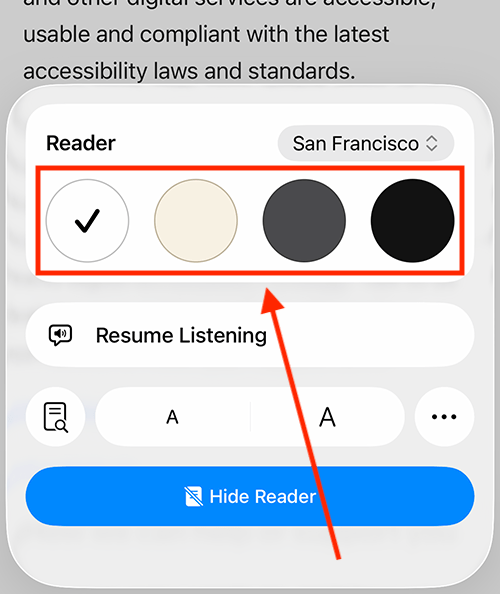
5. There are two light colour schemes and two dark colour schemes to choose from. Tap the scheme you’d like to use.
How to change the font
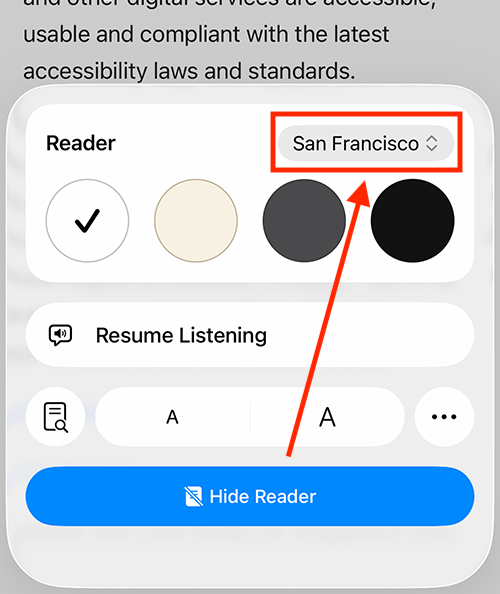
6. Tap the button displaying the current font, then choose a font from the list.
How to change the text size
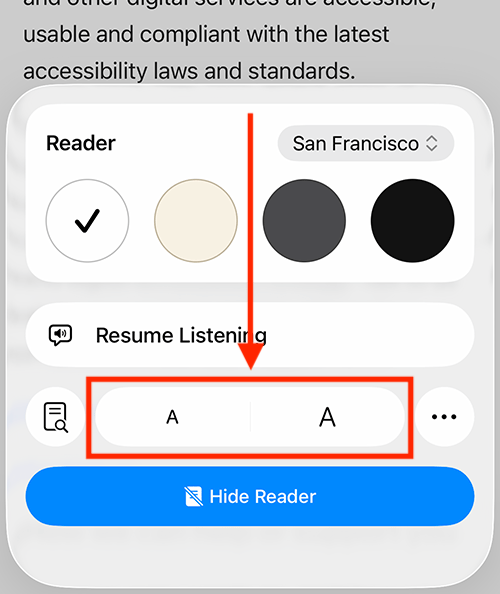
7. Tap the small A button to decrease the font size. Tap the large A button to increase it.
Return to the web page
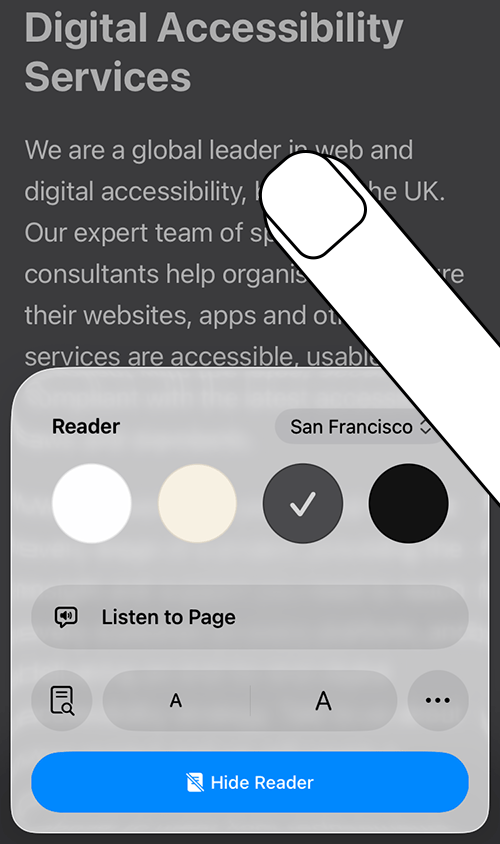
8. When you’re happy with how Reader mode looks, simply tap anywhere on the web page to close the options panel.
Always use Reader mode for this website
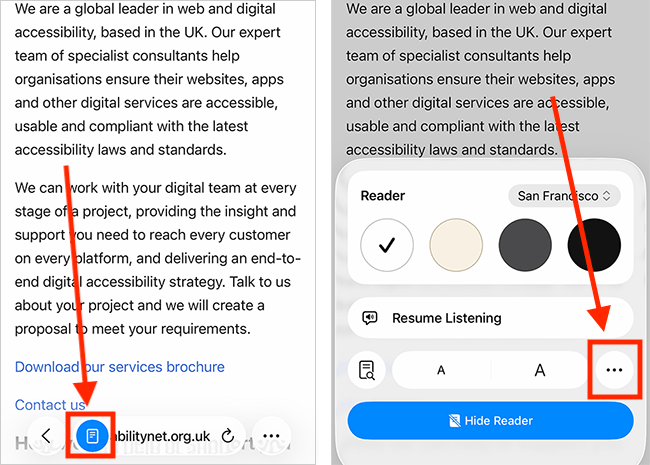
9. You can set Safari to always use Reader mode when visiting this website. Tap the Reader button  in the left corner of the address bar to open the Reader options, then tap the ellipsis button ( ··· ) in the bottom-left corner.
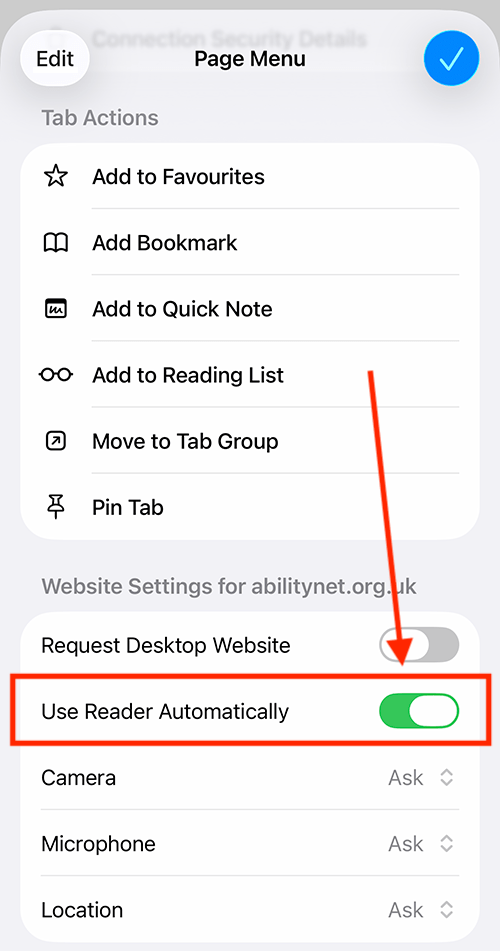
10. Tap the toggle switch for Use Reader Automatically to turn it on.
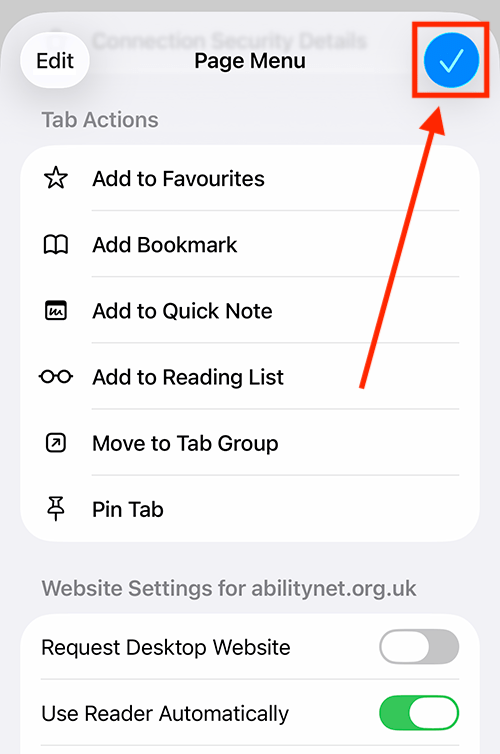
11. Tap the blue tick button in the top-right corner to return to the Reader options.
Need some more help?
Call our helpline 0300 180 0028 or email enquiries@abilitynet.org.uk
Need free IT Support at Home?
If you are older or disabled and need IT support at home, you can book a free home visit.