To find out more about Select to Speak, see the guide How to read selected text aloud with Select to Speak in Android 16. It's worth reading that guide first if you haven't used Select to Speak before..
Short guide:
- Open the Settings and select Accessibility.
- Tap Select to Speak.
- Tap the toggle switch for Select to Speak shortcut to turn it on.
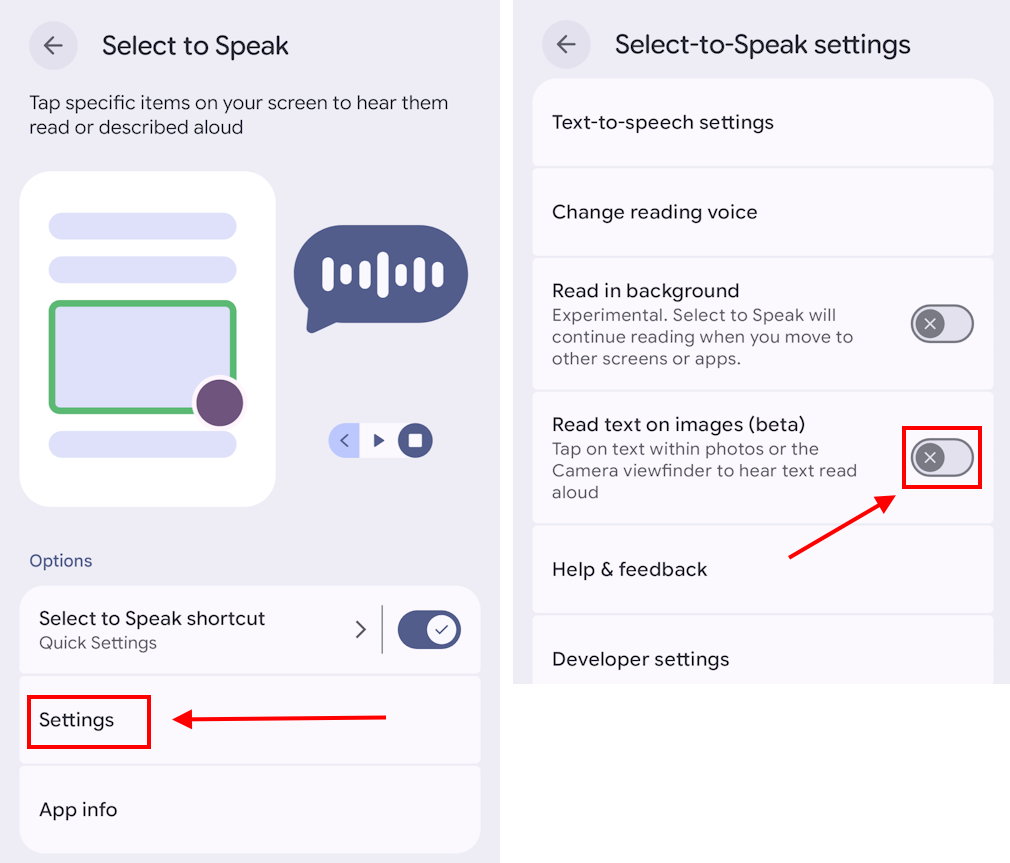
- Tap Settings. Tap the toggle switch for Read text on images to turn it on.
- Open your device’s Camera app and point the camera at some text.
- Tap the Select to Speak shortcut button, then tap the text you want read.
Before and after
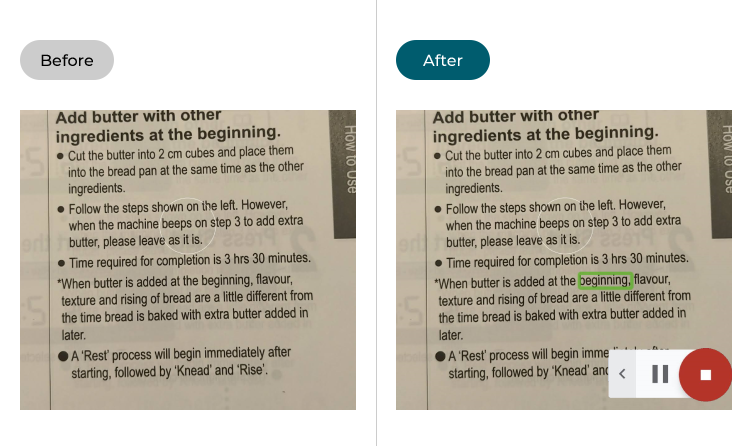
This section covers how to read text aloud through your camera using Select to Speak in Android 16. This is a step-by-step guide with pictures of the screens to help.
Open the Accessibility settings
1. First, you need to enable Select to Speak itself. Open the Settings and select Accessibility.
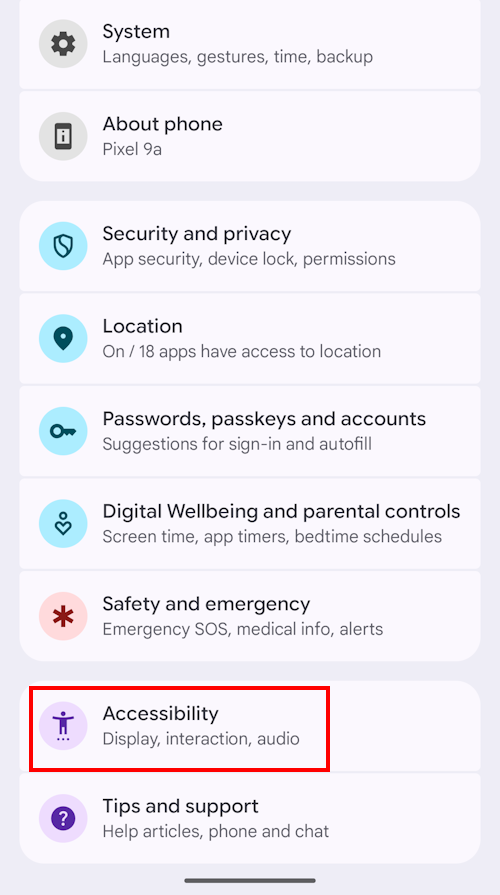
Enable Select to Speak
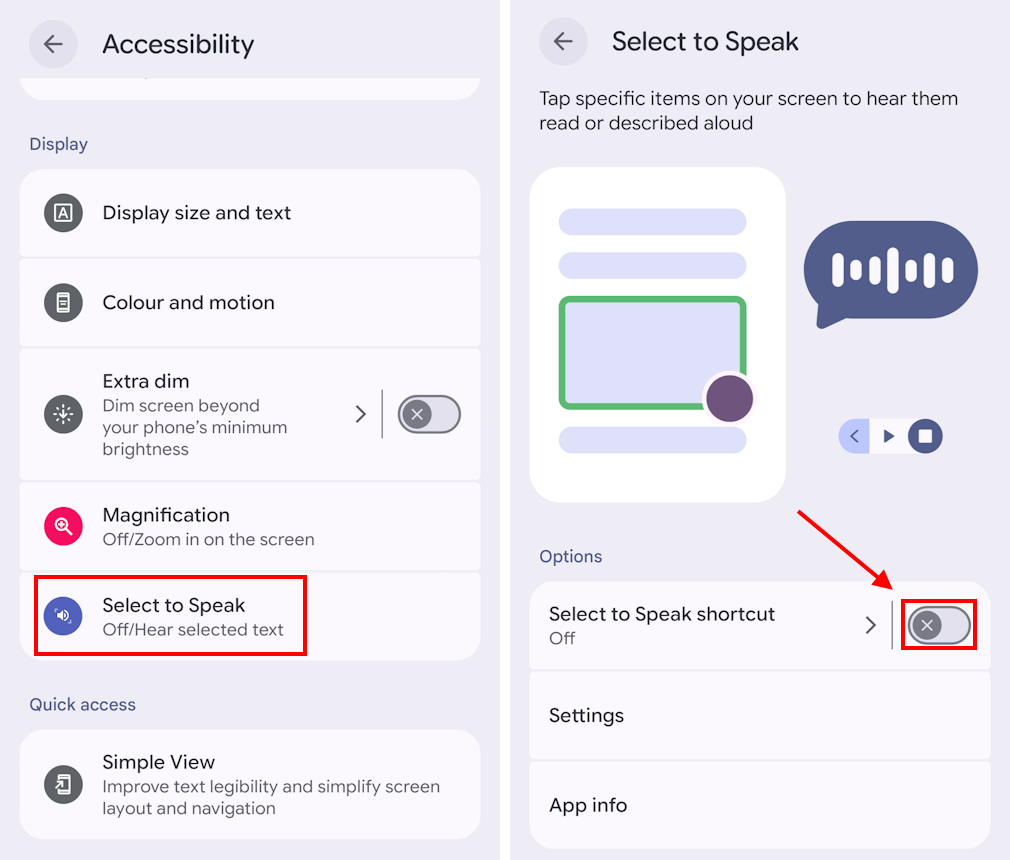
2. Look under display and tap Select to Speak. Tap the toggle switch for Select to Speak shortcut to turn it on.
Switch shortcuts
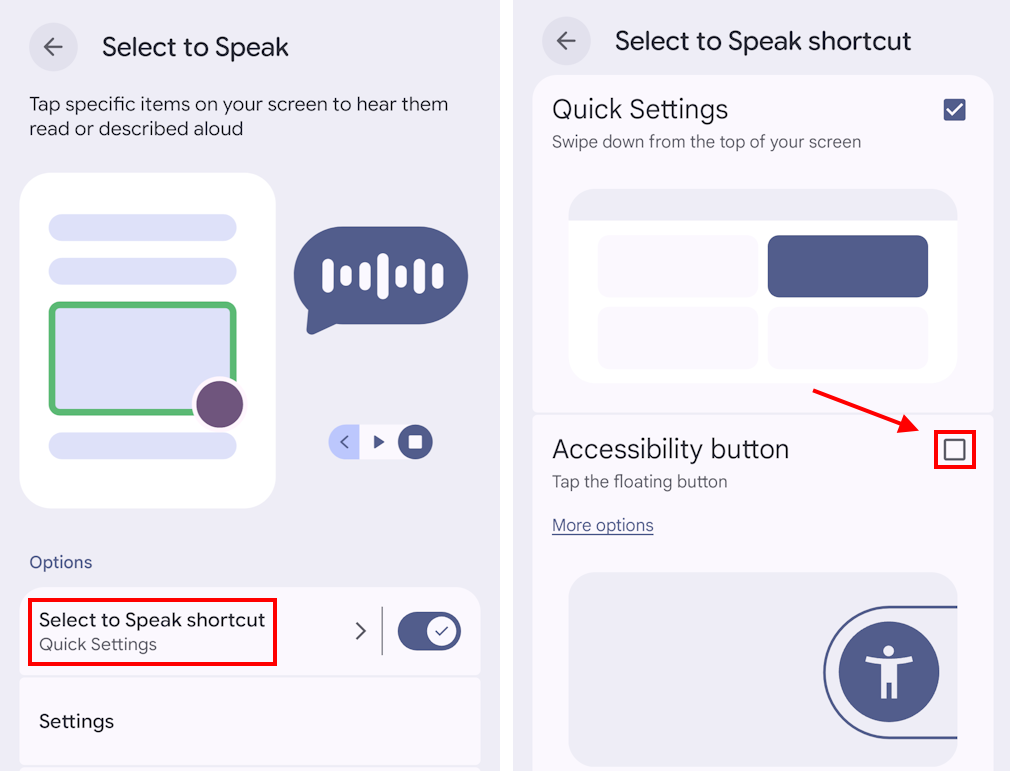
By default, Android makes the shortcut a button in the Quick Settings panel, but you could find it easier and more convenient to have a floating button on the screen. To get this, click Select to Speak shortcut then select the Accessibility button option.
Enable Read text on images
3. Head back to the main Select to Speak screen and tap Settings. Tap the toggle switch for Read text on images to turn it on.
Launch the Camera app
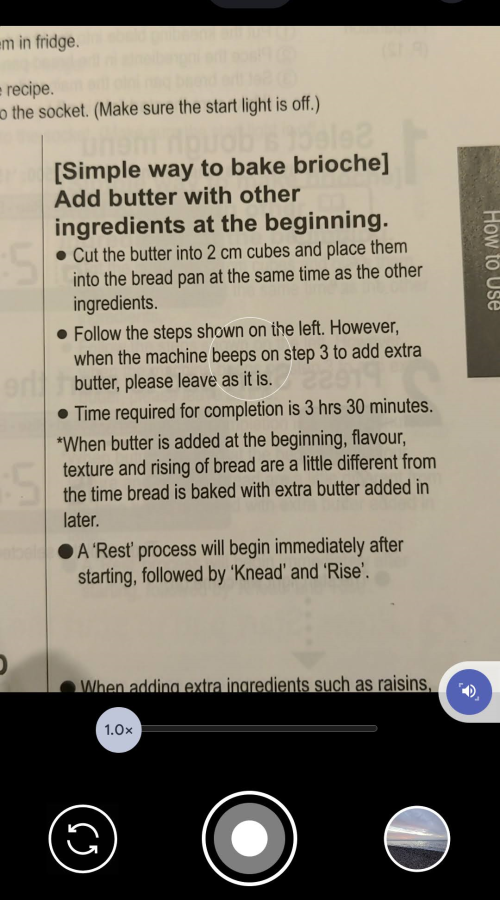
4. Now launch your device’s Camera app and point the camera at anything that contains text.
Transform text into speech
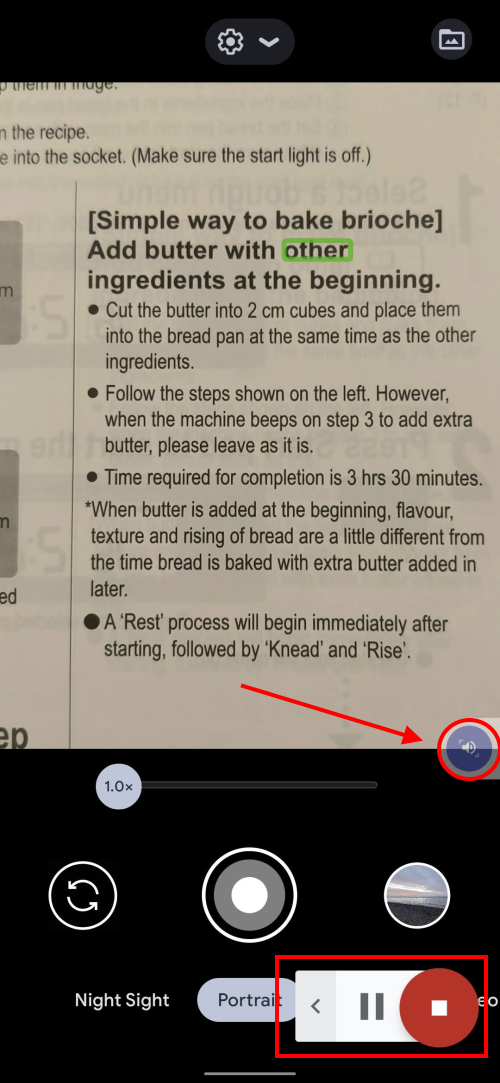
5. Now tap the Select to Speak shortcut button, then tap on a word in the text. Select to Speak will start reading from that point onwards. If you want to read a specific chunk of text, tap and drag around it to select it. The toolbar works just as it does when using Select to Speak with text on your device's screen.
Note: we have written these instructions for devices running the standard version of the Android operating system. You may find some minor presentation differences if the manufacturer has customised the theme.
Need some more help?
Call our helpline 0300 180 0028 or email enquiries@abilitynet.org.uk
Need free IT Support at Home?
If you are older or disabled and need IT support at home, you can book a free home visit.