Call our helpline
0300 180 0028This article focuses on using Siri by typing your requests. For more information about using Siri in general, see our article How to use Siri in watchOS 26 on your Apple Watch.
For information on how to change Siri's settings, see our guide How to make Siri easier to use in watchOS 26 on your Apple Watch.
Short guide:
- Press the Digital Crown on your Apple Watch and select Settings.
- Tap Accessibility.
- Scroll down and tap Siri.
- On the next screen, tap the toggle switch for Type to Siri to turn it on.
- Activate Siri by long-pressing the Digital Crown.
- Tap the Type to Siri box that appears at the bottom of the screen.
- Type your query using the onscreen keyboard, then tap Done.
Before and after
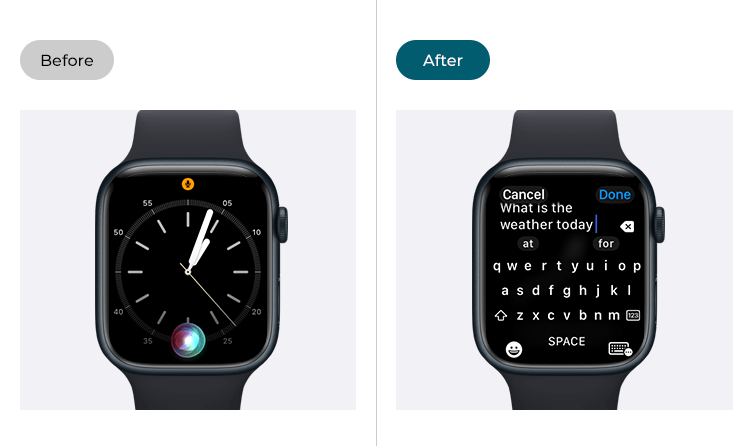
This section takes you step by step through enabling and using the Type to Siri option on your Apple Watch in watchOS 26, with pictures of the screens to help.
Find the Apple Watch settings
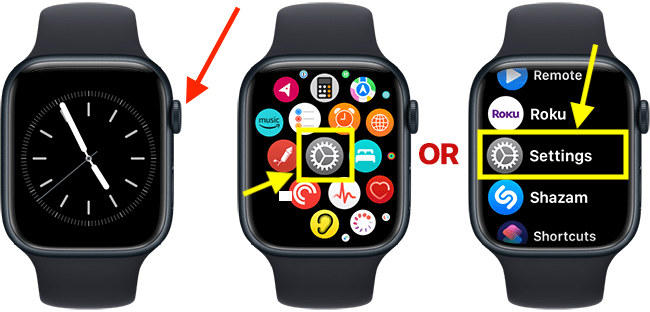
1. Press the Digital Crown on your Apple Watch. If your apps are displayed as icons, tap the Settings icon  . If your apps are displayed in a list, scroll down and tap Settings.
Open the Accessibility Settings
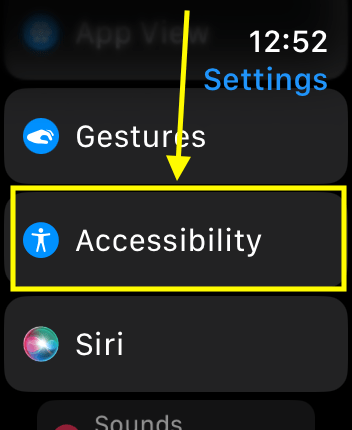
2. On the Settings screen, scroll down and tap Accessibility.
Open the Siri accessibility settings
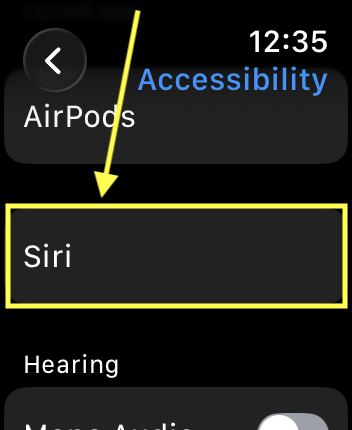
3. On the Accessibility screen, scroll down and tap Siri.
Enable Type to Speech
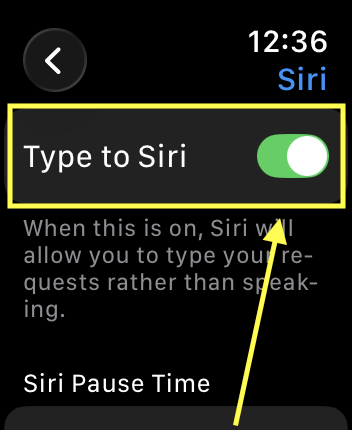
4. On the next screen, tap the toggle switch for Type to Siri to turn it on.
Return to the clock face
5. When you have finished using Siri, you can return to the clock face by pressing the Digital Crown.
How to use Type to Siri
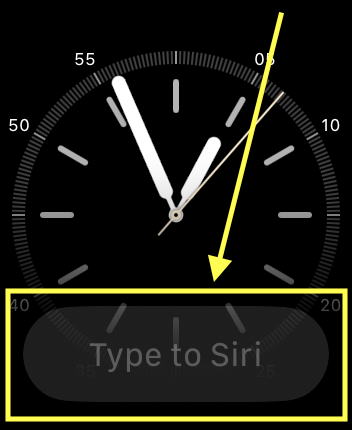
6. Activate Siri by long-pressing the Digital Crown.
7. Tap the Type to Siri box that appears at the bottom of the screen.
8. Type your query using the onscreen keyboard, then tap Done.
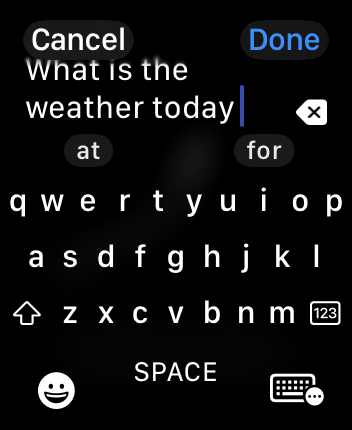
9. Siri's responses are shown on the screen and announced (depending on your settings).

Need some more help?
Call our helpline 0300 180 0028 or email enquiries@abilitynet.org.uk
Need free IT Support at Home?
If you are older or disabled and need IT support at home, you can book a free home visit.