Call our helpline
0300 180 0028Short guide:
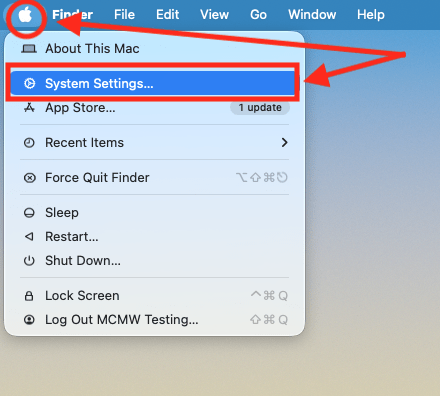
- Click the Apple icon
 in the top-left corner of the screen and select System Settings.
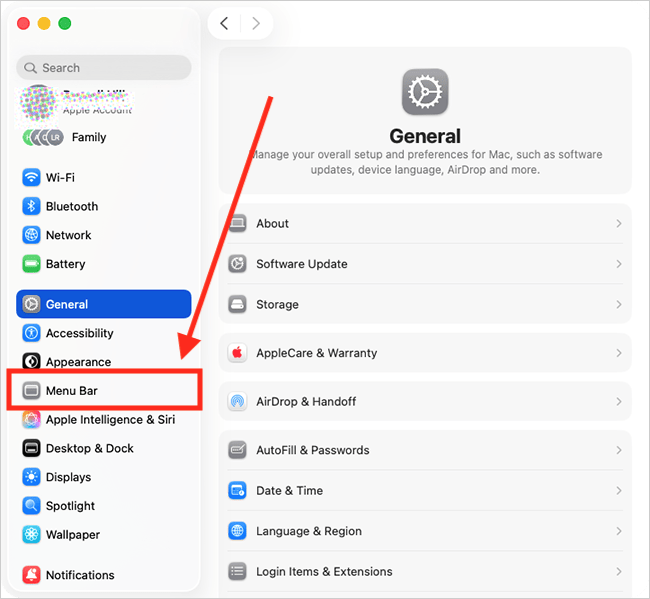
 - Click Menu Bar in the sidebar.
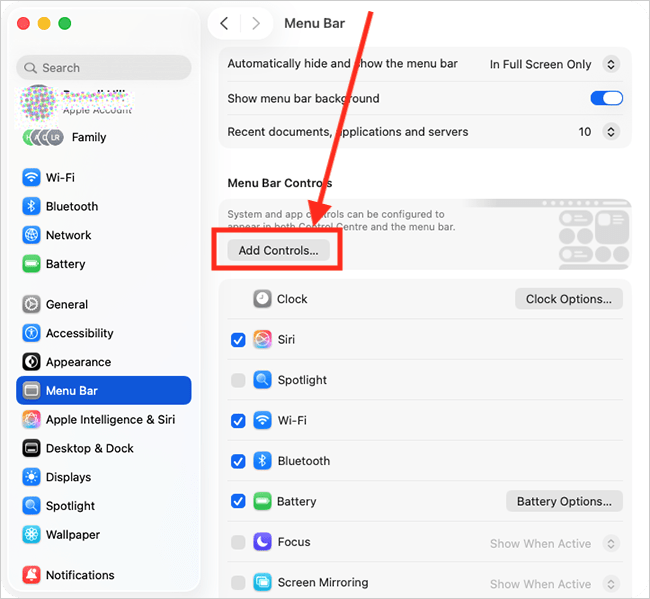
- In the right-hand column, click the Add Controls button under Menu Bar Controls.
- In the right-hand column of the new window that appears, scroll down to the Accessibility section.
- Click the feature you want to add, then select Add to Control Centre. Repeat the step and select Add to Menu Bar.
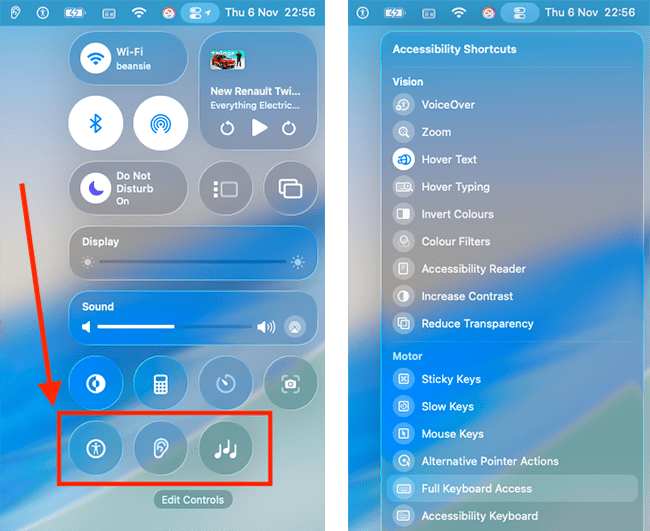
Note: Adding the Accessibility Shortcuts control gives you quick access to a wide range of accessibility features from a single button.
Before and after
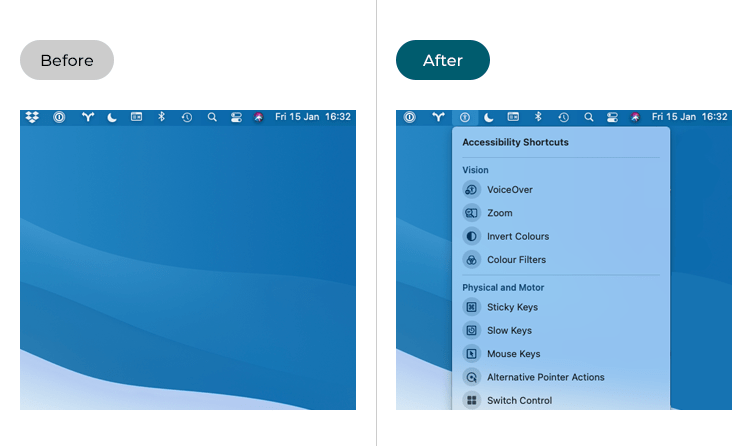
This section explains how to add shortcuts for accessibility features to the menu bar and Control Centre in macOS 26 Tahoe. This is a step-by-step guide with pictures of the screens to help.
Open System Settings
1. Click the Apple icon in the top-left corner of the screen and choose System Settings from the menu.
Open the Menu Bar settings
2. In the System Settings window, click Menu Bar in the sidebar.
Open the Menu Bar controls options
3. On the Menu Bar page, click the Add Controls button, shown under Menu Bar Controls, in the right-hand column.
Find the accessibility options
4. In the right-hand column of the new window that appears, scroll down to the Accessibility section.
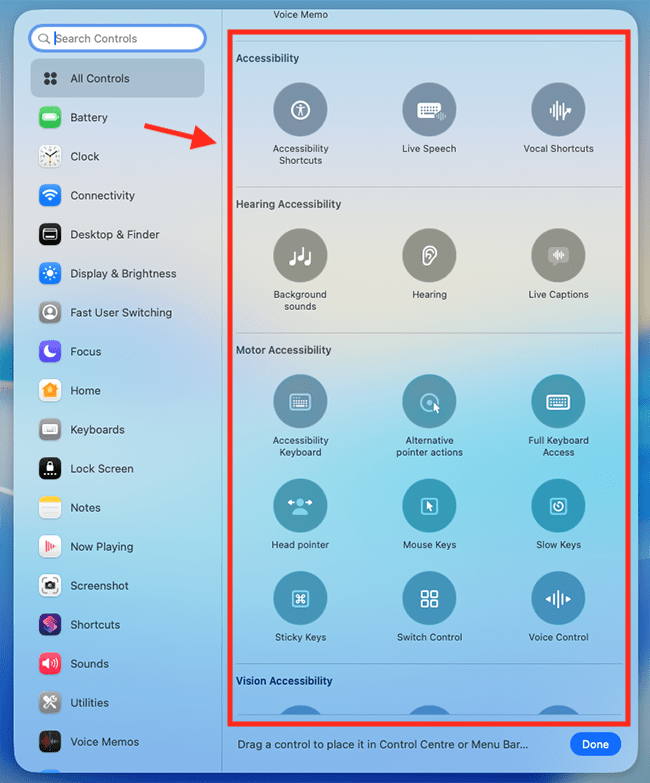
Add accessibility controls to the menu bar and Control Centre
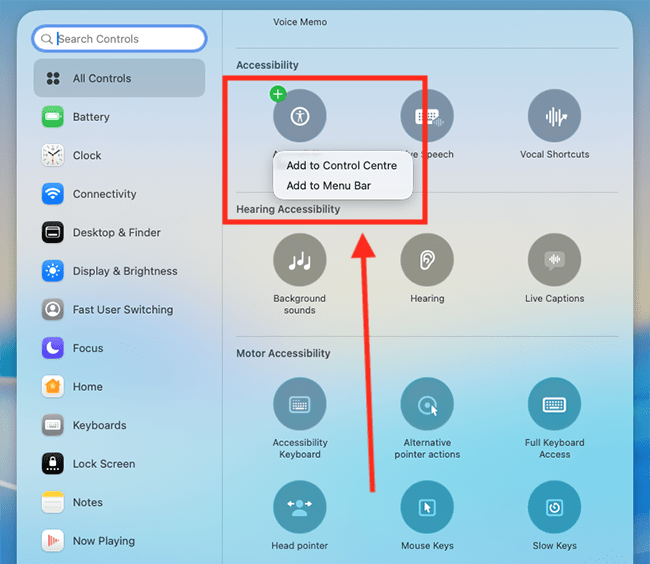
5. To add an accessibility control to the menu bar or Control Centre, click the item, then select Add to Control Centre or Add to Menu Bar. Repeat this step if you want it to appear in both places.
Note: Adding the Accessibility Shortcuts control to the menu bar or Control Centre gives you quick access to a wide range of accessibility features from a single button.
6. When you have finished adding controls, click the Done button.
Close System Settings
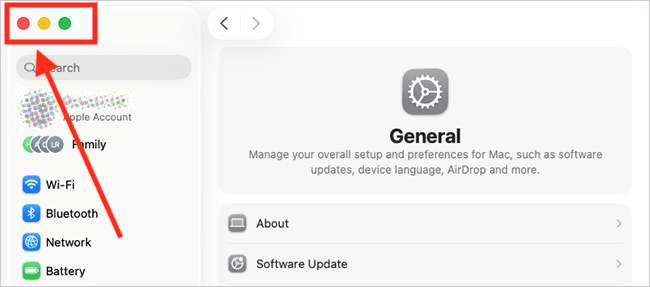
7. When you are happy with your settings, close System Settings by clicking the Close button (red circle) in the top-left corner of the window or using the Cmd + W keyboard shortcut.
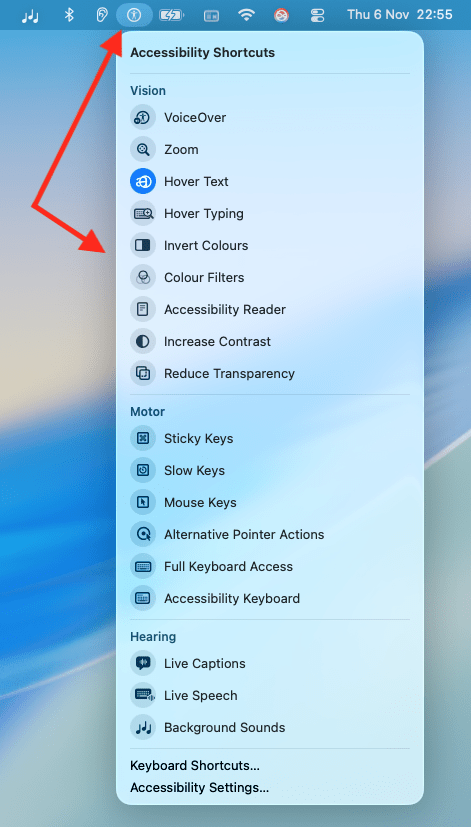
How to use the Menu Bar shortcut
8. Click the control in the menu bar for the feature you want to activate. Note: Some controls — such as Accessibility Shortcuts — open a menu where you can choose from several features.
How to use the Control Centre shortcut
9. Click the Control Centre button in the menu bar, then select the feature you want to turn on. Note: Some controls — such as Accessibility Shortcuts — open a menu where you can choose from several features.
Note: If this does not work, it could be because your computer settings are managed by someone else (an IT department or administrator, for example). If so, you will need to contact them to access these settings or for help.
Need some more help?
Call our helpline 0300 180 0028 or email enquiries@abilitynet.org.uk
Need free IT Support at Home?
If you are older or disabled and need IT support at home, you can book a free home visit.