Call our helpline
0300 180 0028To find out more about customising Text-to-speech to make it easier to hear or understand, see How to change the text-to-speech TTS settings for screen readers in Android 16.
Short guide:
- Tap the Settings icon to open the Settings app. Scroll down and tap Accessibility.
- Scroll down to the Screen readers section and tap Text-to-speech output.
- Tap Language and select a language.
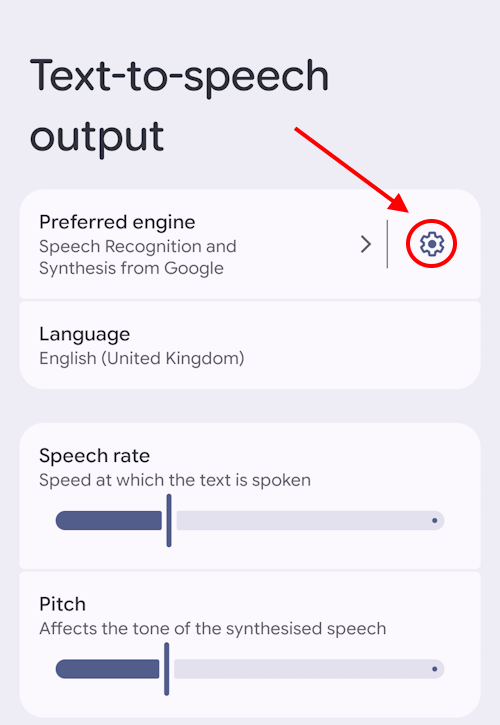
- To use a different voice, tap the Settings icon next to Preferred engine.
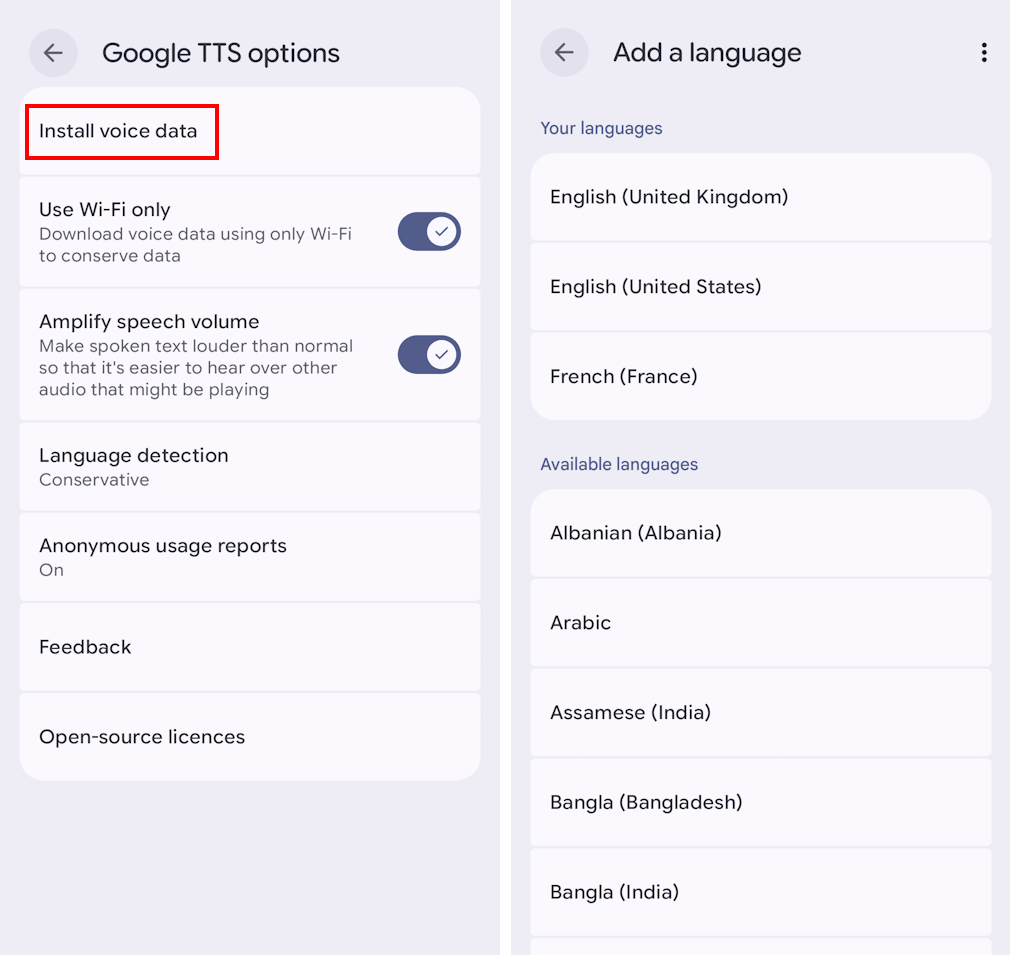
- Tap Install voice data and select the language you wish to use. You may have to download a language pack.
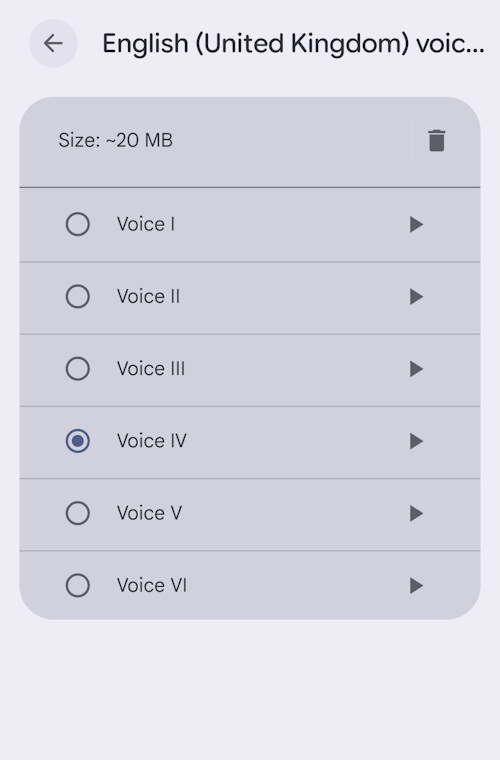
- Tap the Play button to hear a sample, or tap the round button next to the voice to preview a voice use it.
Before and after
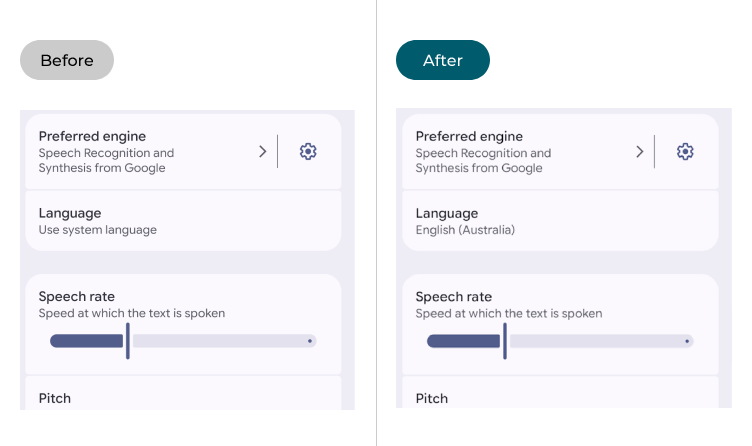
This section takes you step-by-step through changing the language and voice used in Google text-to-speech (TTS) and the TalkBack screen reader in Android 15, complete with pictures of the screen to help.
Find the Accessibility settings
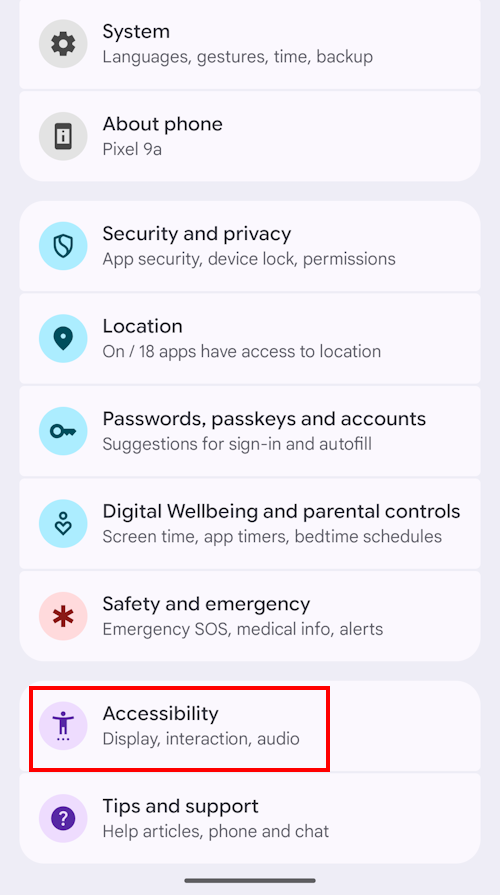
1. Tap the Settings icon  to launch the Settings app, then scroll down and tap Accessibility.
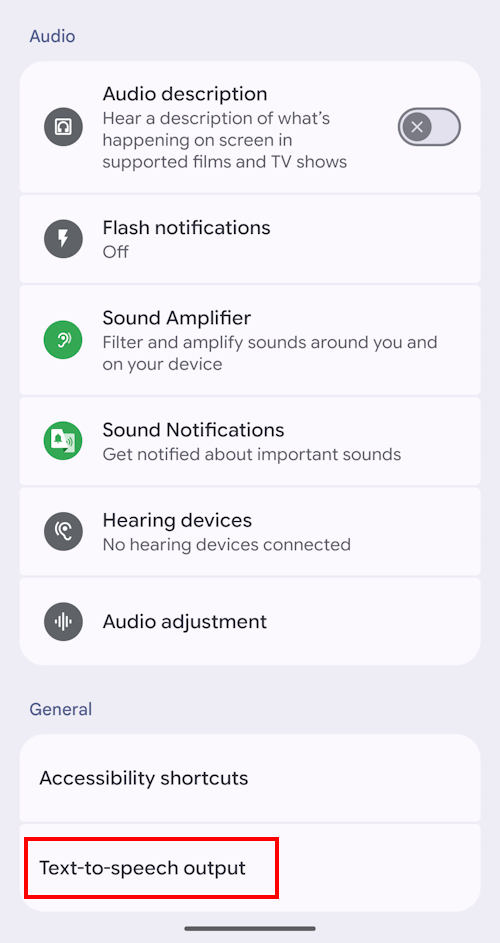
Tap Text-to-speech output
2. Scroll down to General and tap Text-to-speech output.
Change the language
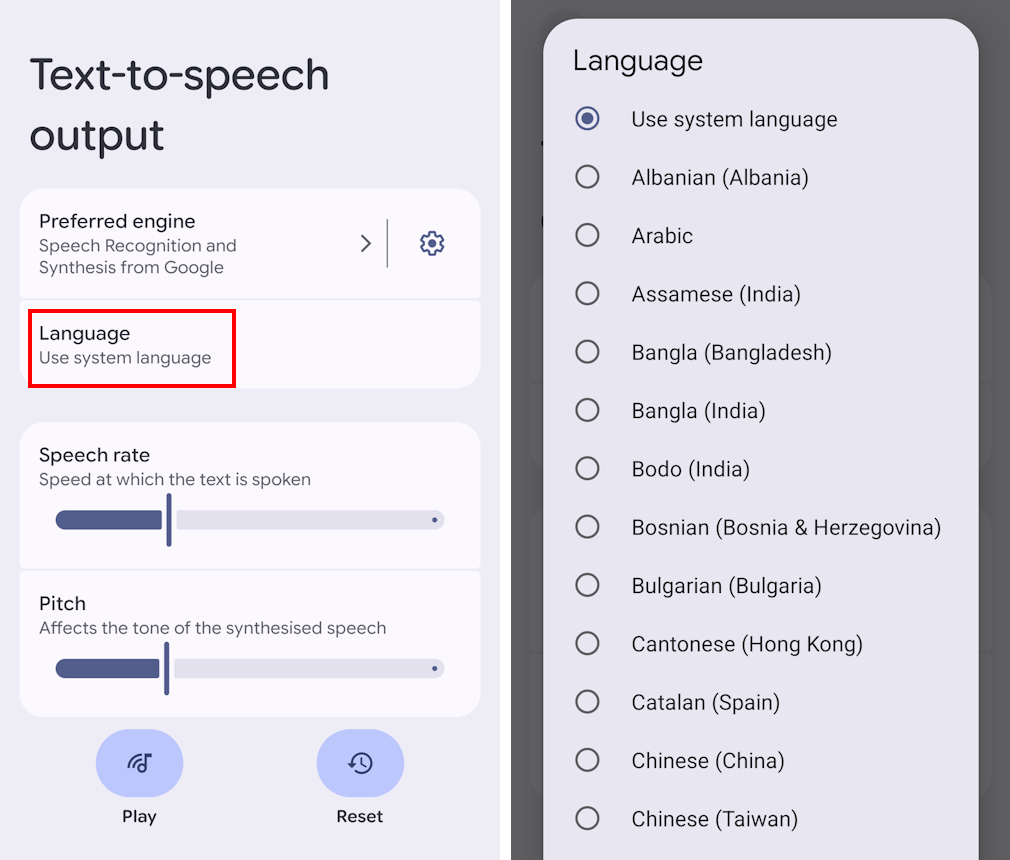
3. On the Text-to-speech output screen, tap Language. Choose from one of the available options, tapping the radio button to select it.
Pick a different voice
4. Many of the languages can use different male and female voices. To use a voice other than the default, tap the Settings icon next to Preferred engine.
Install a language pack
5. Tap Install voice data, then select the language you wish to use, in our example we are using English (United Kingdom). At this point you may have to download a language pack before you can proceed to the next step.
Preview your voice
6. If you have already enabled TalkBack or Select to Speak you will see a small Play button next to each voice. Tap it to hear a sample of the voice in action. Tap the round radio button next to the voice to use it with Text-to-speech. If you haven’t enabled TalkBack or Select to Speak, just tap the radio button next to the voice to hear a sample and select it. Text-to-speech will now use this voice unless you choose another one.
Note: we have written these instructions for devices running the standard version of the Android operating system. You may find some minor presentation differences if the manufacturer has customised the theme.
Need some more help?
Call our helpline 0300 180 0028 or email enquiries@abilitynet.org.uk
Need free IT Support at Home?
If you are older or disabled and need IT support at home, you can book a free home visit.