Short guide:
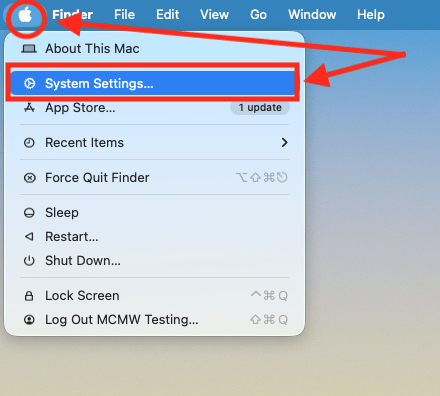
- Click the Apple icon
 in the top left corner of the screen and select System Settings.
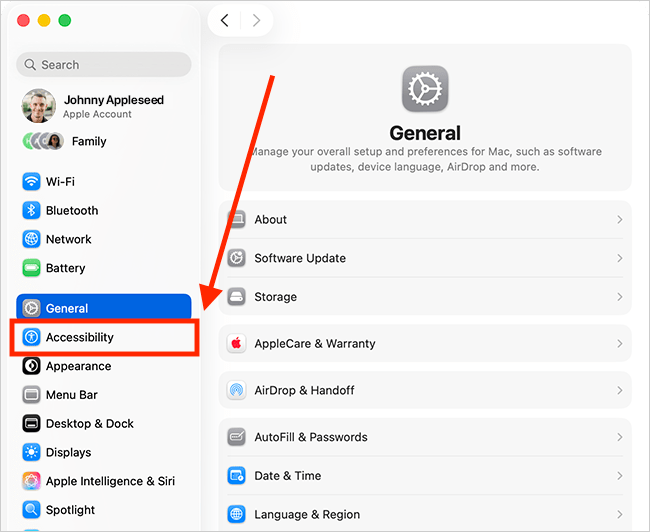
 - Click Accessibility in the sidebar.
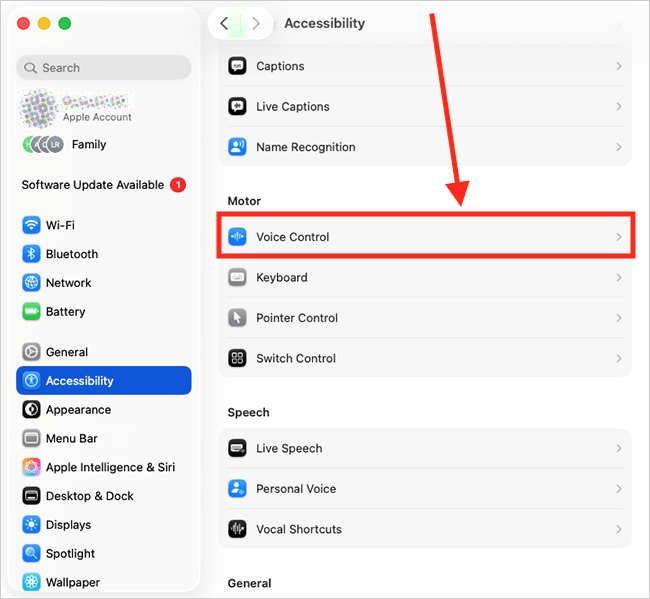
- Select Voice Control from the list of Accessibility options.
- Turn on the toggle switch for Voice control.
- Say “Show Commands” to see a list of all the commands you can use with Voice Control.
- Say “Show items numbers” to show numbers next to all the clickable items on the screen. Say a number to select the item next to it.
- Say “Show items names” to show numbers next to all the clickable items on the screen. Say a number to select the item next to it.
- Say “Show Numbered Grid” to divide the screen into grid squares. Repeat as many times as necessary until the item or exact area you want to select has its own number.
Before and after
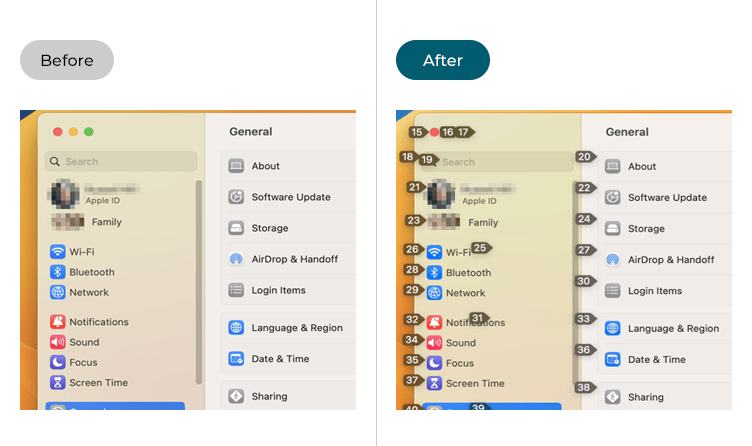
This section explains how to enable Voice Control in macOS 26 Tahoe. This is a step-by-step guide with pictures of the screens to help.
Open System Settings
1. Click the Apple icon in the top left corner of the screen and choose System Settings from the menu.
Open the Accessibility settings
2. In the System Settings window, click Accessibility in the sidebar.
Find the Voice Control settings
3. Select Voice Control from the list of Accessibility options on the right.
Enable Voice Control
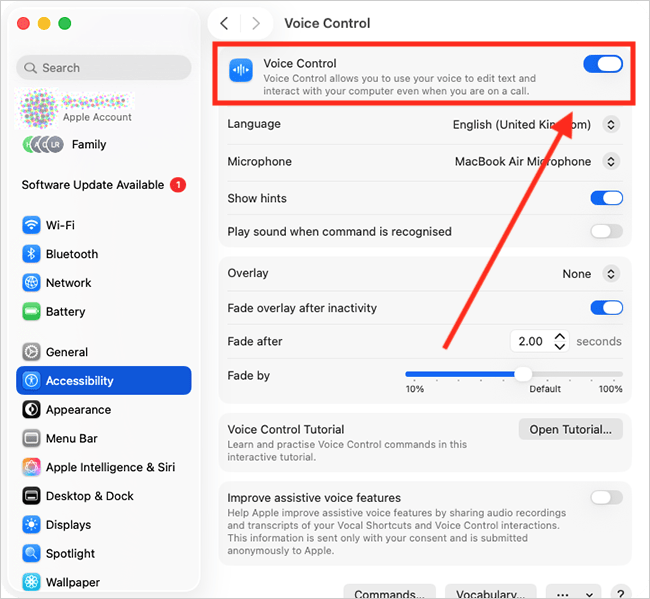
4. Click the toggle switch for Voice Control to turn it on. Your computer may need to download the Voice Control software before you can start using it.
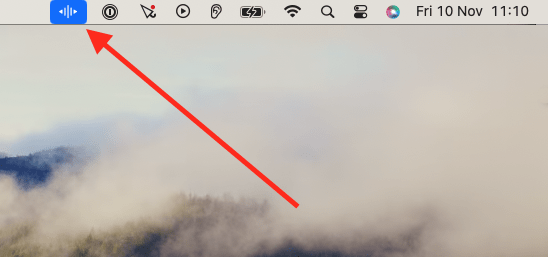
The Voice Control button (a blue and white soundwave icon  ) will appear on the screen showing that Voice Control is ready and listening for your commands. We cover using Voice Control a little later in this guide, but first, let’s look at some of the settings to make Voice Control easier to use.
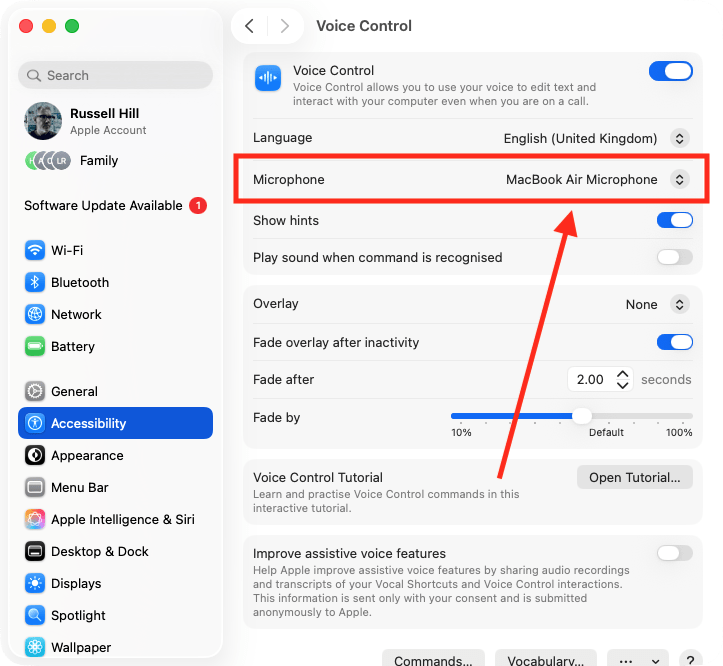
Choose the microphone to use with Voice Control
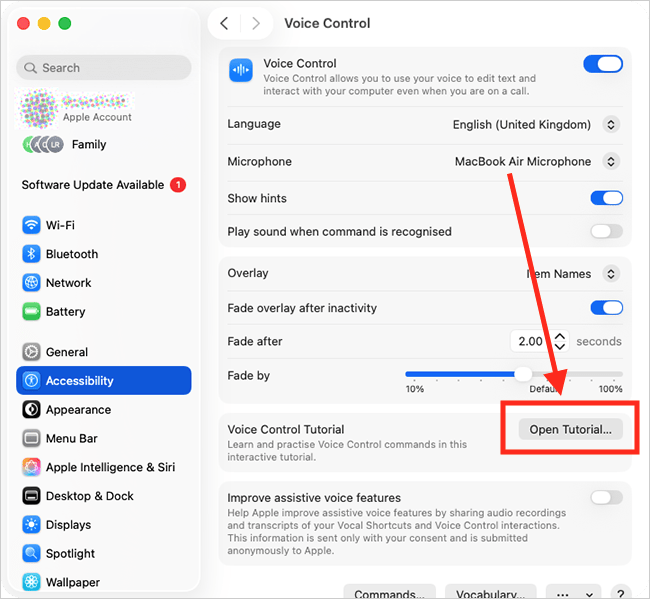
5. By default, Voice Control will use your computer’s built-in microphone. If you want to use a different microphone, connect it to your device, then choose it from the drop-down menu for Microphone.
Note: A good USB microphone will give you better results than a built-in microphone and might be worth considering if you intend to use Voice Control a lot.
Show item numbers, item names, or a grid overlay
6. The real power of Voice Control comes from using overlays. Overlays display labels or numbers next to items on your screen, making it easier to interact with them using voice commands. You can choose from three overlay styles: Item Numbers, Item Names, and Numbered Grid.
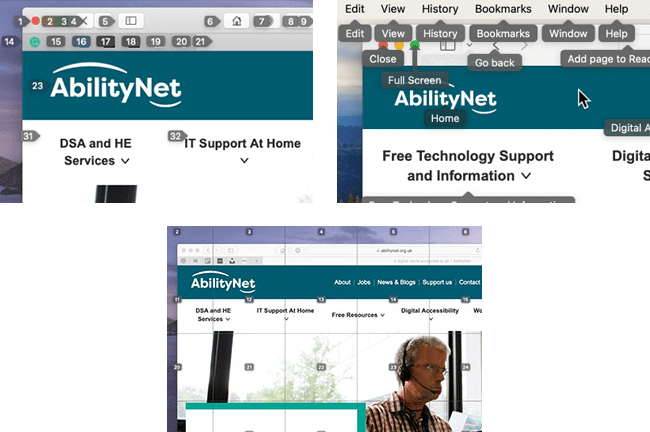
7. You can turn overlays on and off at any time by saying, "Show Item Names", "Show Item Numbers", or "Show Numbered Grid". See the table below for information about each overlay style.
| Voice Control Overlays | |
| Overlay | Description |
| Item Numbers | Item numbers assigns numbers to each clickable item on the screen — say the number to select it. |
| Item Names | Item Names shows the names of clickable items — say the name to select it. |
| Numbered Grid | Numbered Grid divides the screen into numbered sections, which is useful for selecting precise locations or items that don’t have labels. When saying a grid number, the grid square will subdivide into smaller sections, allowing you to select an exact area. |
Always show overlays
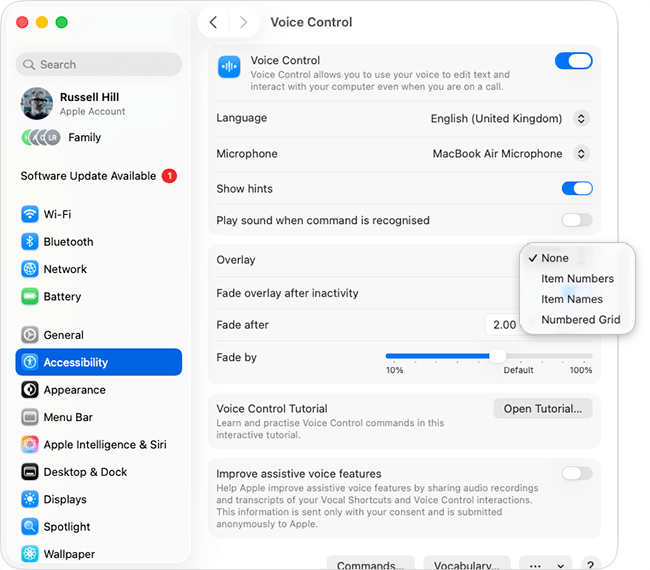
8. You can choose to keep overlays visible on the screen at all times. To do this, click the drop-down menu for Overlay, then select the overlay you want to display continuously.
Fade overlays after a period of inactivity
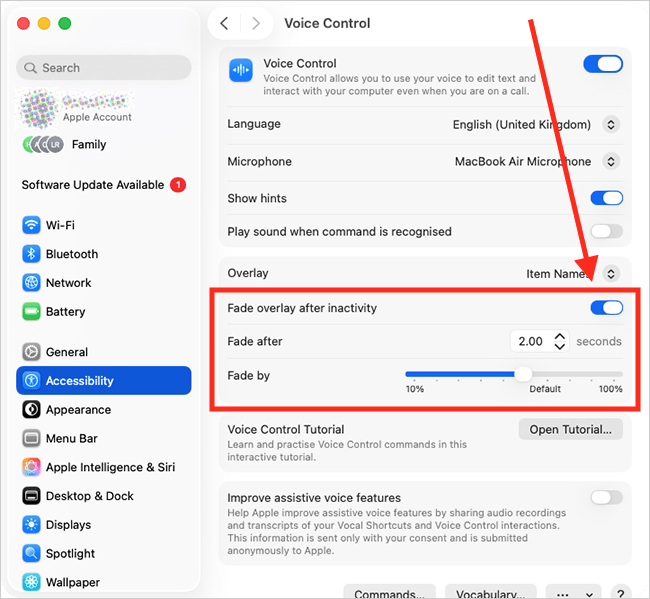
9. To make overlays less intrusive, you can set them to fade after a period of inactivity. Click the toggle switch for Fade overlay after inactivity to turn it on, then set how long overlays should remain visible and how much they should fade.
Show hints when your command isn’t recognised
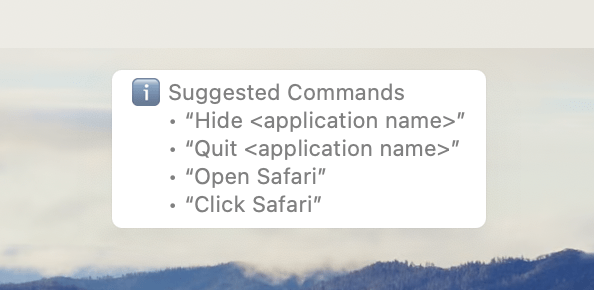
10. When you say a command that doesn’t quite match the system command, Voice Control will show examples of what you can say. These hints appear at the top of the screen.
11. This feature is enabled by default. If you would like to turn it off, click the toggle switch for Show Hints.

Play a sound when a command is recognised
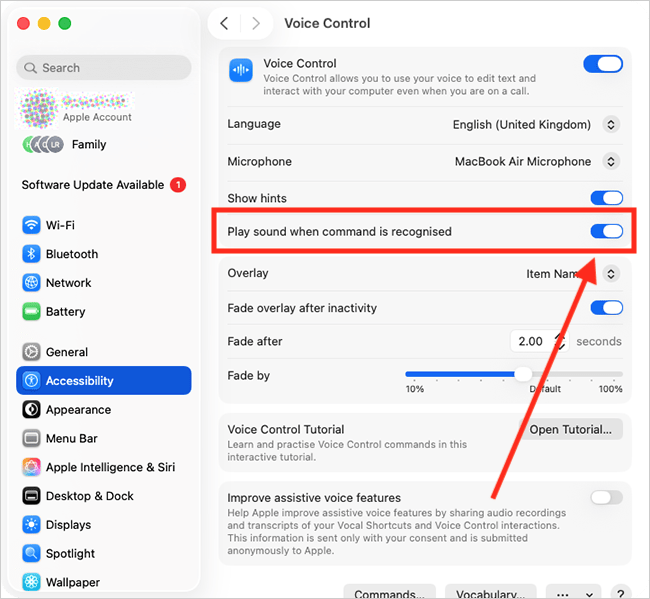
12. If you would like to hear a sound to confirm that Voice Control has recognised a command, click the toggle switch for Play sound when command is recognised to turn it on.
Practice Voice Control
13. To practice using Voice Control, click the Open Tutorial button.
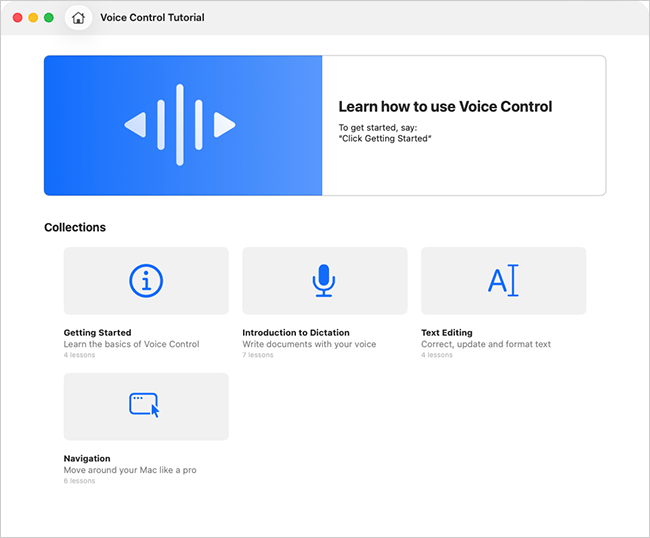
14. Click one of the Collections to start a practice session.
Close System Settings
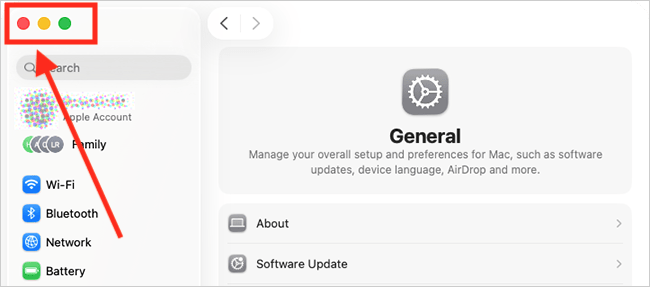
15. When you are happy with your settings, close System Settings by clicking the Close button (red circle) in the top left corner of the window or using the Cmd + W keyboard shortcut.
Using Voice Control commands
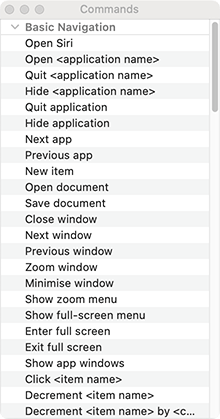
16. You navigate and interact with your computer by speaking commands such as:
- Open {app name} e.g. “Open Safari”
- Close {app name}
- Hide {app name}
- Scroll up/down
- Open {document name} e.g. “Open Shopping list”
- Save document
- Zoom in/out
- Turn volume up/down
- Single/Double/Triple-click
- Select {word} (in a document)
- Select {phrase} (in a document)
- Search for {phrase} (either an item on your computer, or something on the internet)
- Click {name of toolbar menu} e.g. “Click File”
17. To see the full list of commands that you can use with Voice Control, say “Show Commands”.
Create your own commands
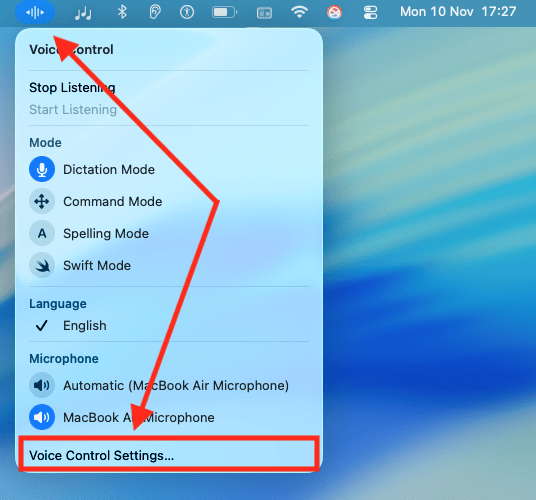
18. Click the Voice Control button in the menu bar and select Voice Control Settings.
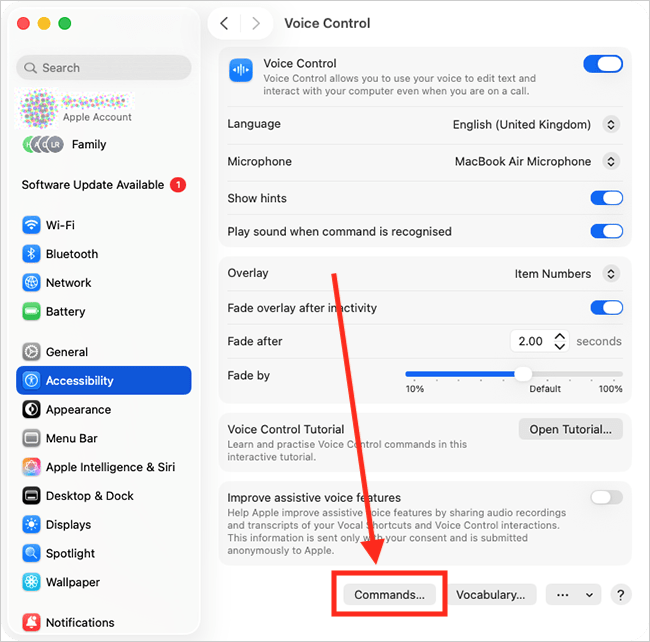
19. On the Voice Control settings page, click the Commands button.
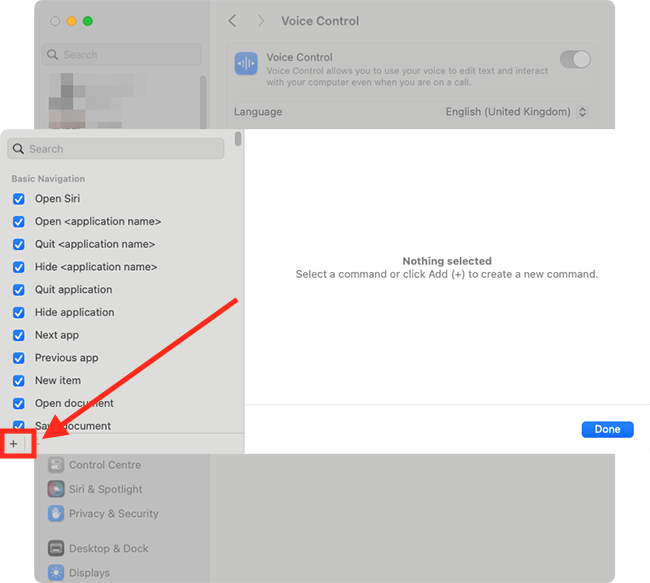
20. On the pop-up window, click the + (plus) button.
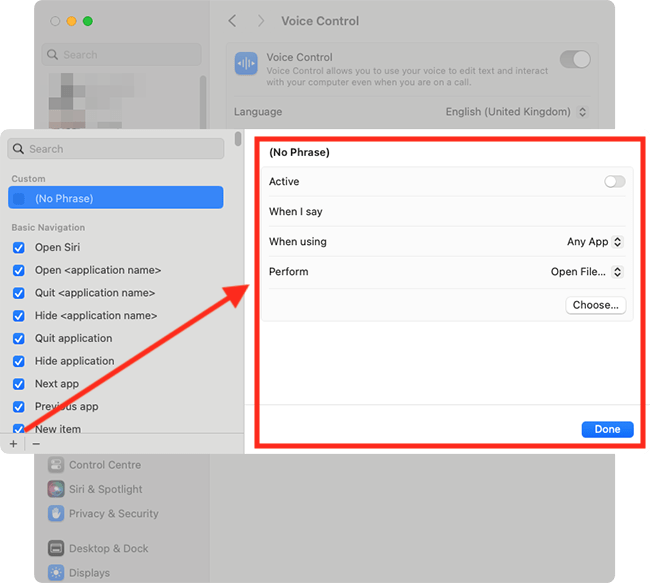
21. On the right-hand side, type the phrase you would like to use to activate your new command in the When I Say box. Choose which Apps to use this command with, and choose which action it should perform. Click the toggle switch for Active to turn this command on. Finally, click Done to save your changes.
Pause Voice Control
22. If you would like to pause Voice Control so that your computer stops listening for commands, say “Stop listening” or click the Voice Control button in the Menu Bar and select Stop Listening. To resume Voice Control, say “Start listening” or click the Voice Control button and select Start Listening.

How to use the Item Numbers overlay
23. Using the Item Numbers overlay, you interact with what is on screen by saying the numbers shown next to clickable items, such as menus, buttons, and links.
To show the Item Numbers overlay, say “Show numbers”. Say a number, or say “Click {number}”, to select the corresponding item. To hide the Item Numbers overlay, say “Hide numbers”.
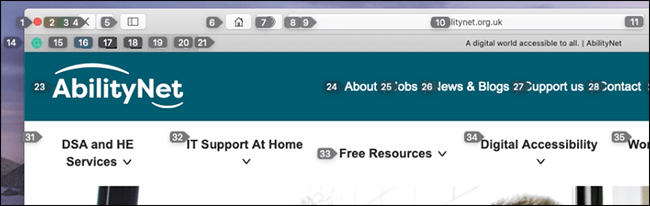
Note: Numbers will always appear next to the items in system menus without having to say the “Show numbers” command.

How to use the Item Names overlay
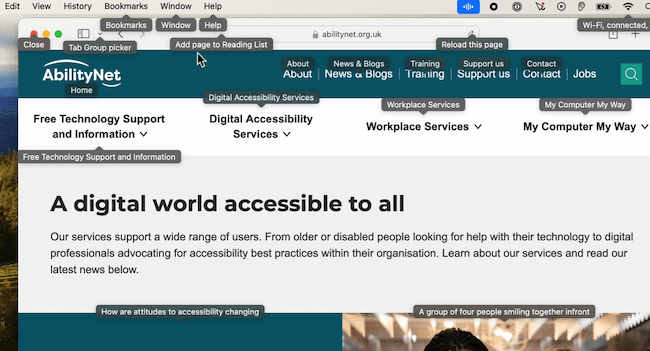
24. Using the Item Names overlay, you interact with what is on screen by saying the name shown next to clickable items, such as menus, buttons, and links.
To show the Item Names overlay, say “Show names”. Say "click {name}" to select the corresponding item. To hide the Item Names overlay, say “Hide names”.
How to use the Numbered Grid overlay
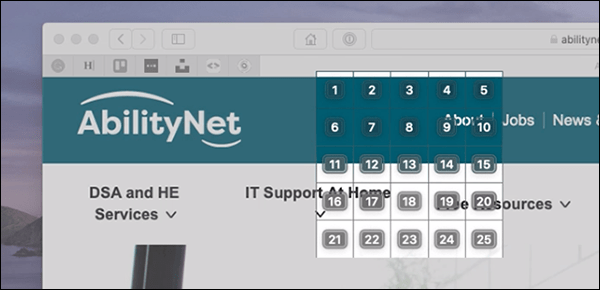
25. Using the Numbered Grid overlay, you can interact with areas of the screen that Voice Control doesn’t recognise as being clickable.
To show the Numbered Grid overlay, say “Show grid”. To only show the grid over the window you are currently using, say “Show window grid”.

Refine the grid
26. Say a grid number. That square will then subdivide into smaller sections. Repeat as many times as necessary until the item or exact area you want to select has its own number. To select the item or area, say “Click {number}”.
Move items using overlays
27. You can move items when using any of the overlay modes by saying, “Drag [ x to y ]”
Dictating text with Voice Control
28. When you are in an area where you can type text, for example, writing an email, document, or message, Voice Control switches to Dictation mode.
29. You can use Voice Control to format the text by saying a command. For instance, say “Select [word or phrase]”, followed by “Bold that”.
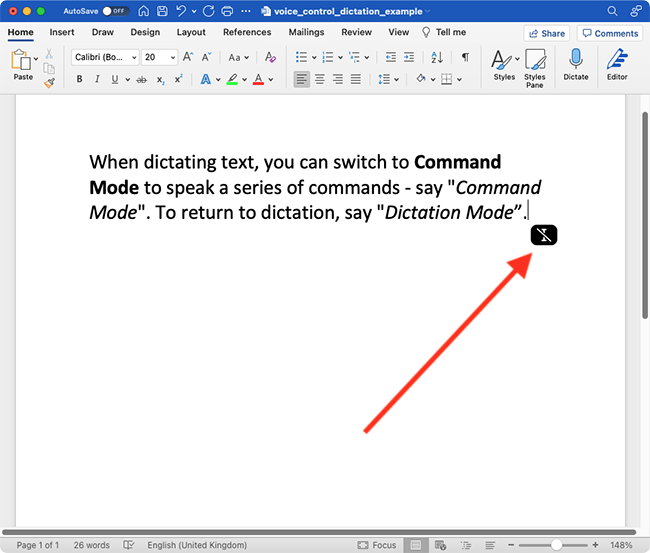
30. To prevent commands from being entered as text when you are typing, you can switch to Command Mode. To do so, say “Command Mode”. When you enter Command Mode, you will see a dark icon of a crossed-out cursor. To continue dictating, say “Dictation Mode”.
Note: If this does not work it could be because your computer settings are managed by someone else (an IT department or administrator for example). If so, you will need to contact them to access these settings or for help.
Need some more help?
Call our helpline 0300 180 0028 or email enquiries@abilitynet.org.uk
Need free IT Support at Home?
If you are older or disabled and need IT support at home, you can book a free home visit.