Call our helpline
0300 180 0028When combined with custom shortcuts created in the Shortcuts app, users can perform complex multi-step actions using a single phrase.
To learn more about creating custom shortcuts, see Apple's guide Intro to Shortcuts on Mac.
Short guide:
- Click the Apple icon
 in the top-left corner of the screen and select System Settings.
 - Click Accessibility in the sidebar.
- Click Vocal Shortcuts.
- Click the Set Up button.
- Click Continue on the intro screen.
- Choose an action from the list.
- Enter the phrase you want to use to run this action, then click Continue.
- Say the phrase three times to teach your device to recognise it.
- Click Continue to finish.
- Click the toggle switch for Vocal Shortcuts to turn it on.
- To use Vocal Shortcuts, simply say one of your phrases to perform the associated action.
Before and after
This section explains how to enable Vocal Shortcuts in macOS 26 Tahoe. This is a step-by-step guide with pictures of the screens to help.
Open System Settings
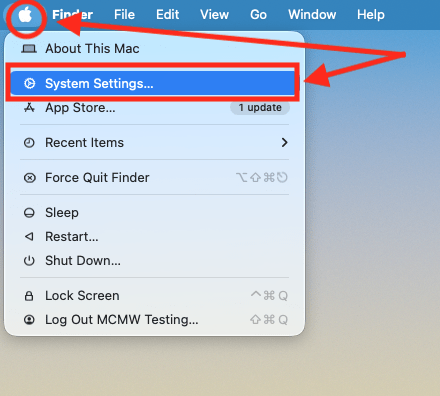
1. Click the Apple icon in the top-left corner of the screen and choose System Settings from the menu.
Open the Accessibility settings
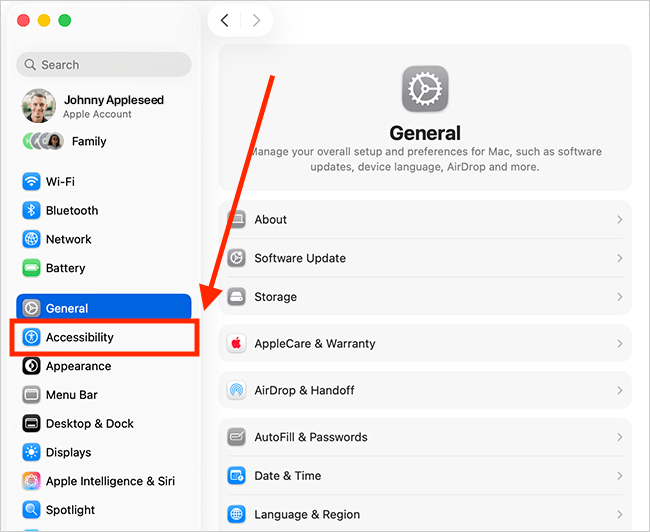
2. In the System Settings window, click Accessibility in the sidebar.
Open the Vocal Shortcuts settings
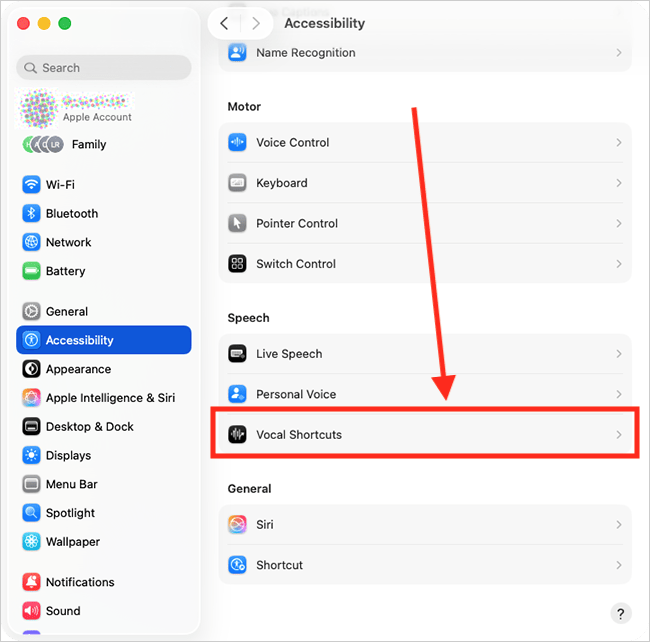
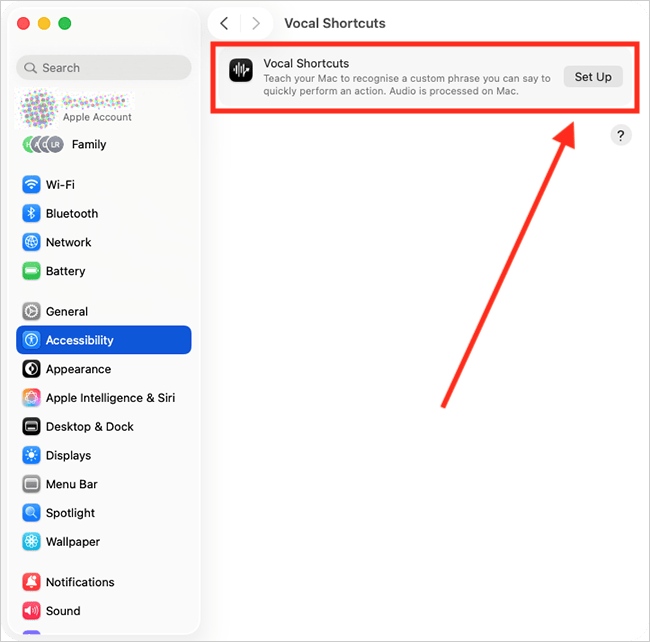
3. Select Vocal Shortcuts from the list of Accessibility options on the right.
Set up your first shortcut
4. Click the button labelled Set Up.
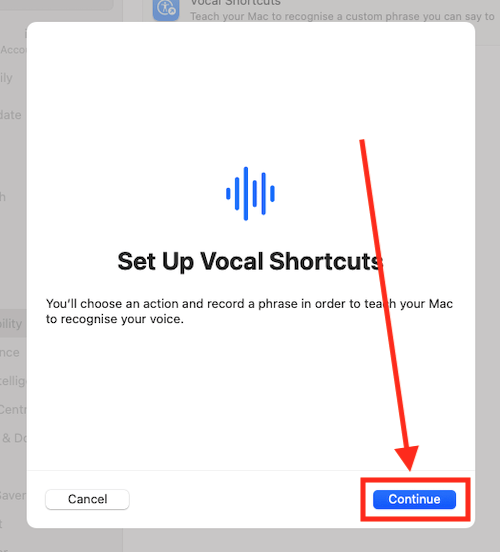
5. Click the Continue button on the Vocal Shortcuts intro screen.
Select the action for this shortcut
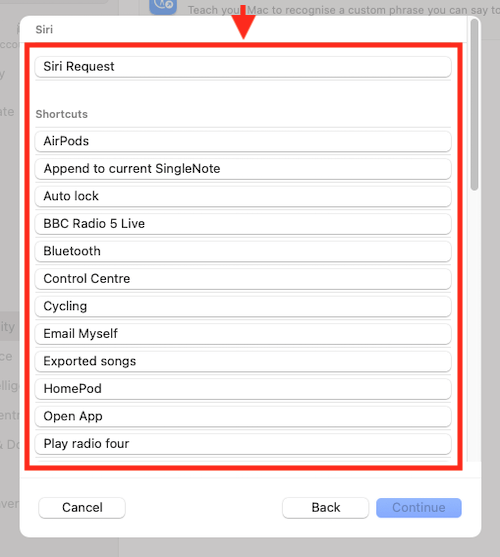
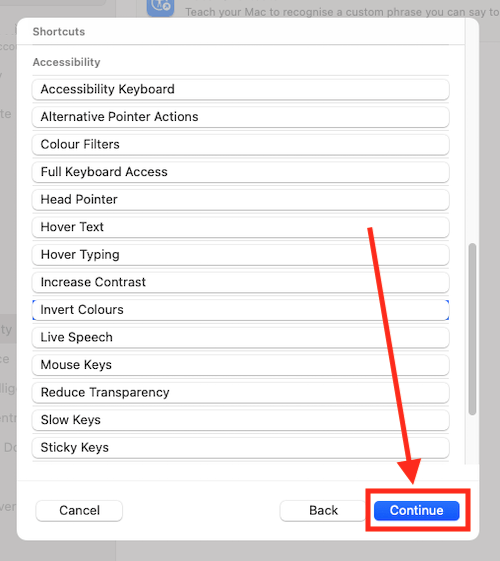
6. Select an action from the list (scroll down to see the Accessibility options). If you choose Siri Request, type your request when prompted, then press the Enter.
7. Click the Continue button.
Enter the phrase you will say to trigger this action
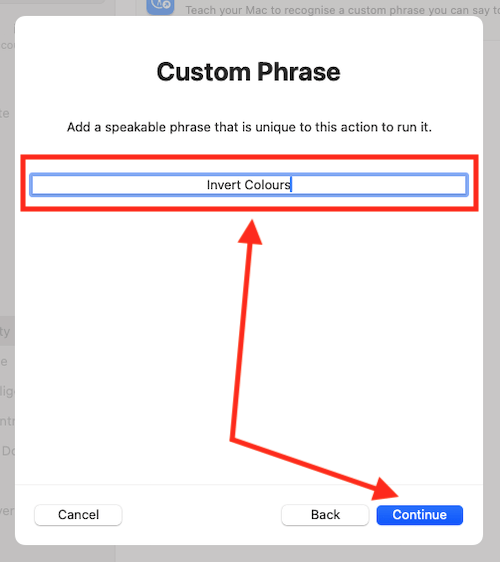
8. Type the phrase you want to say to perform this action, then click the Continue button.
Teach your computer to recognise this phrase
9. When prompted, speak your phrase three times to teach your computer to recognise it.

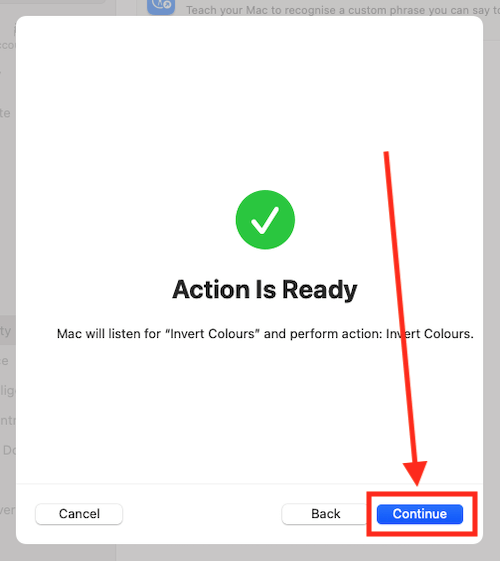
10. When the Action is Ready screen appears, click Continue. On the next screen, Improve Assistive Voice Features, click Continue to finish.
Add another Vocal Shortcut
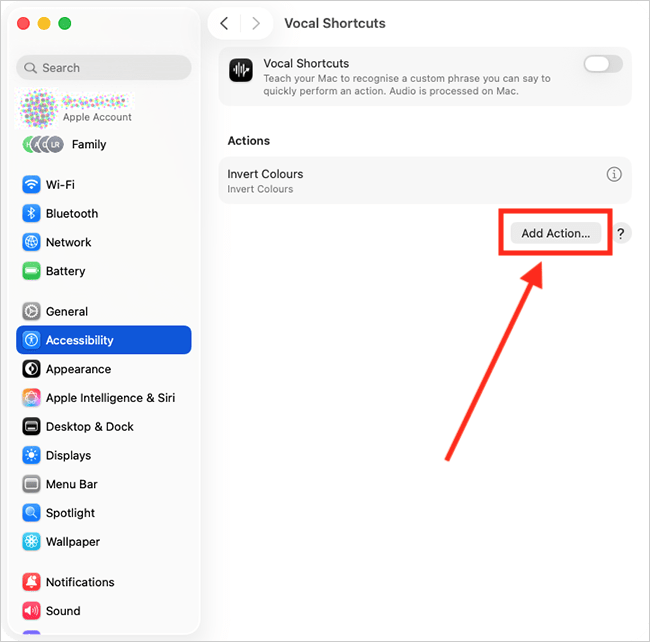
11. To add another shortcut, click Add Action and follow steps 5 - 10, above.
Enable Vocal Shortcuts
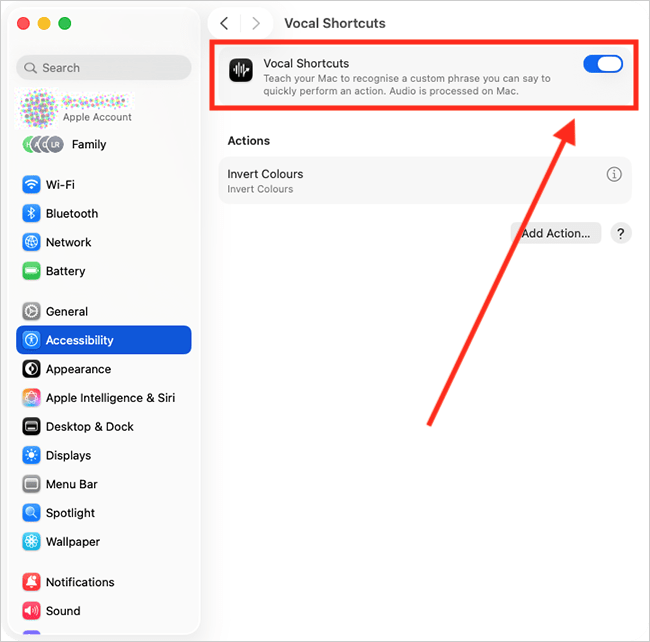
12. Finally, to start using Vocal Shortcuts, click the toggle switch for Vocal Shortcuts to turn it on.
Using Vocal Shortcuts
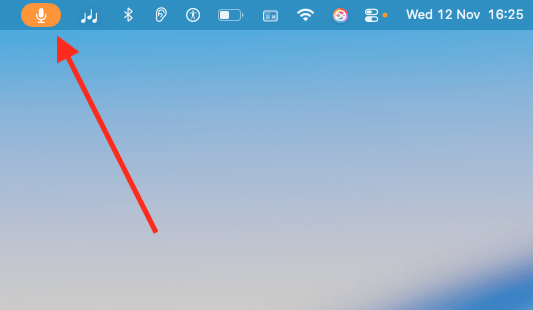
13. When Vocal Shortcuts is active, an orange microphone icon appears in the menu bar at the top of the screen. This shows your computer is listening for shortcuts. Simply say one of your Vocal Shortcut phrases to perform the associated action.
Note: If this does not work, it could be because your computer settings are managed by someone else (an IT department or administrator, for example). If so, you will need to contact them to access these settings or for help.
Need some more help?
Call our helpline 0300 180 0028 or email enquiries@abilitynet.org.uk
Need free IT Support at Home?
If you are older or disabled and need IT support at home, you can book a free home visit.