Short guide:
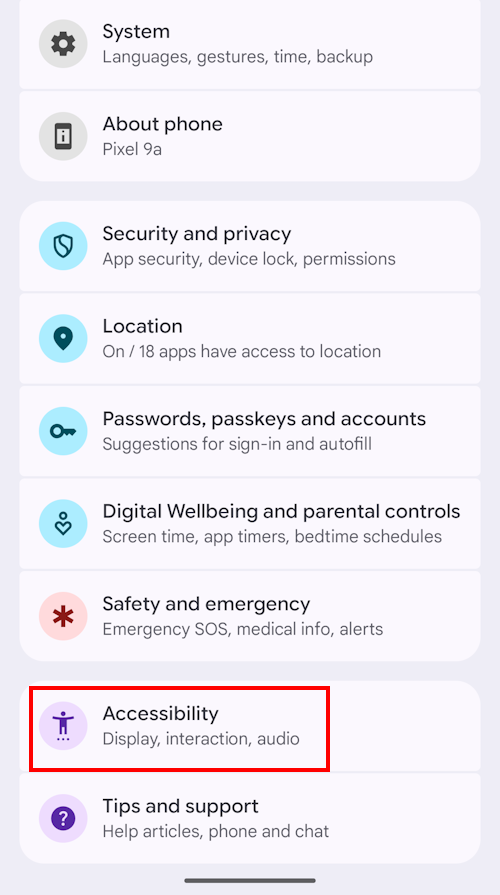
- Open the Settings and select Accessibility.
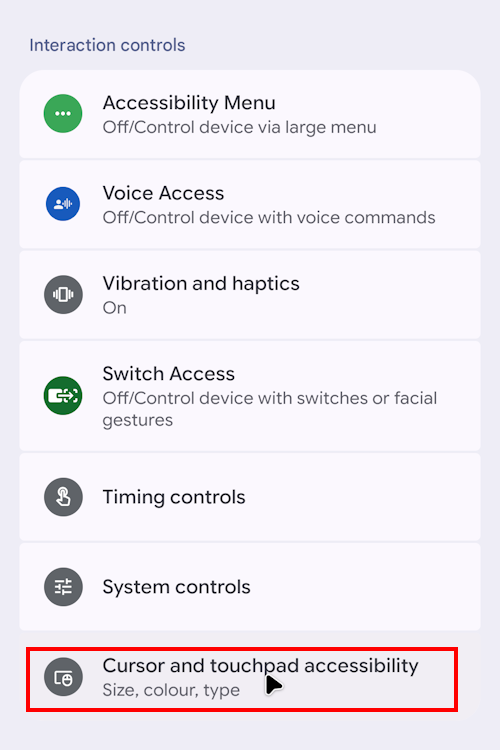
- Scroll down to Interaction controls and select Cursor and touchpad accessibility.
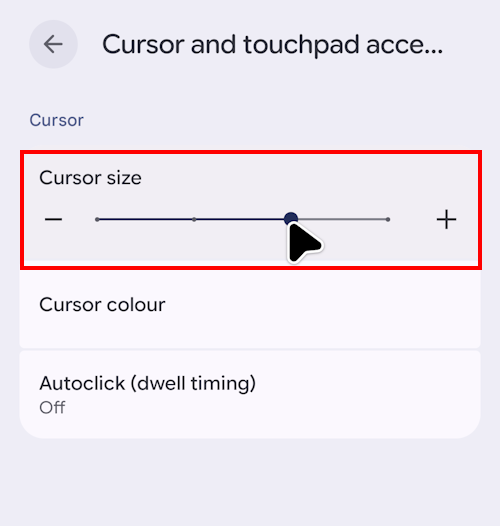
- Slide the Cursor size slider to the right to make the cursor bigger.
Before and after
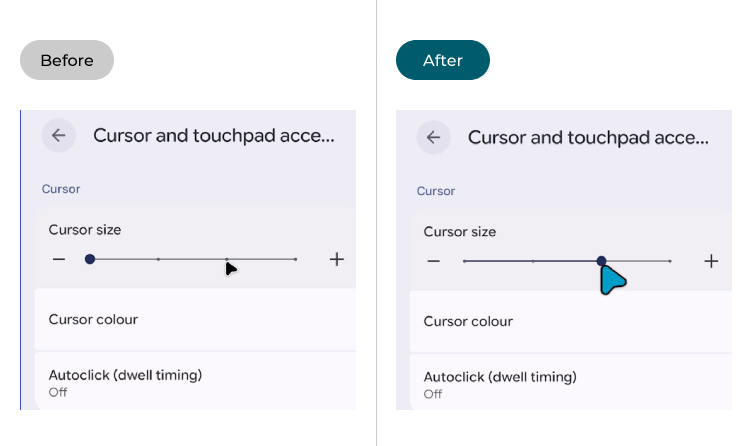
This section explains how to make the mouse pointer or cursor larger in Android 16. This is a step-by-step guide with pictures of the screens to help.
Open the Accessibility settings
1. Open the Settings and select Accessibility.
Find the Text and display settings
2. Scroll down to the Interaction controls section and select Cursor and touchpad accessibility.
Resize the cursor
3. Click or tap the Cursor size slider and drag it to the right to make the cursor larger.
Change the colour
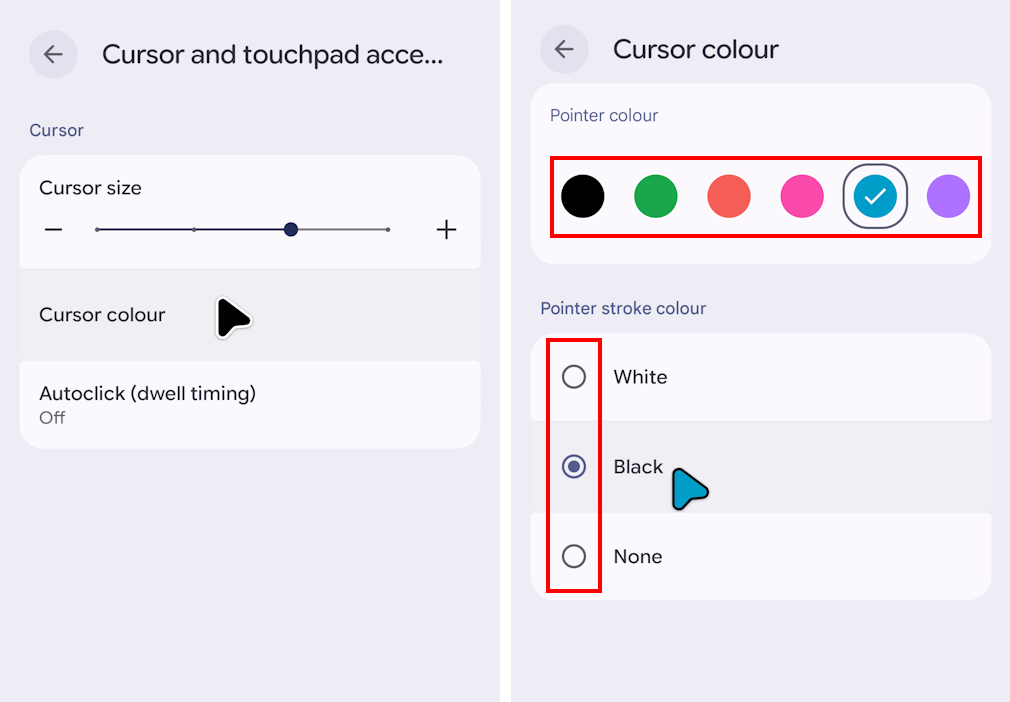
4. You can also change the colour of the cursor by clicking Cursor colour, then selecting one of the available hues. To switch the border around the cursor, select the Black, White or None option under Pointer stroke colour.
Note: We have written these instructions for devices running the standard version of the Android operating system. You may find some minor presentation differences if the manufacturer has customised the theme.
Need some more help?
Call our helpline 0300 180 0028 or email enquiries@abilitynet.org.uk
Need free IT Support at Home?
If you are older or disabled and need IT support at home, you can book a free home visit.