To find out more about using the Gemini assistant, see How to use the Gemini AI assistant in Android 16
Short guide:
- Open the Google Play Store app, search for ‘Gemini’ and install the Gemini app.
- Open the Settings app and tap Apps. Select Assistant, then scroll down and tap Digital assistants from Google.
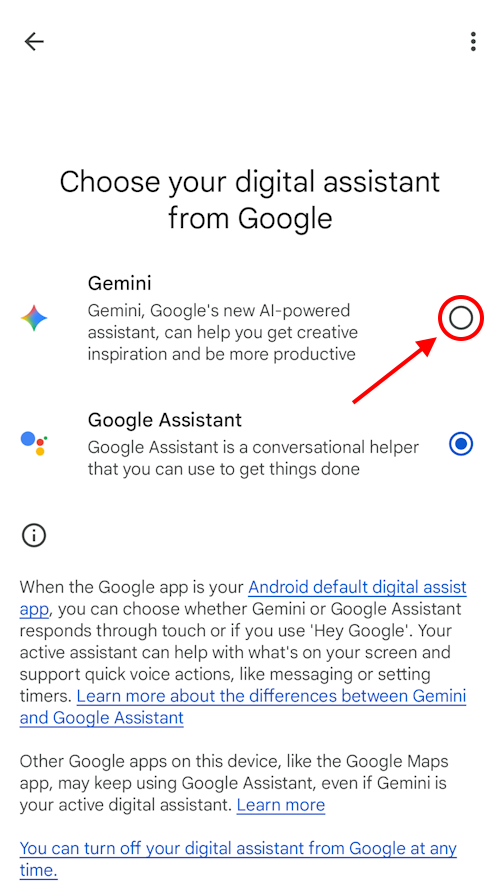
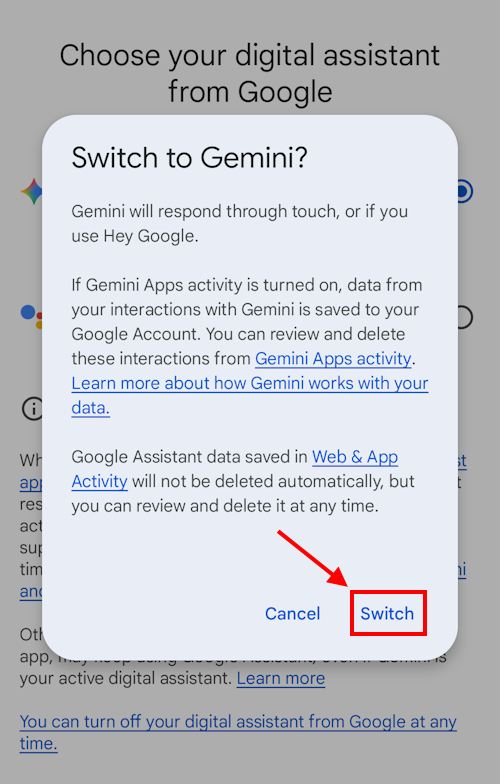
- Tap the button next to Gemini, then tap Switch to confirm.
Before and after
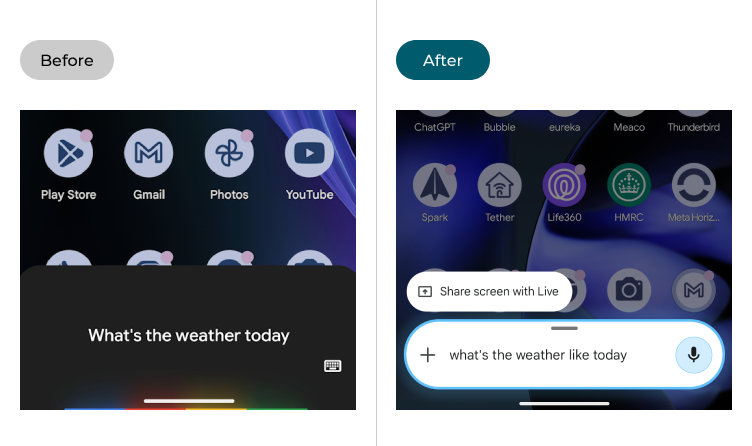
This section explains how to set up Gemini as your voice assistant in Android 16. This is a step-by-step guide with pictures of the screens to help.
Install the Gemini app
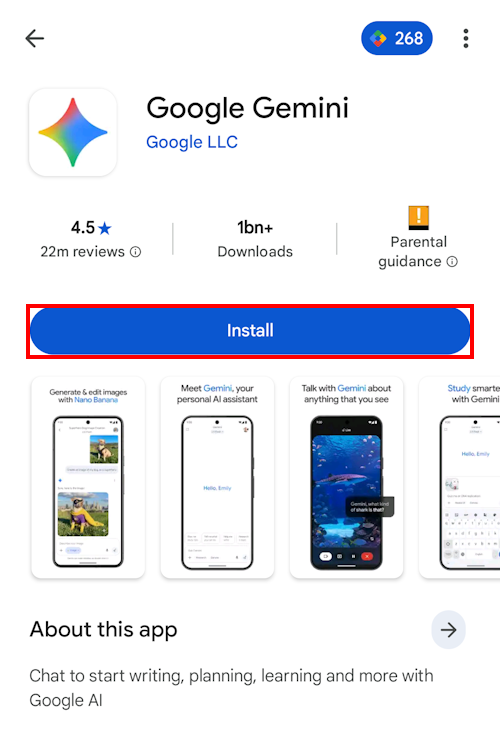
1. Open the Google Play Store app, tap the Search button at the bottom and search for ‘Gemini’. Select the Google Gemini app then tap Install. Once the app has installed, tap Open.
Step 2
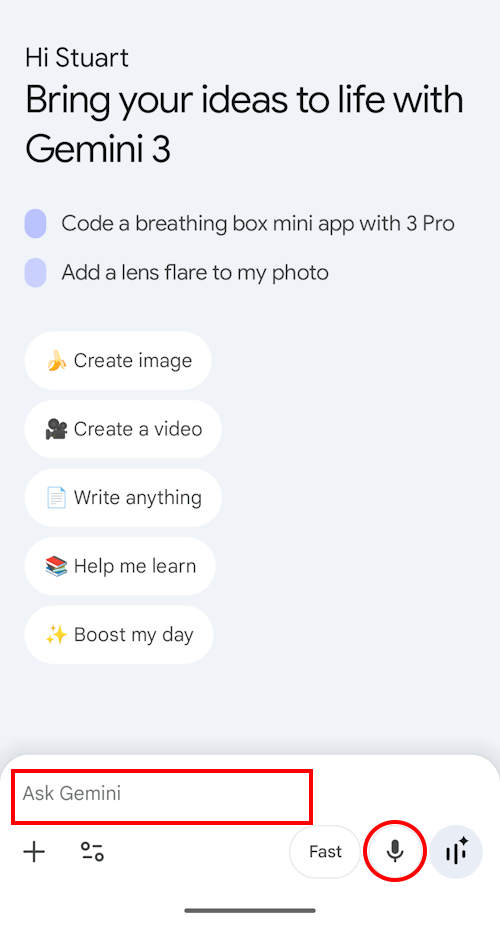
2. Gemini is now installed on your phone and you can ask questions and make requests by tapping where it says Ask Gemini in the prompt box and typing, or by tapping the Microphone button and speaking. However, it may not be set up as your default voice assistant.
Step 3
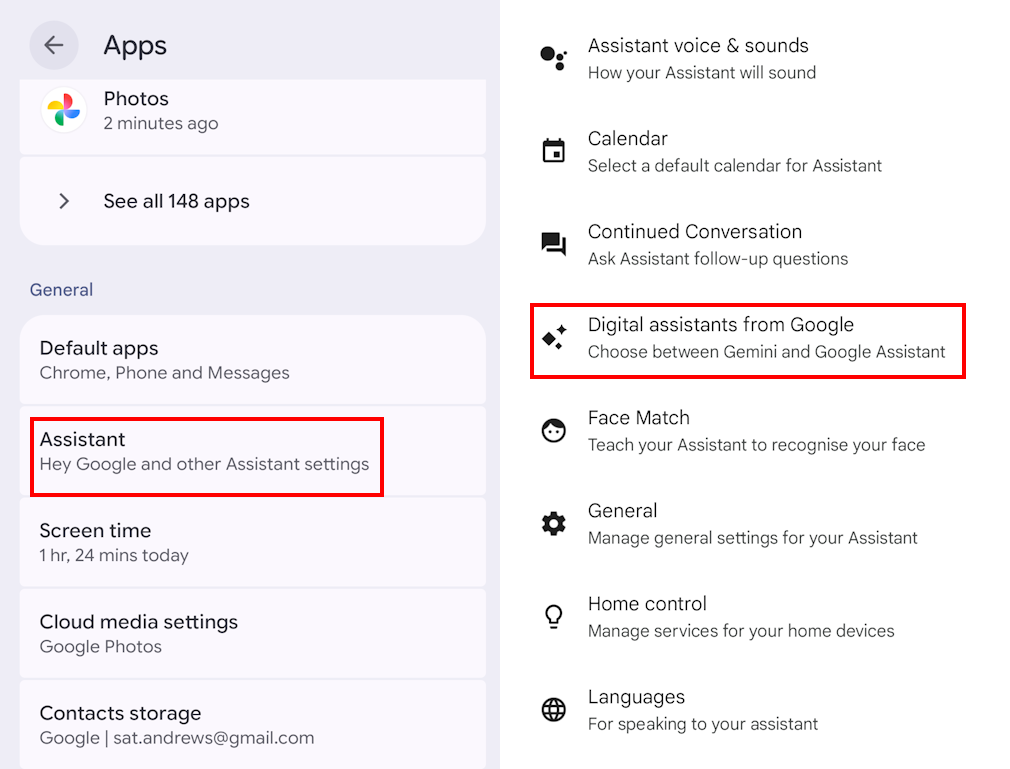
3. To fix that, open the Settings app and tap Apps. Select Assistant, then scroll down and tap Digital assistants from Google.
Step 4
4. You’ll see two options – Gemini and Google Assistant. If the Google Assistant option is active, tap the button next to Gemini to select that instead.
Step 5
5. You’ll see a new page explaining what will change. Tap Switch to confirm the switch. You can now launch the Gemini assistant by pressing and holding the side button on your phone or tablet, or by saying ‘Hey, Google’ or ‘OK, Google’.
Note: We have written these instructions for devices running the standard version of the Android operating system. You may find some minor presentation differences if the manufacturer has customised the theme.
Need some more help?
Call our helpline 0300 180 0028 or email enquiries@abilitynet.org.uk
Need free IT Support at Home?
If you are older or disabled and need IT support at home, you can book a free home visit.