To find out how to set up Gemini as your voice assistant, see How to set up Gemini as your voice assistant in Android 16
Short guide:
- Call up the Gemini assistant by pressing and holding on the side button or saying ‘Hey, Google’ or ‘OK, Google’.
- Launch apps by saying ‘launch’ then the app’s name.
- Find settings by saying ‘adjust the x’ or by saying ‘take me to the x settings’, switching x for the setting you want to change.
- Set and cancel alarms by saying ‘set up an alarm for tomorrow morning’ or ‘cancel the alarm for tomorrow morning.’
Before and after
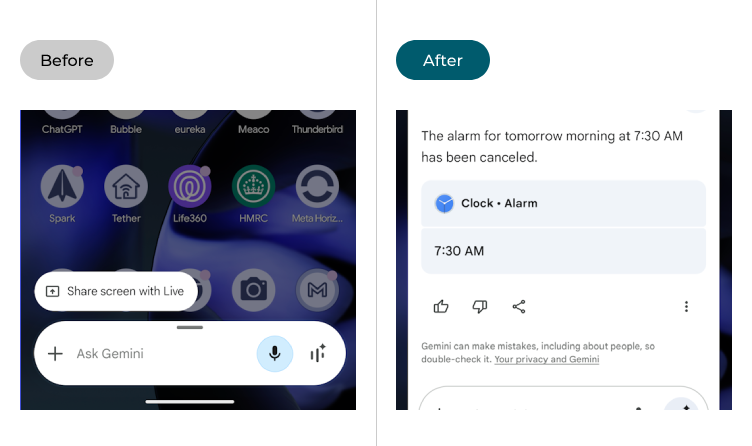
This section explains how to use Gemini as your voice assistant in Android 16. This is a step-by-step guide with pictures of the screens to help.
Call the Gemini assistant
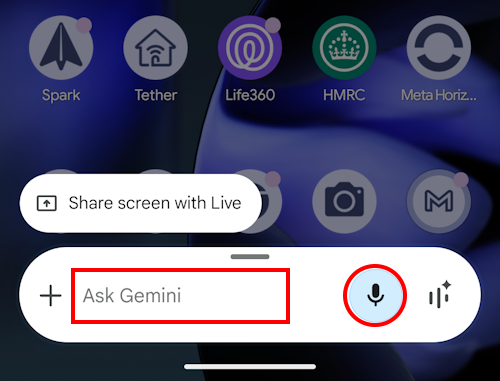
1. You can call up the Gemini assistant by pressing and holding on the side button (previously the power button) or by saying ‘Hey, Google’ or ‘OK, Google’. You can type requests into the prompt bar by tapping where it says Ask Gemini, or you can tap the Microphone button and use speech instead. The microphone should already be active if you used your voice to launch the assistant.
Launching apps
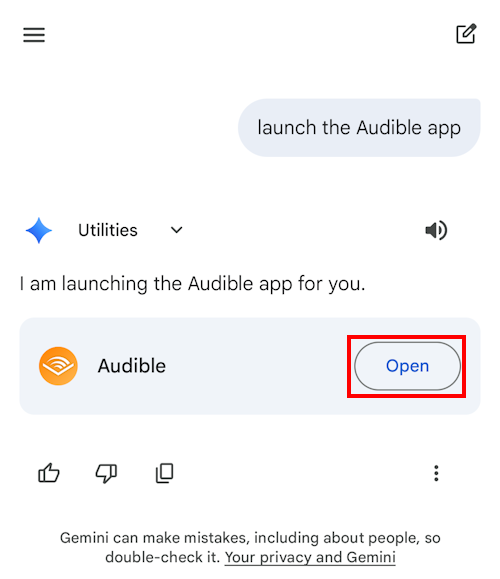
2. You can launch apps just by typing or saying ‘launch’ or ‘start’ then the app name. For instance, if you wanted to launch the Audible app and listen to an audio book, you can say ‘launch audible.’
Changing settings
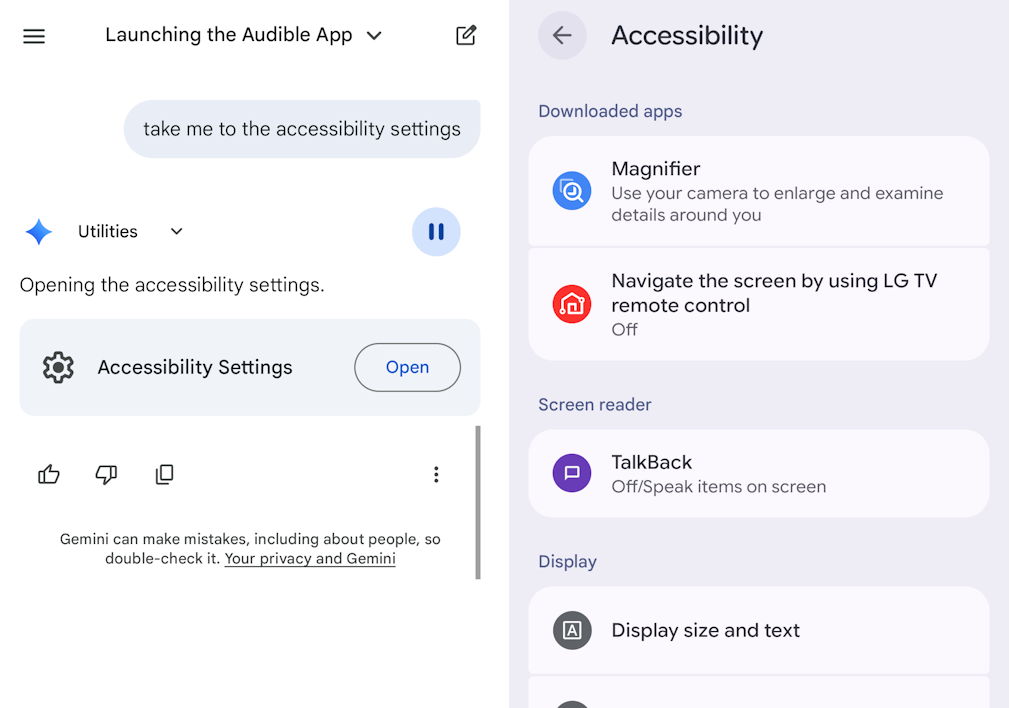
3. You can also find Android settings easily using voice commands. For example, saying or typing ‘Adjust the brightness’ should open up the Display and touch settings page so that you can adjust the brightness level. Saying ‘Take me to the accessibility settings’ will open the Accessibility Settings page.
Setting alarms and reminders
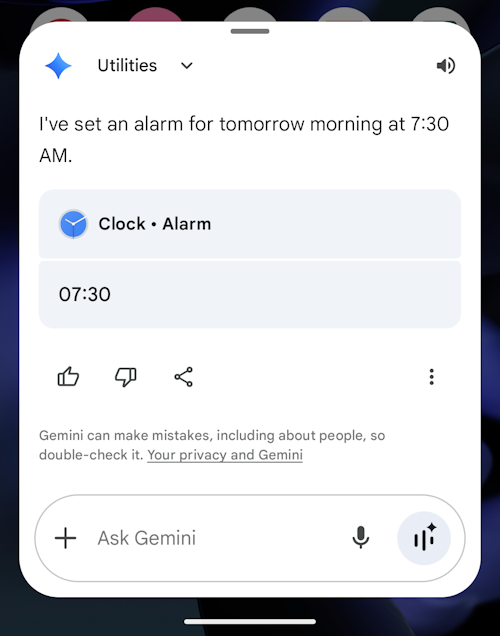
4. Gemini also makes it easy to set alarms and reminders. Say or type ‘Set up an alarm for tomorrow morning at seven thirty’ and Gemini will do it. You can also cancel an alarm by saying ‘cancel the alarm for tomorrow morning.’
Controlling music and video apps
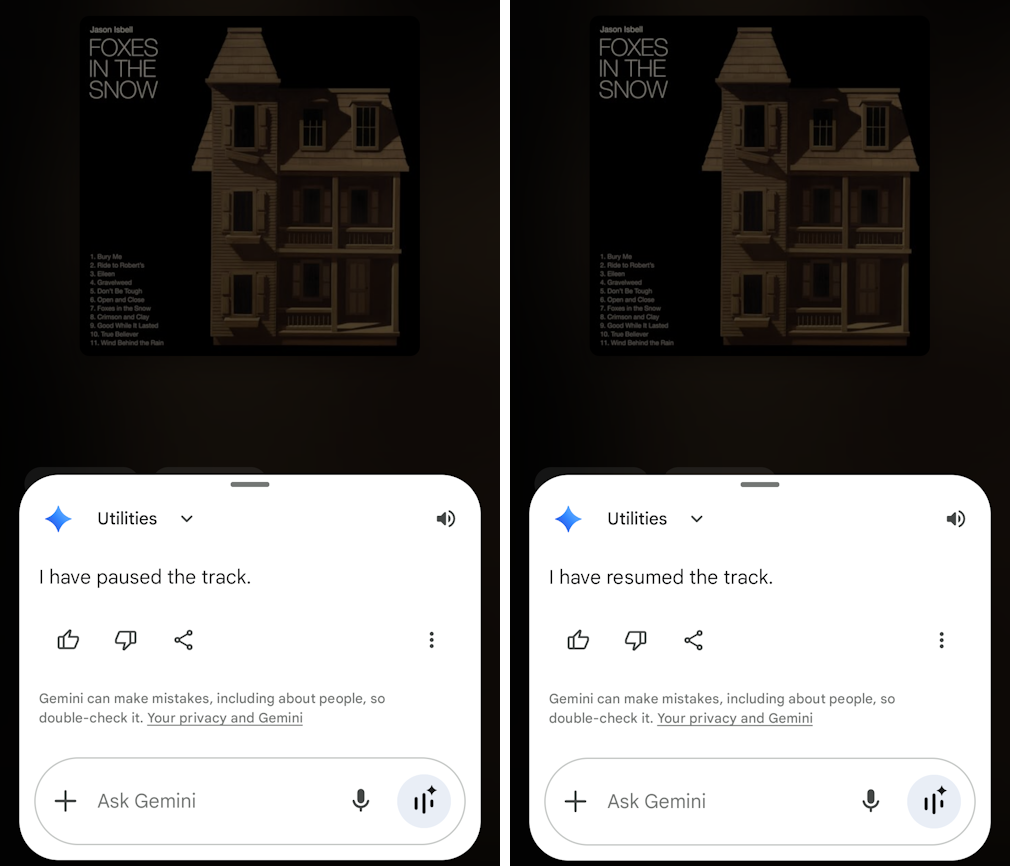
5. Gemini can also control playback in most popular music or video streaming apps. Here, in the Amazon Music app, you can say or type ‘Pause the track’ to pause it, ‘Play the track’ to resume playback, or ‘Skip this track’ to skip it.
Changing volume
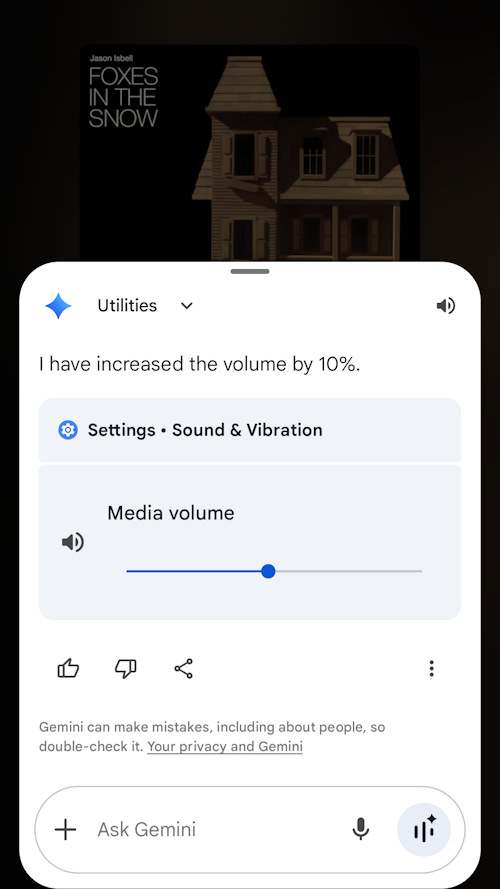
6. To adjust the volume, say or type ‘turn up the volume’ or ‘turn down the volume’ to increase or decrease the volume level by 10%.
Taking screenshots
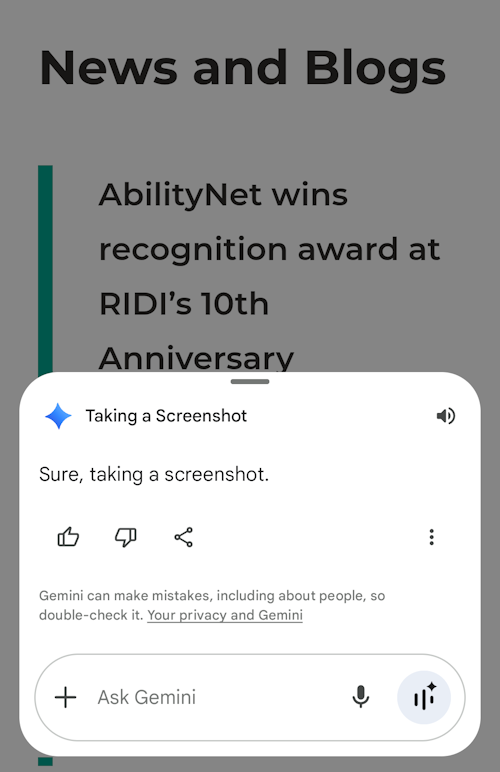
7. Gemini can also take screenshots. If you want to screenshot a social media post, picture or Web page, just say or type ‘Take a screenshot’.
Note: We have written these instructions for devices running the standard version of the Android operating system. You may find some minor presentation differences if the manufacturer has customised the theme.
Need some more help?
Call our helpline 0300 180 0028 or email enquiries@abilitynet.org.uk
Need free IT Support at Home?
If you are older or disabled and need IT support at home, you can book a free home visit.