Call our helpline
0300 180 0028Short guide:
- Press the Digital Crown on your Apple Watch and select Settings.
- Tap Accessibility.
- Scroll down to the Speech section and tap Live Speech.
- Tap the toggle switch for Live Speech to turn it on.
- To use Live Speech, triple-click the Digital Crown.
- Type phrases into the text box, then press Send on the keyboard.
Before and after
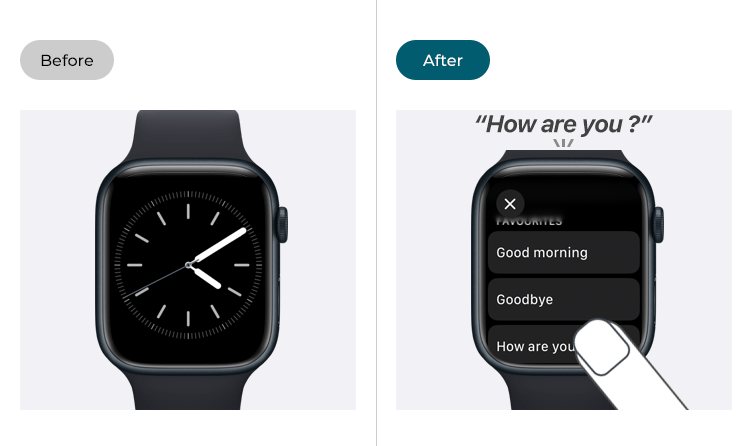
This section gives you step by step instructions on how to use Live Speech in watchOS 26, with pictures of the screens to help.
Find the Apple Watch settings
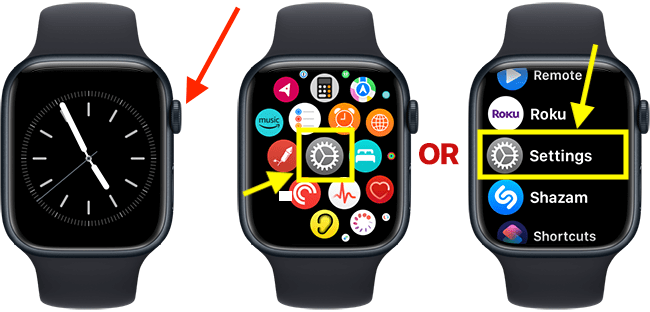
1. Press the Digital Crown on your Apple Watch. If your apps are displayed as icons, tap the Settings icon  . If your apps are displayed in a list, scroll down and tap Settings.
Open the Accessibility Settings
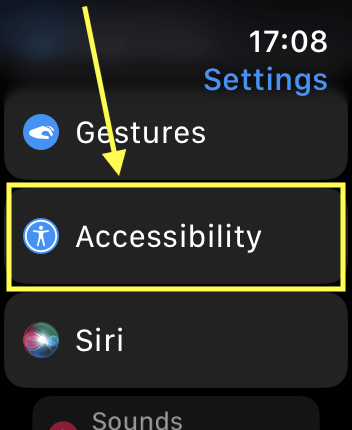
2. On the Settings screen, scroll down and tap Accessibility.
Open the Live Speech settings
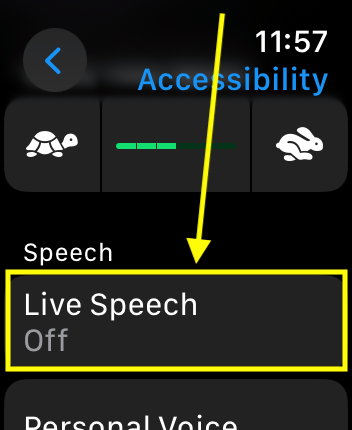
3. On the Accessibility screen, scroll down to the Speech section and tap Live Speech.
Enable Live Speech
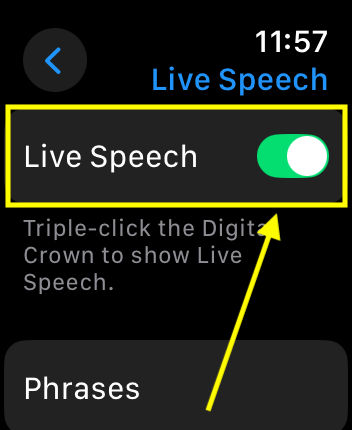
4. On the next screen, tap the toggle switch for Live Speech to turn it on.
Create a list of phrases
4. You can create a list of frequently used phrases to save you from having to type them each time. You can group phrases into categories to make them easier to access when using Live Speech.
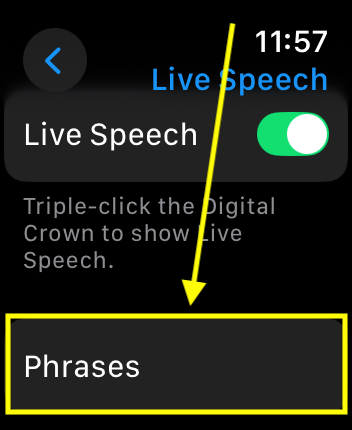
Phrases you add are synced to all the devices you are logged in to with the same Apple ID. Tap Phrases.
Add a new phrase to an existing category
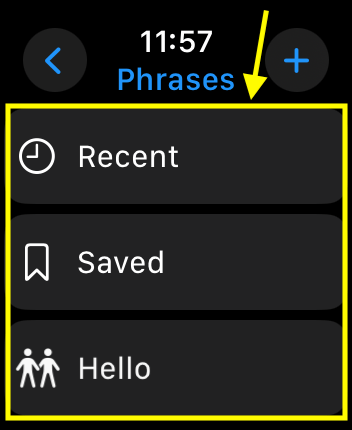
5. Live Speech has two default categories - Recent and Saved. The Recent category stores phrases you have typed while using Live Speech. Saved is where you can create pre-written phrases to use later.
You can add more of your own categories. There is an example category called Hello to get you started. This can be renamed or deleted if you don't need it. We will cover that later in this guide.
To add a new phrase to an existing category, tap the category name.
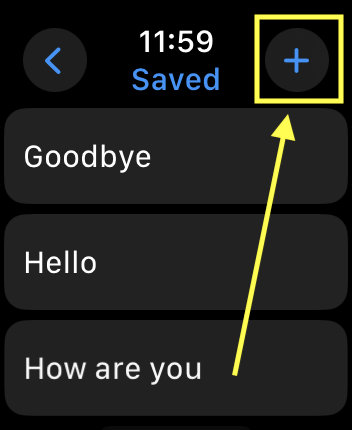
6. Next, tap the + (plus) button in the top-right corner.
7. Tap Enter a phrase.
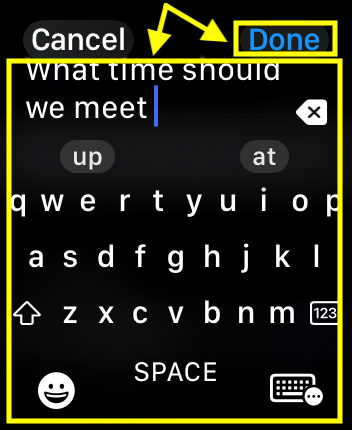
8. On the next csreen, type your phrase, then tap Done in the top-right corner.
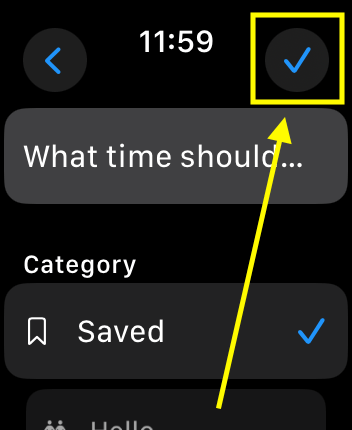
9. Finally, tap the tick in the top-right corner to save your new phrase.
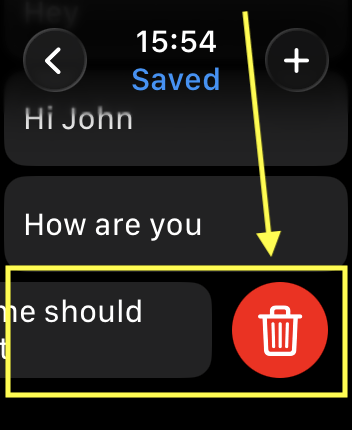
10. To delete a phrase, swipe on the phrase from right to left, then tap the X button.
How to create a new phrase group
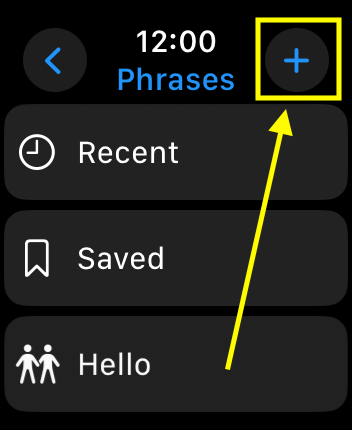
11. To create a new phrase category go to the main Phrases page with the list of categories. Tap the + (plus) button in the top right corner.
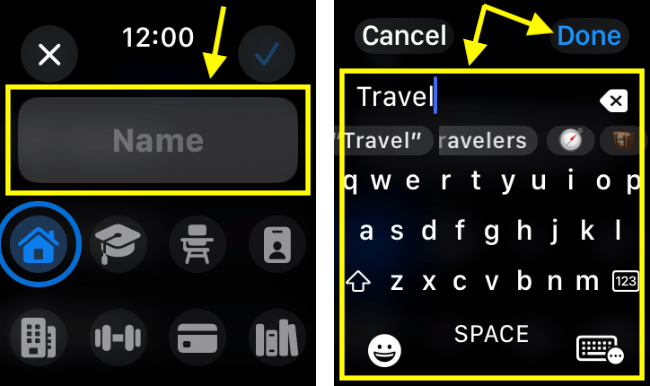
12. Tap Name, then type a name for this category then tap Done.
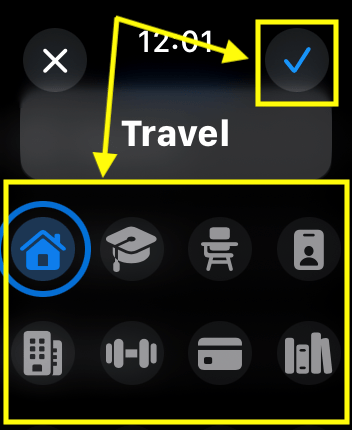
13. Choose a symbol to represent the category then tap the tick in the top-right corner.
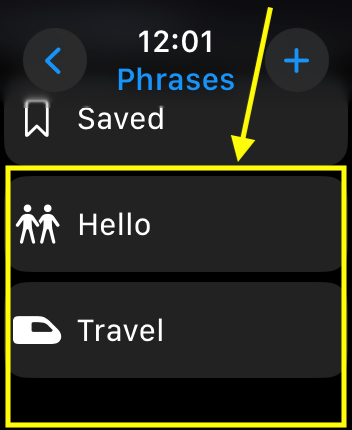
How to edit or delete a category
14. Tap the category you want to edit or delete.
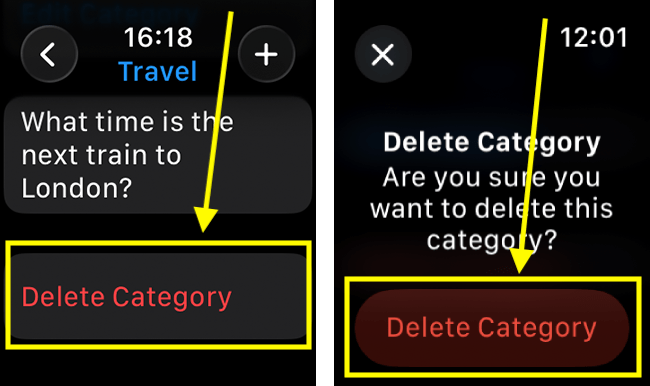
15. To delete the category, scroll to the bottom of the page and tap the Delete Category button. On the next page, tap Delete Category to confirm. Note: If the category contains phrases, the phrases will also be deleted. You cannot edit or delete the Recent or Saved categories, but you can delete individual phrases saved in those categories.
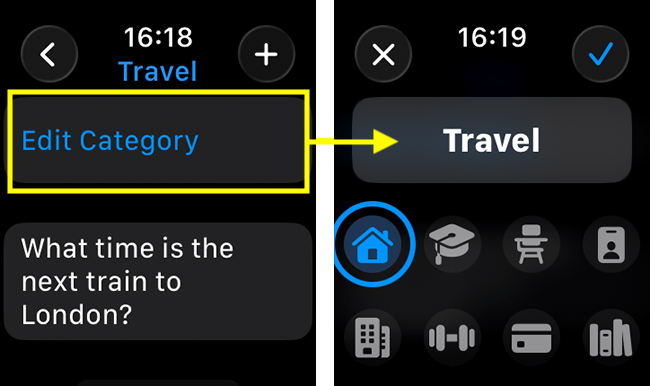
16. To edit a category, tap the Edit Category button. On the next page, you can rename the category and change the symbol that represents it. Tap the tick button in the top-right corner to save your changes.
Choose a voice to use for speaking your phrases
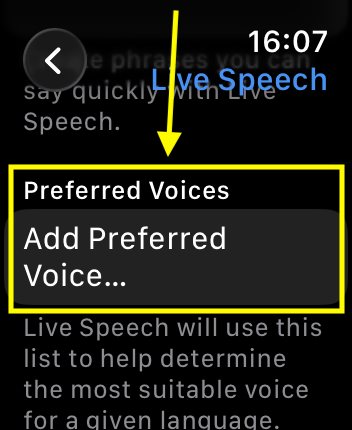
17. You can set different voices to use depending on the language a phrase is written in. By default, Apple Watch uses the default voice based on your keyboard settings. To add voices for different languages, go to the main Live Speech page and tap Add Preferred Voice.
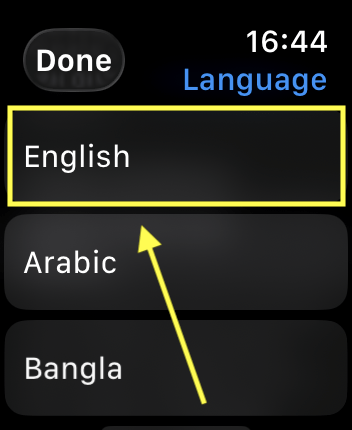
18. On the next page, choose the language you want to add a voice for.
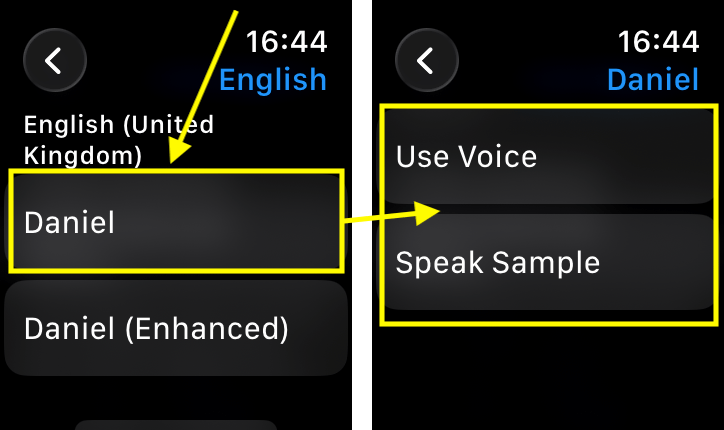
19. Each language has several voices you can choose from. Note: The enhanced versions will sound more natural but take up more storage space. You will need to download some voices before you can use them.
Tap on a voice to see the options to Speak Sample and to Use Voice.
To add more voices, follow the steps from step 17.
Customise how a voice sounds
20. You can change the speaking rate and pitch of a voice to make it easier to follow. Tap on a name in the list of preferred voices. You can now change the Speaking rate and pitch for this voice.
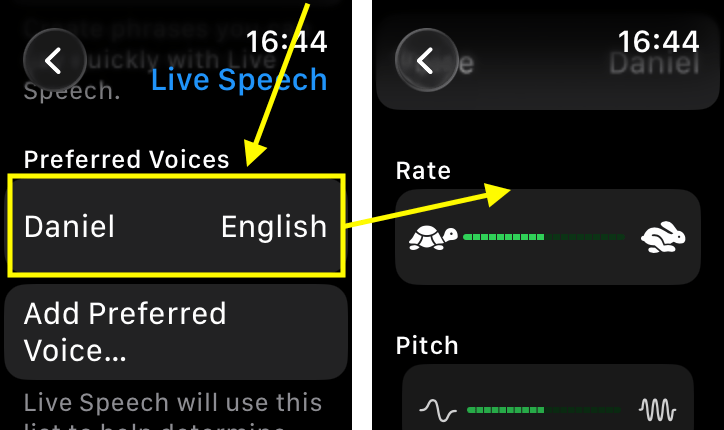
21. Tap the back arrow in the top-left corner to return to the previous pages.
Return to the clock face
22. When you are happy with your settings, you can return to the clock face by pressing the Digital Crown.
Using Live Speech
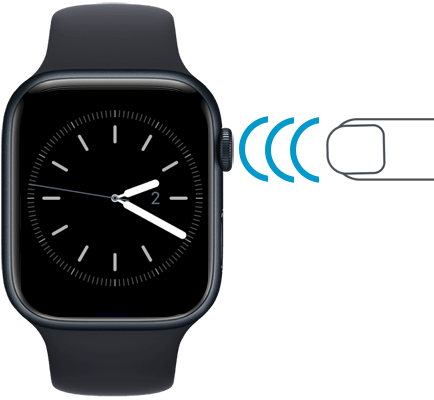
23. Triple-click the Digital Crown. (If you have other Accessibility Shortcuts enabled, select Live Speech from the list).
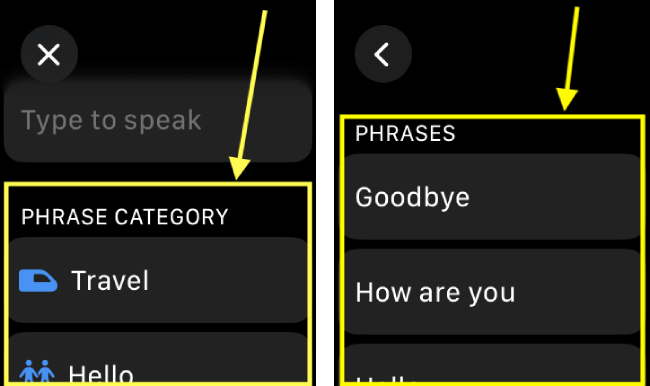
24. To speak an existing phrase, tap one of the categories, then tap the phrase you want to use.
25. To speak a new phrase, tap Type to speak. On the next page, type your phrase, then tap Send.
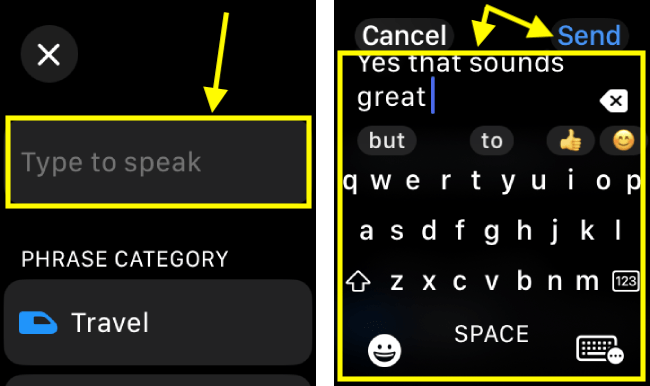
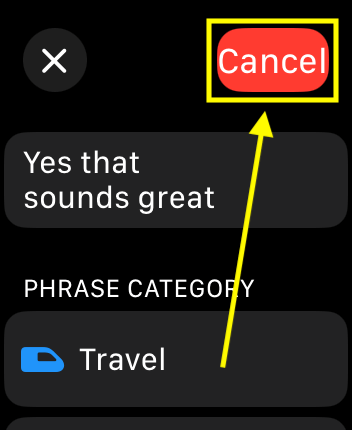
26. There is a short pause before the phrase is spoken. During this pause, you can cancel it by pressing the Cancel button in the top-right corner.
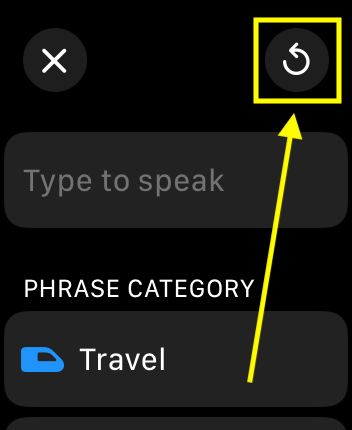
27. After a phrase has been spoken, you can use it again by pressing the refresh button in the top-right corner.
Need some more help?
Call our helpline 0300 180 0028 or email enquiries@abilitynet.org.uk
Need free IT Support at Home?
If you are older or disabled and need IT support at home, you can book a free home visit.