Short guide:
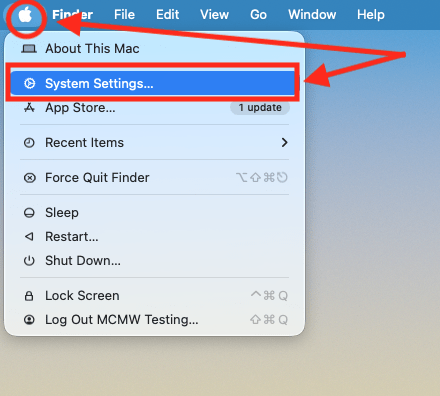
- Click the Apple icon
 in the top left corner of the screen and select System Settings.
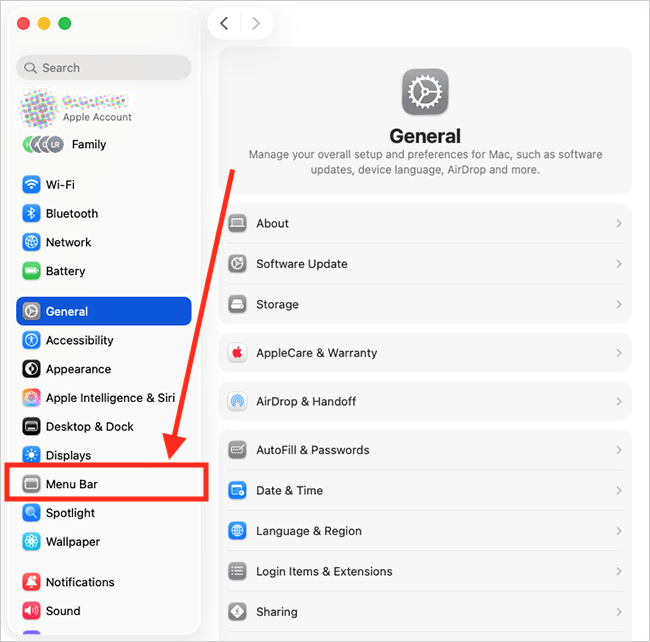
 - Click Menu Bar in the sidebar.
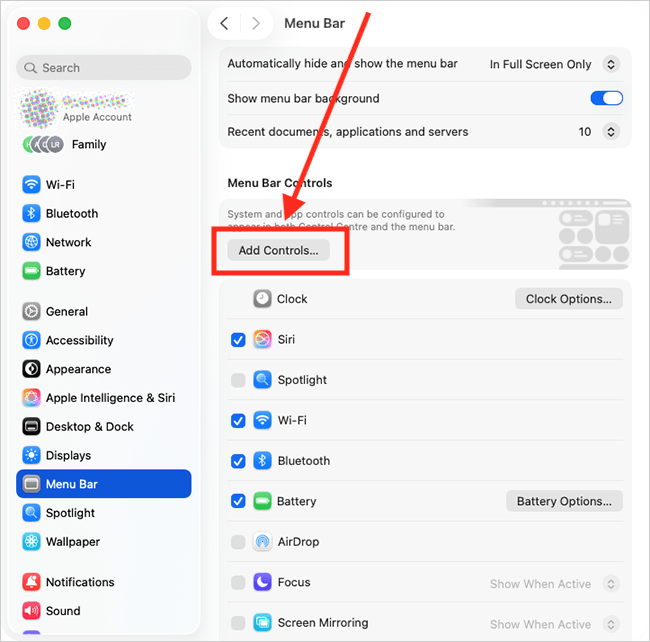
- On the right, click the Add Controls button.
- In the new window, scroll down the right-hand column to the Hearing Accessibility section.
- Click the Hearing button and choose Add to Control Centre or Add to Menu Bar. Repeat this step if you wish to add it to both.
- To play background sounds, click Hearing in the Menu Bar or Control Centre and select Background Sounds.
- Choose the sound you would like to play from the list.
- Use the slider to adjust the volume of the background sounds.
Before and after
This section explains how to set up the Background Sounds feature in macOS 26 Tahoe. This is a step-by-step guide with pictures of the screens to help.
Open System Settings
1. Click the Apple icon in the top left corner of the screen and choose System Settings from the menu.
Open the Menu Bar settings
2. In the System Settings window, click Menu Bar in the sidebar.
Open the Controls window
3. On the right, click the Add Controls button.
Find the Hearing Accessibility options
4. In the new window, scroll down the right-hand column to the Hearing Accessibility section.
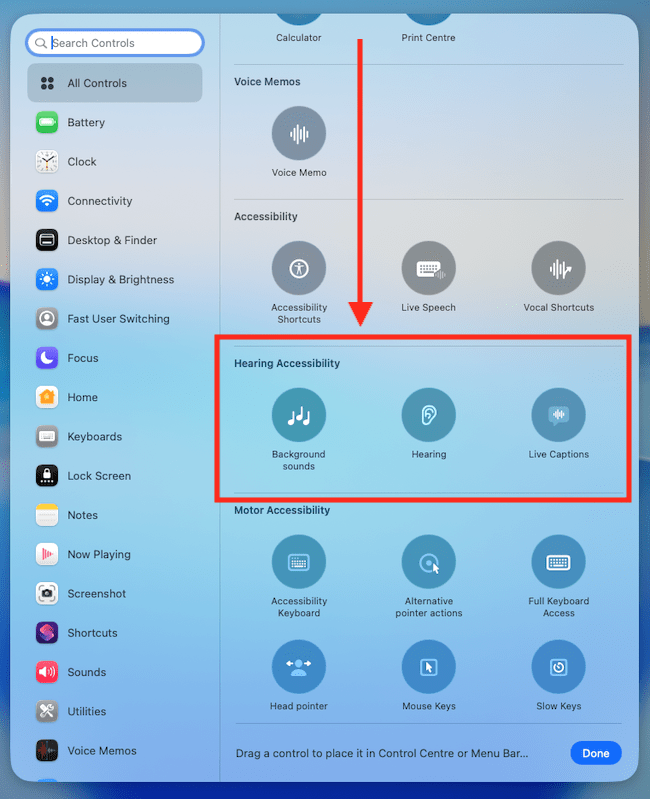
Add Background Sounds to the Menu Bar and/or Control Centre
5. There is a control specifically for Background Sounds, but this button only allows you to start or stop playing the last sound you listened to and offers no other functionality. This can be useful if you do not plan to change the sound frequently (which can be done in System Settings).
For this reason, we also recommend adding the Hearing control. The Hearing control allows you to select different sounds and adjust the volume without having to navigate through System Settings.
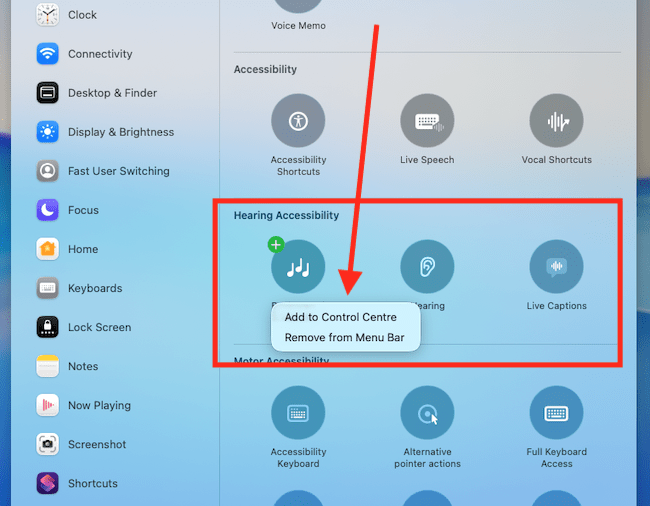
To add either control, click the relevant button in the Hearing Accessibility section and choose Add to Control Centre or Add to Menu Bar. Repeat this step if you wish to add it to both.
.
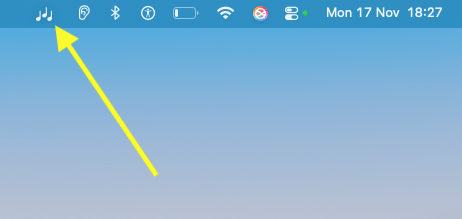
Play Background Sounds
6. If you just want to start playing background sounds, click the Background Sounds control  in the Menu Bar or select it from the Control Centre. Click the same control to stop playing Background Sounds.
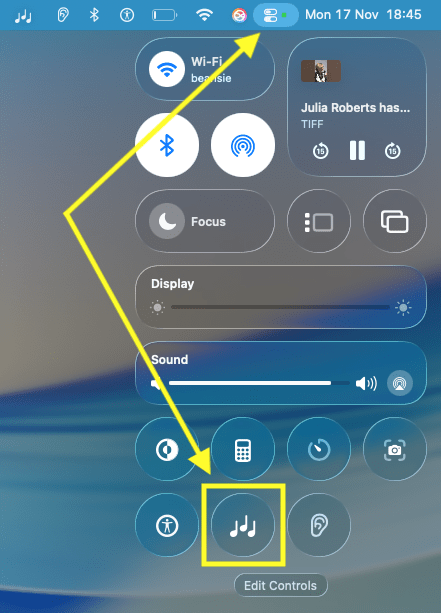
Change the sound and adjust the volume
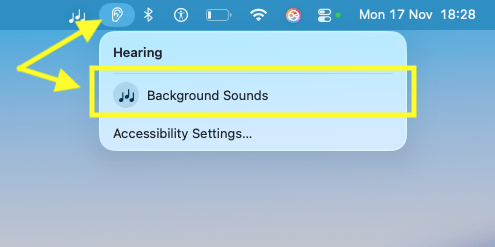
7. If you want to change the sound*, click the Hearing  control in the Menu Bar or select it from the Control Centre.
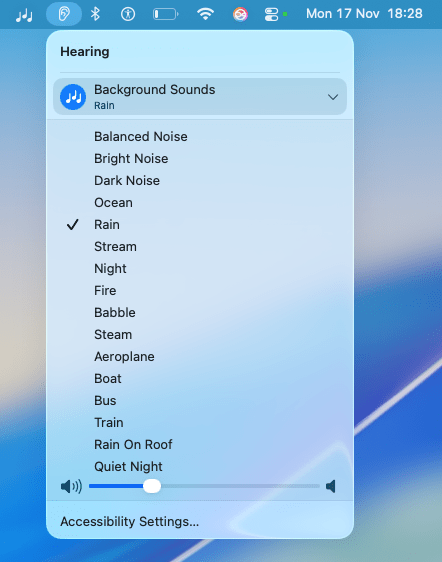
8. Click Background Sounds and choose a different sound.
9. To adjust the volume of Background Sounds*, use the slider in the same menu.
*If you haven't added the Hearing control to the Menu Bar or Control Centre, you can still do this in System Settings: System Settings > Accessibility > Background Sounds.
Customise Background Sounds
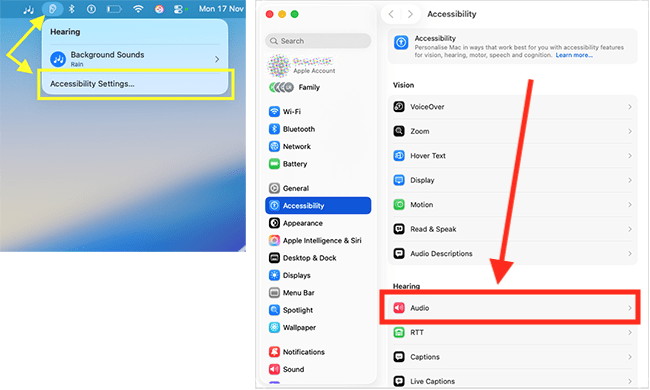
10. To customise Background Sounds, click the Hearing control in the Menu Bar or select it from the Control Centre, then click Accessibility Settings*. Click Audio in the list of Accessibility option on the right, then scroll down to the Background Sounds section.
*If you haven't added the Hearing control to the Menu Bar or Control Centre, you can the Accessibility Settings by going to: System Settings > Accessibility > Audio > Background Sounds.
Personalise the Background Sounds audio
11. To personalise the Background Sounds audio, click the Choose button in the Equaliser section.
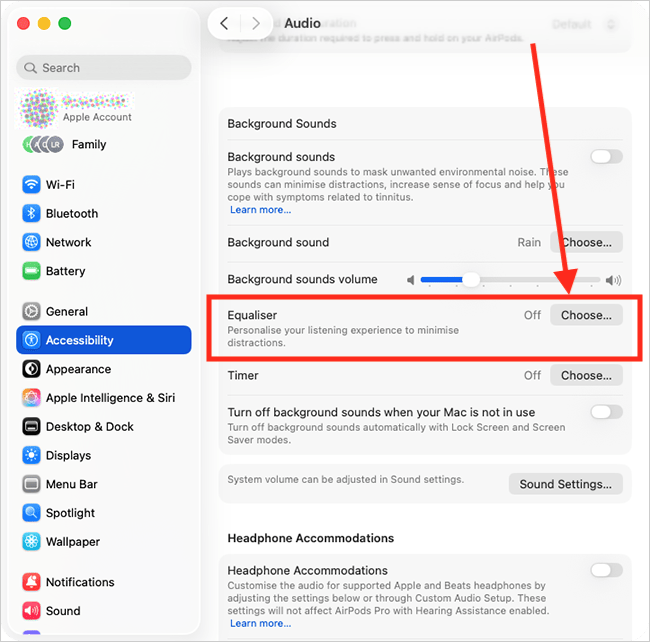
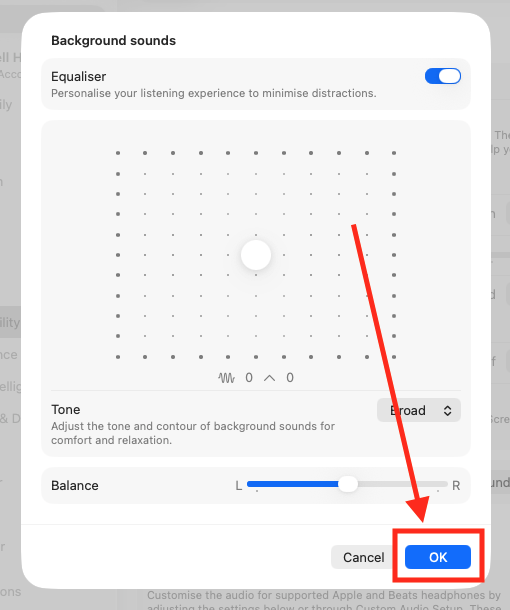
12. In the pop-up window, click the toggle switch for Equaliser to open the equaliser options.
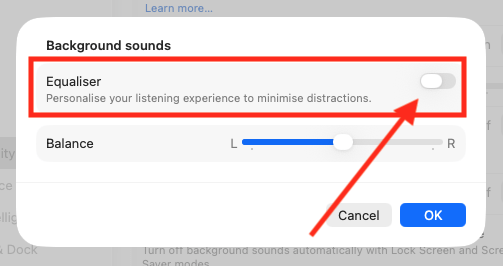
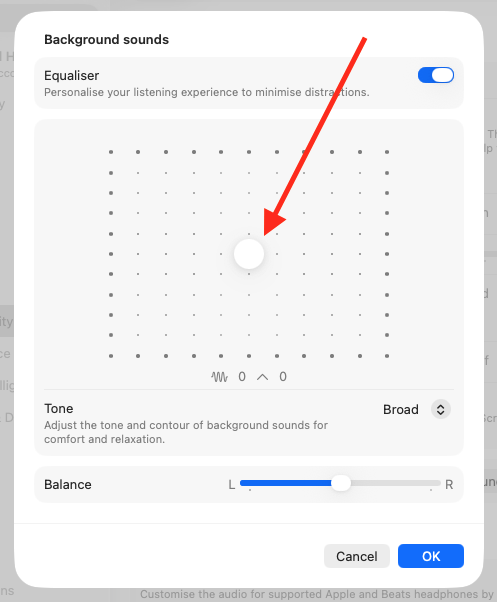
13. Drag the white dot around the grid to adjust the sound frequencies until you are satisfied with how the audio sounds.
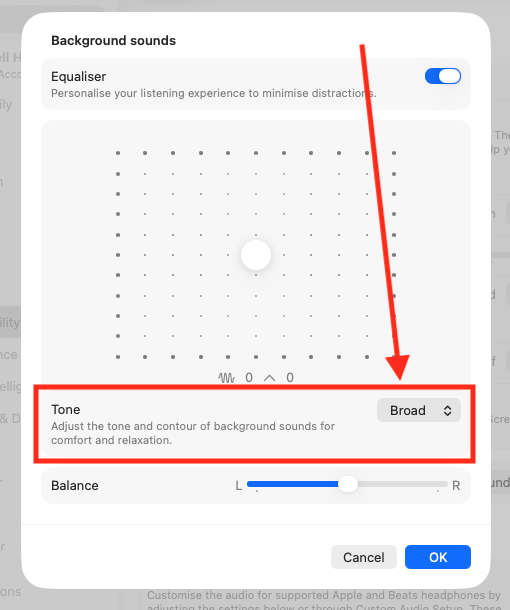
14. To set the overall audio tone, click the Tone button and choose Broad or Focused.
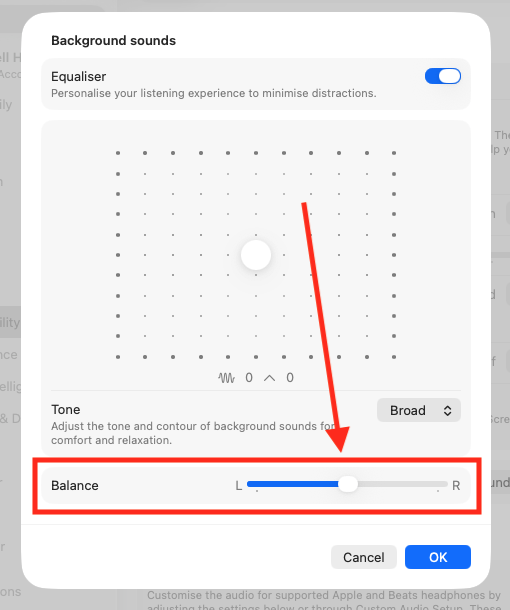
15. Adjust the Balance slider to control how the audio is distributed between each speaker or earphone.
16. When you are happy with your Equaliser settings, click the OK button.
Turn off Background Sounds automaticaly
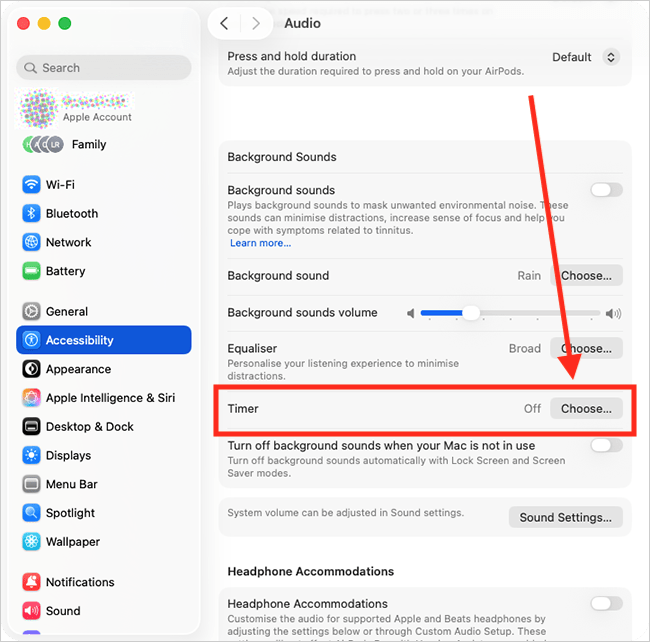
17. You can set Background Sounds to turn off automatically at a specific time or after a set duration. To do this, click the Choose button in the Timer section.
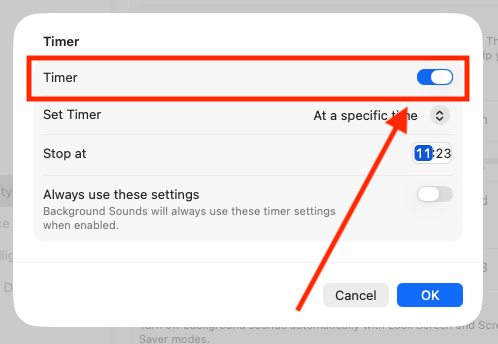
18. In the pop-up window, click the toggle switch for Timer to turn it on.
19. From the Set Timer menu, choose whether to stop play Background Sounds at a specific time or after an amount of time.
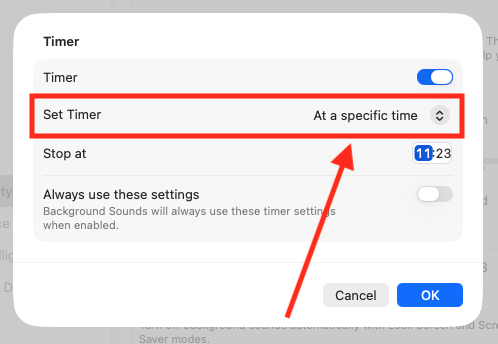
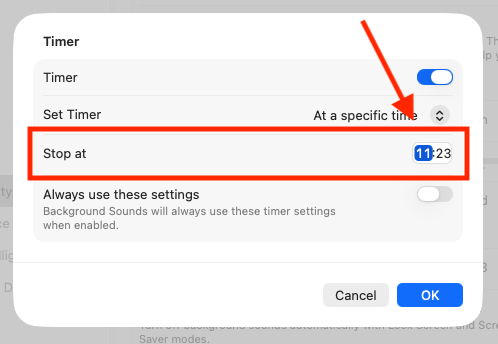
20. Next, select the time or duration using the Stop at/Stop after control.
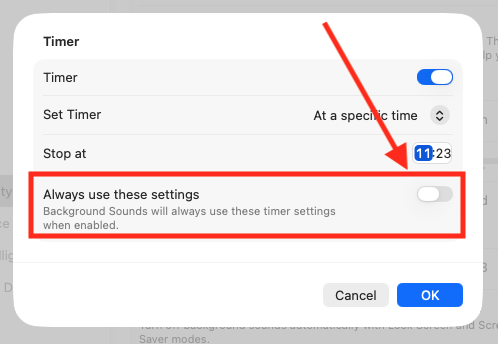
21. If you want these timer settings to apply every time you play Background Sounds, turn on the Always use these settings toggle switch.
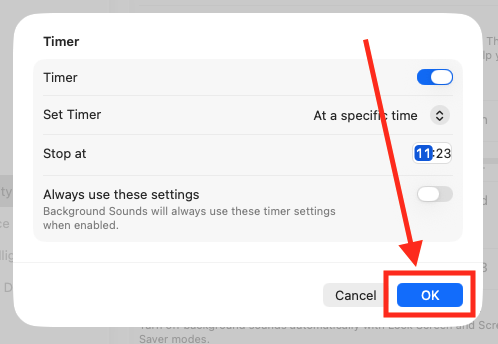
22. When you are happy with your Timer settings, click the OK button .
Stop playing Background Sounds when your computer is idle.
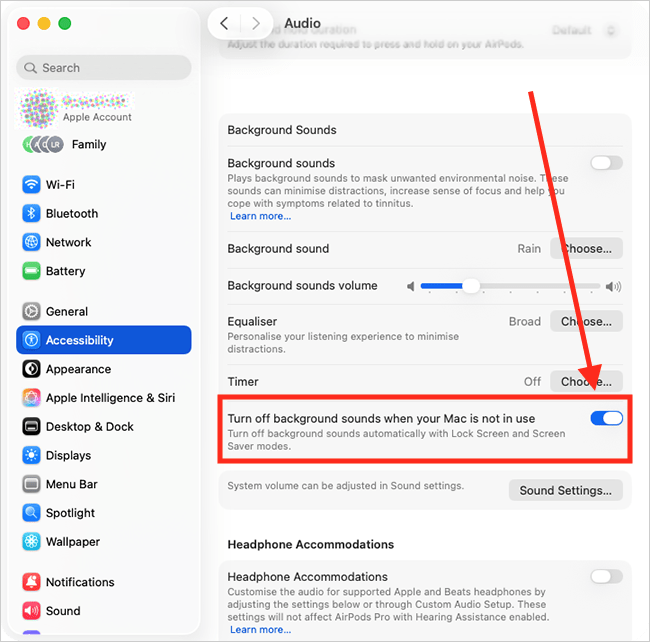
23. If you don’t want Background Sounds to play when your computer is not in use, turn on the Turn off Background Sounds when your Mac is not in use toggle switch.
Close System Settings
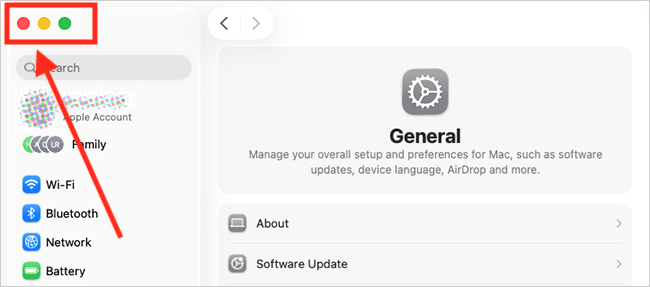
24. When you are happy with your settings, close System Settings by clicking the Close button (red circle) in the top-left corner of the window or using the Cmd + W keyboard shortcut.
Note: If this does not work, it could be because your computer settings are managed by someone else (an IT department or administrator, for example). If so, you will need to contact them to access these settings or for help.
Need some more help?
Call our helpline 0300 180 0028 or email enquiries@abilitynet.org.uk
Need free IT Support at Home?
If you are older or disabled and need IT support at home, you can book a free home visit.