Short guide:
- Click the Apple icon
 in the top-left corner of the screen and select System Settings.
 - Click Accessibility in the sidebar.
- Select Keyboard from the list of Accessibility options on the right.
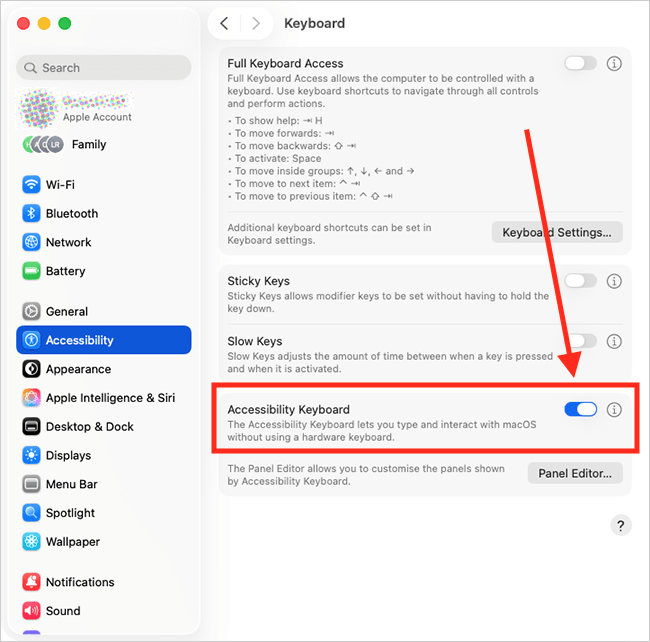
- Click the toggle switch for Accessibility Keyboard to turn it on.
- The Dwell panel will appear on the screen.
- To use Dwell, choose an action from the Dwell panel.
- Rest the pointer over an item on the screen for a few seconds to perform your chosen action.
Before and after
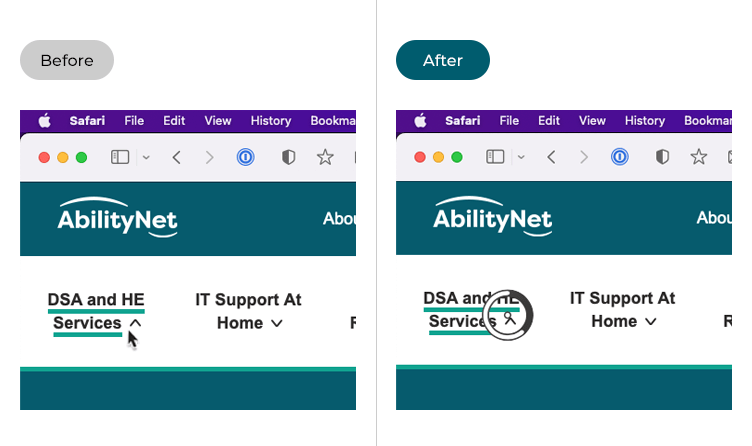
This section explains how to use Dwell in macOS 26 Tahoe. This is a step-by-step guide with pictures of the screens to help.
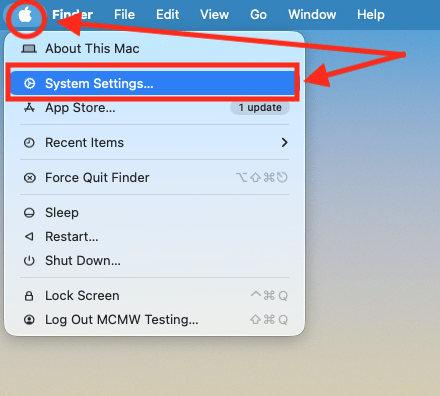
Open System Settings
1. Click the Apple logo in the top left corner of the screen and choose System Settings from the menu.
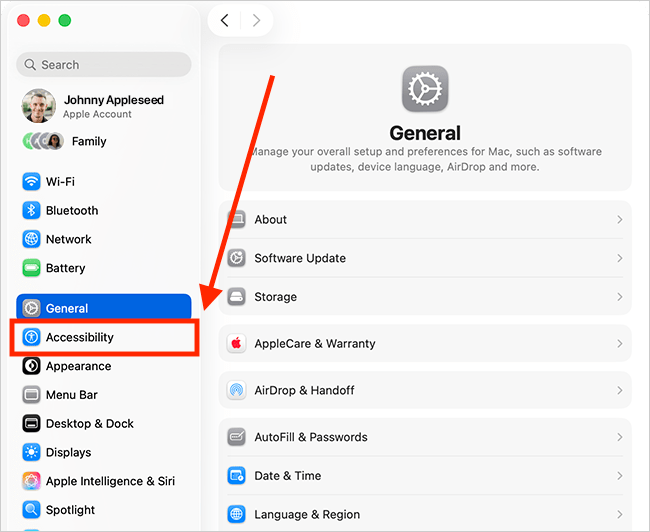
Open the Accessibility settings
2. In the System Settings window, click Accessibility in the sidebar.
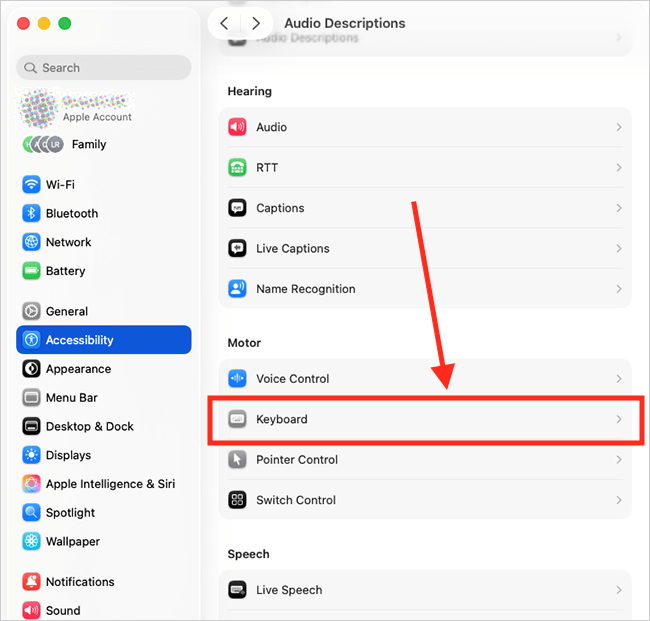
Find the Keyboard settings
3. Select Keyboard from the list of Accessibility options on the right.
Turn on the Accessibility Keyboard
4. Click the toggle switch for Accessibility Keyboard to turn it on.
The Dwell Home panel
5. When you turn on the Accessibility Keyboard, the Dwell Home panel will appear on the screen. The actions available on the Dwell panel are described in the table below.

| Dwell actions | |
| Action | Description |
 |
Left Click – perform a left-click when you dwell on an item |
 |
Double Click – perform a double-click when you dwell on an item |
 |
Right Click – perform a right-click when you dwell on an item |
 |
Drag and Drop – drag and drop an item. Dwell on an item to activate drag, reposition the item then dwell again to release it. |
 |
Scroll Menu – a scroll controller appears on the screen. Dwell on an arrow to scroll the page in that direction. |
 |
Options Menu – shows a circular menu of the Dwell actions.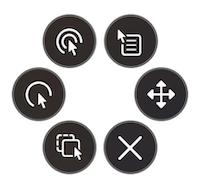 |
 |
Pause – pause Dwell. This can be useful when watching a video or reading a webpage where you don’t want to accidentally trigger a Dwell action. |
 |
Keyboard – opens the on-screen Accessibility Keyboard.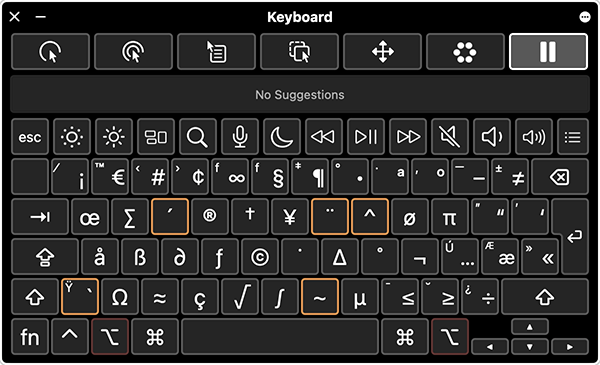 |
 |
System – opens the System Panel. The System Panel contains buttons to change the volume and brightness and buttons to control media playback.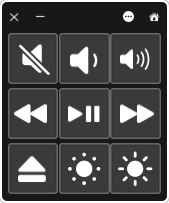 |
 |
Custom – shows the custom panels that you have created. You can create your own panels to speed up performing common or complicated tasks. For more information on creating your panels, see our guide How to create panels to use with Switch Control and the Accessibility Keyboard in macOS 26 Tahoe. 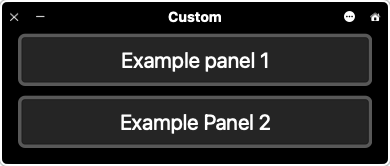 |
 |
Location – opens the Location panel. Click one of the options to reposition the Dwell Home panel to that area of the screen.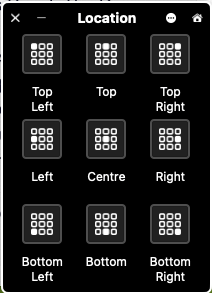 |
How to use Dwell
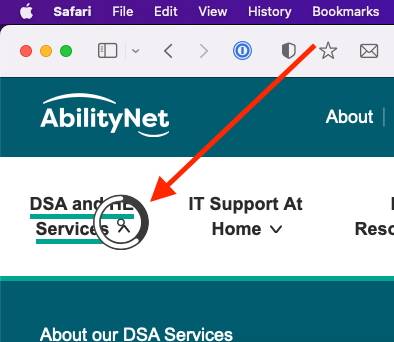
6. Select the action you want to perform from the Dwell Home panel — for example, Left Click. Then, move the pointer to the location where you want to perform the action. The action will be carried out when the pointer rests on an item for a set period of time, usually around 2 seconds. The Dwell time indicator (see image below) displays this countdown by gradually filling the outline with grey.
Customise Dwell
7. To open the Dwell settings page, select the options button  in the top-right corner of the Dwell Home panel, and choose Settings from the menu.
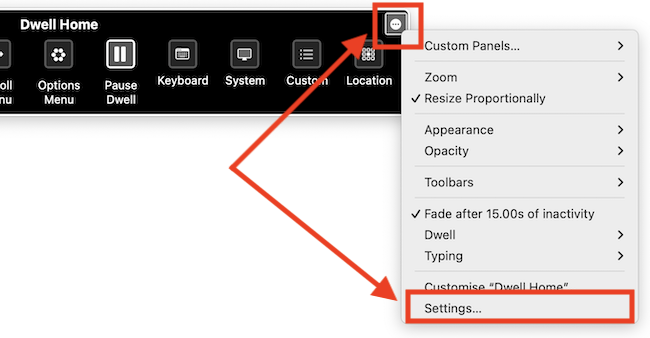
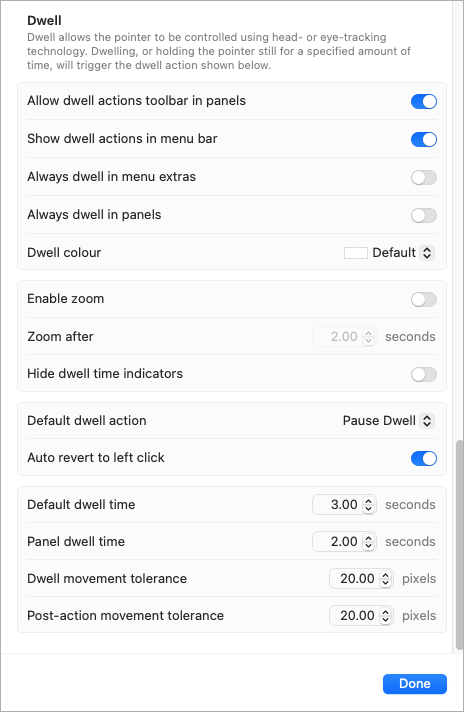
8. The settings you can customise are listed in the table below, and shown in the screenshot after the table.
| Dwell settings | |
| Setting | Description |
| Allow dwell actions toolbar in panels | Show the Dwell actions toolbar on the Accessibility Keyboard and custom panels. |
| Show dwell in the Menu Bar | You can add a Dwell actions menu to the menu bar that appears along the top-right of the computer screen. This gives you an alternative way to access Dwell actions.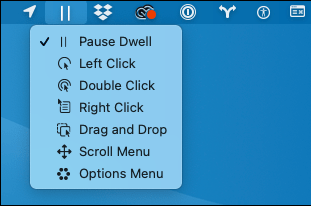 |
| Always dwell in menu extras | Always use Dwell to select items in the menu bar along the top-right of the screen, even when Dwell is paused. The default action for this is Left-click. |
| Always dwell in panels | You can continue using Dwell to select items in the Accessibility Keyboard and custom panels, even when Dwell is paused. |
| Dwell colour | Customise the colour of the Dwell time indicator. To do so, select the drop-down menu for Dwell colour and choose from the options. |
| Enable zoom | You can magnify the area around the pointer. This is activated when the pointer has been idle for a specified amount of time. To enable this, click the toggle switch for Enable Zoom to turn it on. Next, set how long the pointer needs to be idle before zoom occurs using the time setting for Zoom after. Note: The size of the magnified area is based on the size set for picture-in-picture zoom. To change the picture-in-picture size, select Apple menu > System Preferences, click Accessibility, then click Zoom. |
| Hide dwell time indicators | Hide the indicator that shows when a dwell action is about to be performed. |
| Default dwell action | The default Dwell action is Left Click. To change this, click the drop-down menu for Default dwell action and choose from the options. |
| Auto revert to left click | After performing an action, always make left-click the next action to be performed. This can be useful if left-click is the action you use most often. When this option is turned off, Dwell uses the the current action. |
| Default dwell time | This is the amount of time the pointer needs to rest on an item before an action is performed. The default time is three seconds. |
| Panel dwell time | This is the amount of time the pointer needs to rest on an item in the Accessibility Keyboard or custom panels before a left-click is performed. The default time is two seconds. |
| Dwell movement tolerance | Dwell movement tolerance is the distance (in pixels) the pointer can move before a dwell action is canceled. |
| Post-action movement tolerance | The post-action movement tolerance is the distance (in pixels) you need to move the pointer after performing an action before the dwell countdown starts again. |
Close System Settings
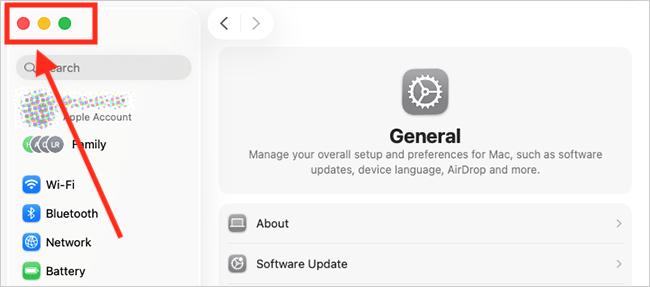
9. When you are happy with your settings, click Done to close Dwell settings. Close the System Settings window by clicking the Close button (red circle) in the top-left corner of the window or using the Cmd + W keyboard shortcut.
Use Hot Corners to switch Dwell actions
10. You can (temporarily) switch to a different Dwell action by resting the pointer on a corner of the screen. Each screen corner can be set to switch to a different Dwell action. For more information on using Hot Corners, see our article How to use Dwell Corners with the on-screen Accessibility Keyboard in macOS 26 Tahoe.
Note: If this does not work, it could be because your computer settings are managed by someone else (an IT department or administrator, for example). If so, you will need to contact them to access these settings or for help.
Need some more help?
Call our helpline 0300 180 0028 or email enquiries@abilitynet.org.uk
Need free IT Support at Home?
If you are older or disabled and need IT support at home, you can book a free home visit.