Short guide:
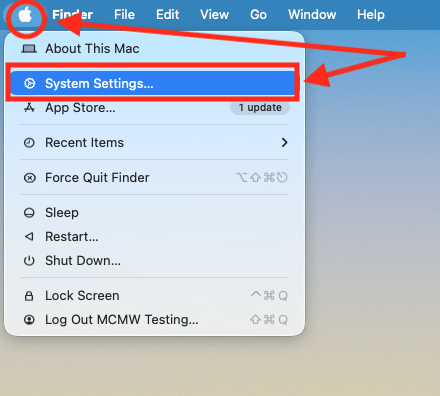
- Click the Apple icon
 in the top-left corner of the screen and select System Settings.
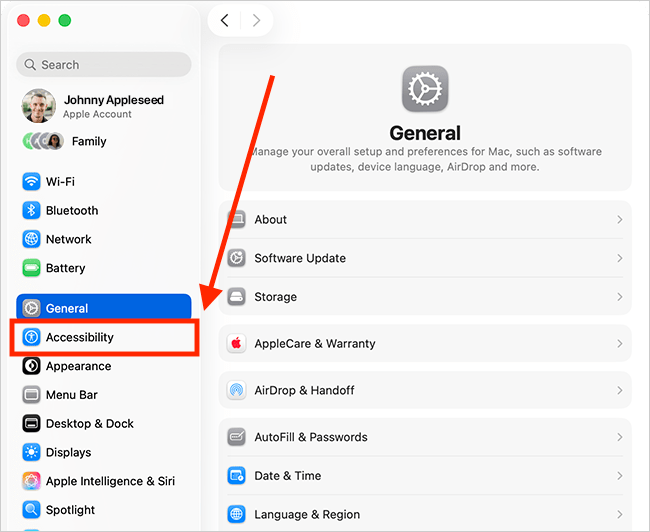
 - Click Accessibility in the sidebar.
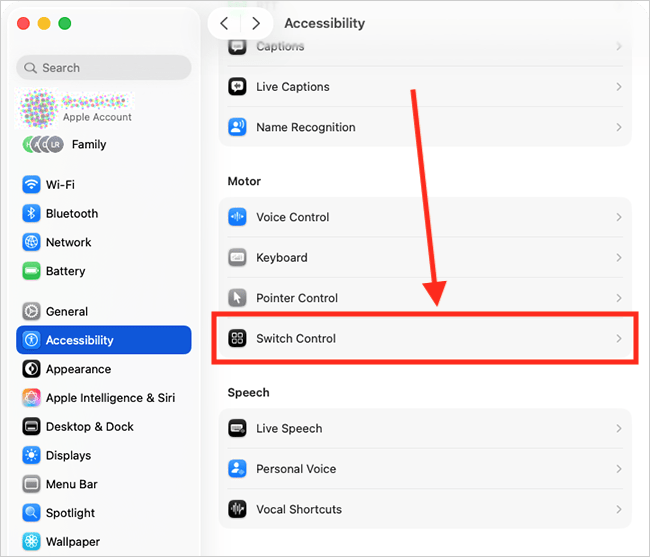
- Select Switch Control from the list of Accessibility options on the right.
- Turn on the toggle switch for Enable Switch Control.
- By default, you can use the Space bar on your keyboard as the “Select Item” switch — pressing it once starts scanning the Home panel, and pressing it again selects the currently highlighted item.
- You can add more switches in the Switches section.
Before and after
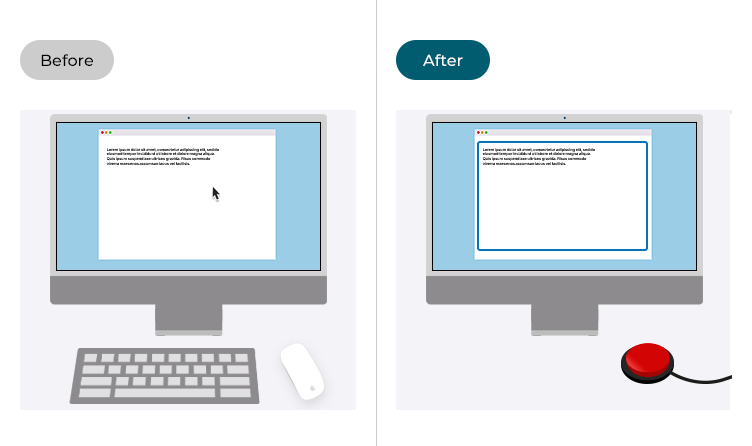
This section explains how to enable Switch Control in macOS 26 Tahoe. This is a step-by-step guide with pictures of the screens to help.
Open System Settings
1. Click the Apple icon in the top-left corner of the screen and choose System Settings from the menu.
Open the Accessibility settings
2. In the System Settings window, click Accessibility in the sidebar.
Find the Switch Control settings
3. Select Switch Control from the list of Accessibility options on the right.
Turn on Switch Control
4. On the Switch Control page, click the toggle switch for Switch Control to turn it on. Note: You may be asked to enter your password and/or confirm you want to enable Switch Control.
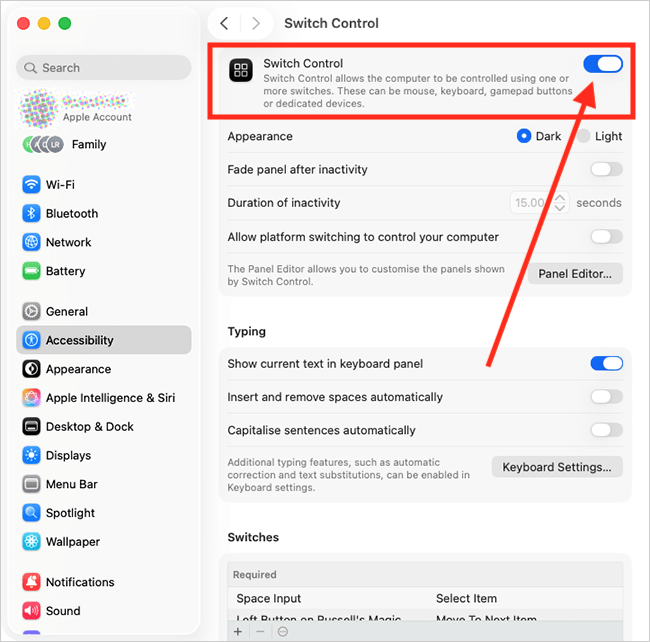
How to use Switch Control
5. When you enable Switch Control, the “Home panel” will appear on the screen, and the Space bar on your keyboard becomes the default “Select Item” switch — the switch you press to select the item currently highlighted on-screen. You can change this and add more switches to perform other tasks, and we'll cover that later in this guide.
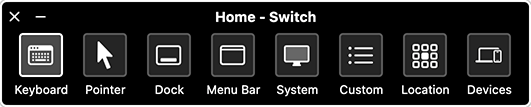
6. Press the Select Item switch (the Space bar) to start auto-scanning. Auto-scanning highlights the items in the Home panel one after the other. To select a highlighted item, press the Select Item switch again.
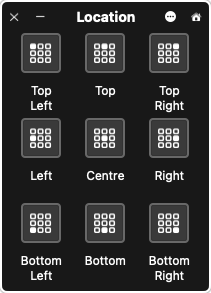
The items on the Home Panel
 |
Keyboard |
 |
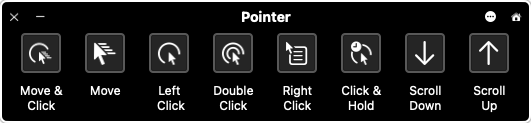
Pointer |
 |
Dock |
 |
Menu Bar |
 |
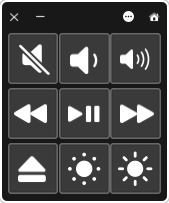
System |
 |
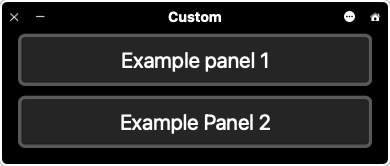
Custom |
 |
Location |
 |
Devices |
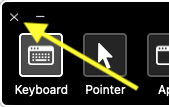 |
Close button |
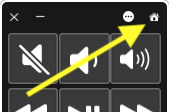 |
Home button (shown on sub-panels)
|
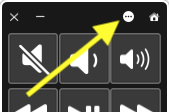 |
Options button (shown on sub-panels)
|

How to move the pointer (and select an item on the screen)
Open the Pointer panel
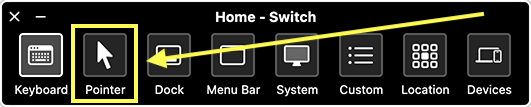
7. Scan the Home panel and select Pointer.
Choose the pointer
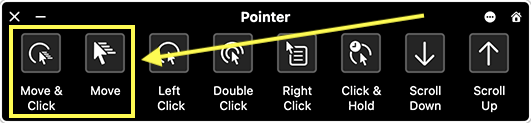
8. On the Pointer panel, select Move or Move and Click.
Move the pointer
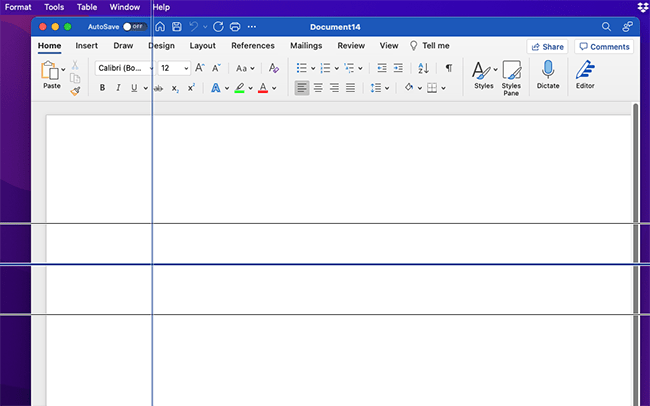
9. Vertical lines, followed by horizontal lines, move across the screen so that you can pinpoint where you want the pointer to move to. Press the Select Item switch to stop the lines at the required location. The pointer will move to the intersection of the two lines. If you selected Move and Click, the pointer will move to and select the item located at the intersection.
How to add a new switch
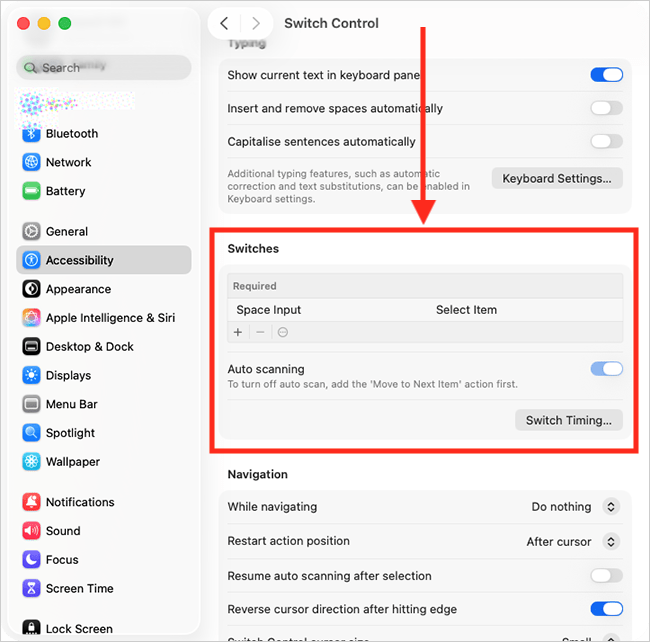
10. On the Switch Control settings page, scroll down to the Switches section.
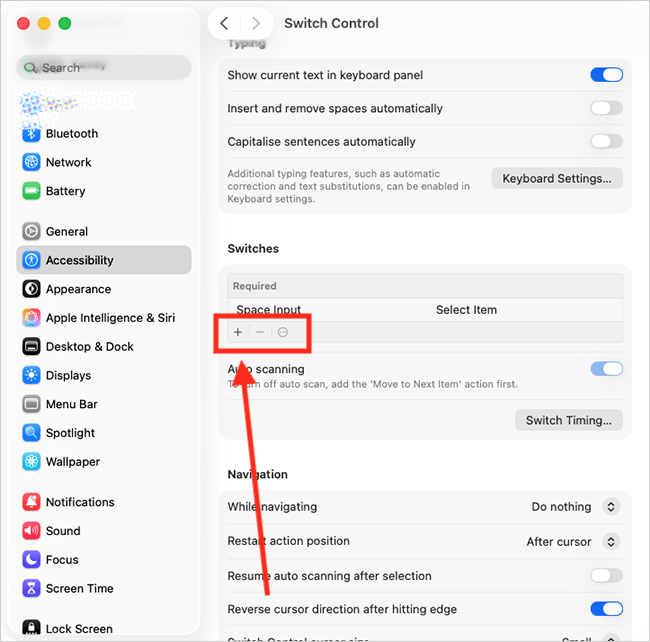
Add a switch
11. Click the + (add) button, then press the switch you wish to add when prompted.
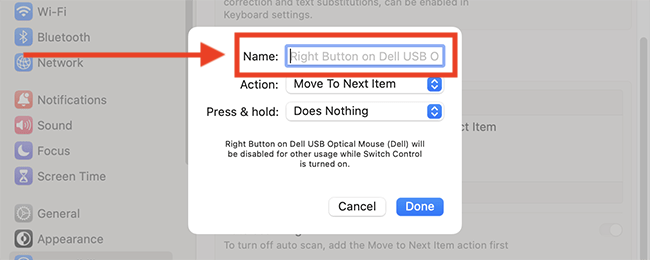
Name the switch
12. The computer will detect the name of the switch but you can type your own name for it if you prefer.
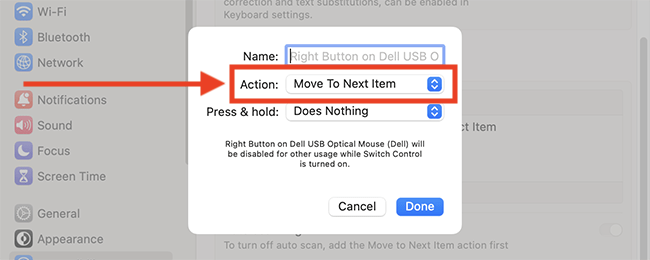
Choose the action you want the switch to perform
13. On the next screen, choose the action you want the switch to perform. Select the Action drop-down menu and choose from:
- Restart Scanning
- Select Item
- Move to next item
- Stop scanning
- Open Application
- Run Shortcut
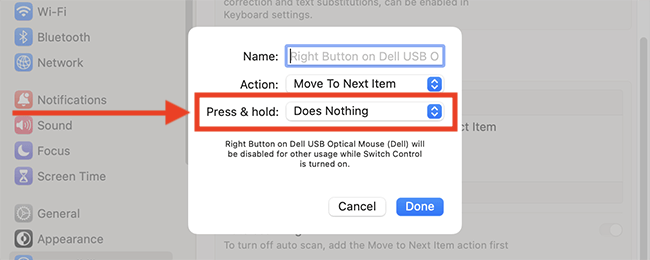
Choose what happens if you press and hold the switch
14. Select the Press and Hold drop-down menu and choose Does nothing or Repeats Current Action.
Save the new switch
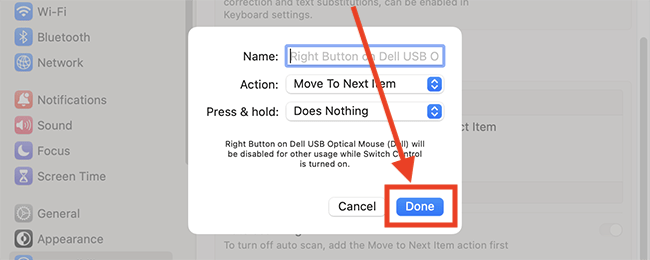
15. To save the switch, click the Done button.
Turn off auto-scanning
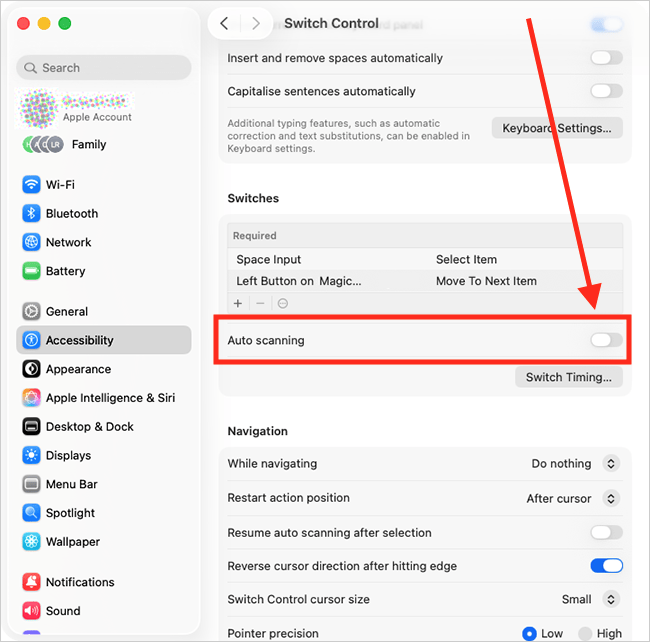
16. If you have set up a switch to perform Move To Next Item, you can turn off auto-scanning and use that switch to move manually between items. Click the toggle switch for Auto-scanning to turn it off.
Change the switch timing settings
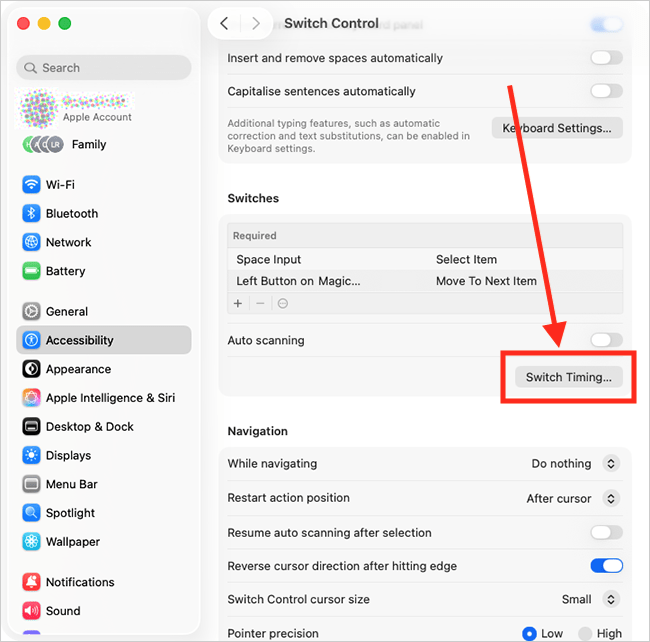
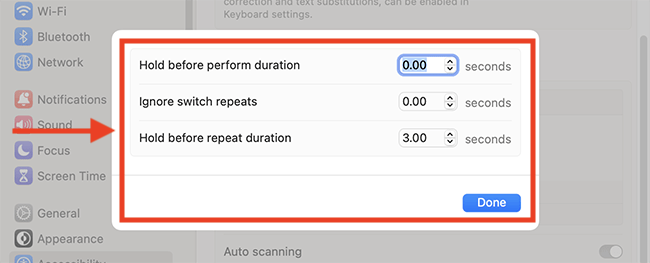
17. You can control how long your switch needs to be activated before an action is performed. This can help prevent accidental selections if a switch is pressed briefly. To adjust this, click the Switch Timing button.
18. In the pop-up window, adjust the timings for the options listed in the table below. Click the Done button when you are finished.
| Switch Control settings — Switch Timing | |
| Hold before perform duration | Set how long a switch must be held before an action is performed. |
| Ignore switch repeats | Set the amount of time during which subsequent presses are ignored |
| Hold before repeat duration | Set how long a switch must be held before an action is repeated. |
Change the appearance of Switch Control panels
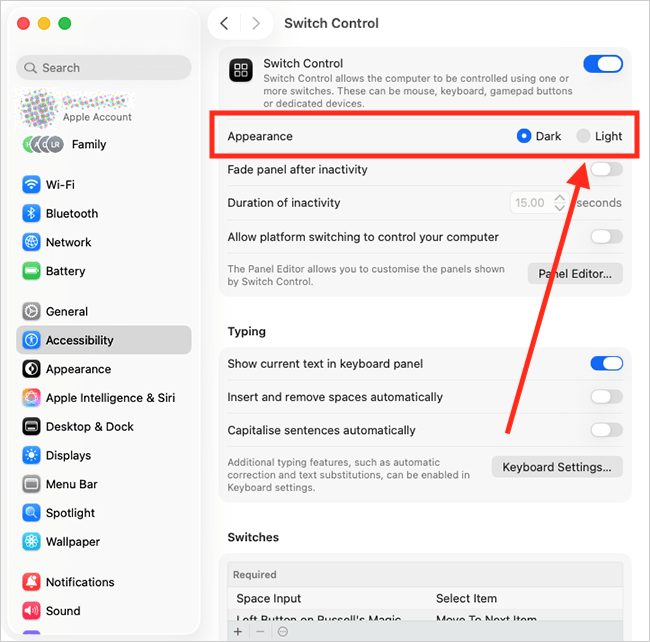
19. By default, Switch panels use the Dark appearance setting — white text and icons on a black background. To change this to black text and icons on a grey background, select the Light option under Appearance.
Hide the Switch Control panel after a period of inactivity
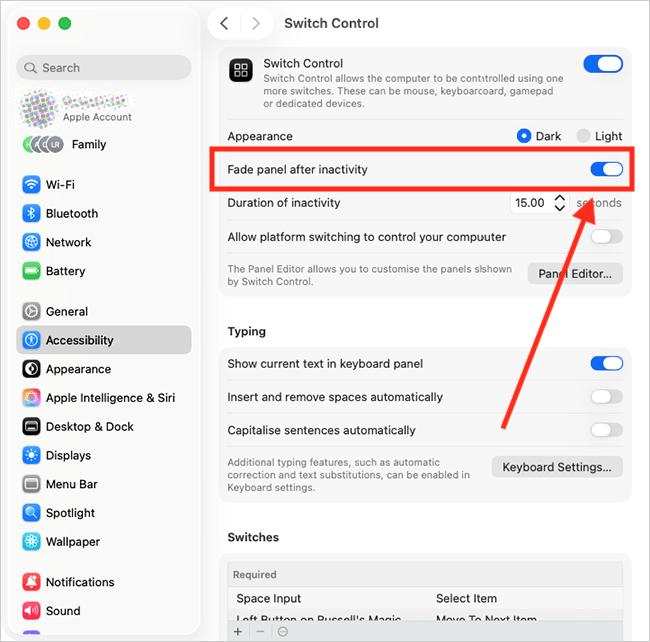
20. To automatically hide the Switch Control panel when it is not in use, tick the checkbox for Hide panel after inactivity. Note: The panel will re-appear when you press a switch.
Set how long the period of activity needs to be before the Switch Control panel is hidden
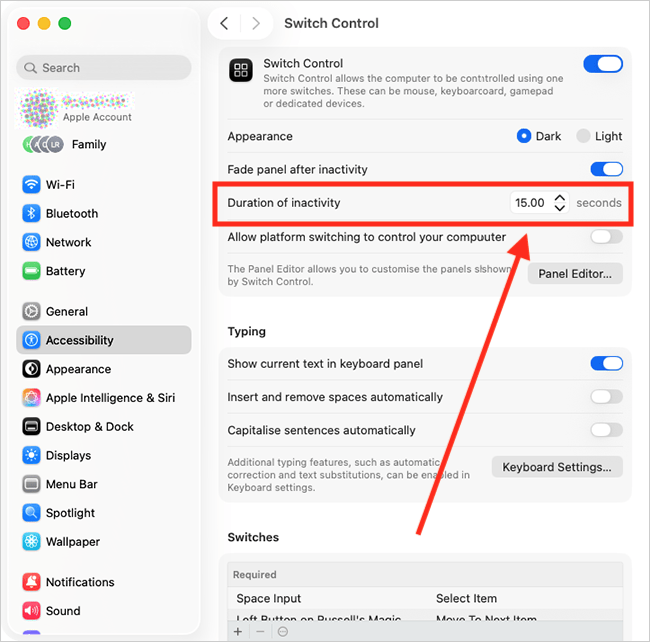
21. To control how long the panel remains visible when not in use, adjust the Duration of Inactivity setting. A shorter duration can reduce screen clutter and distractions, while a longer duration keeps the panel on screen longer, making it easier to locate or interact with items.
Control your computer using switches on another device
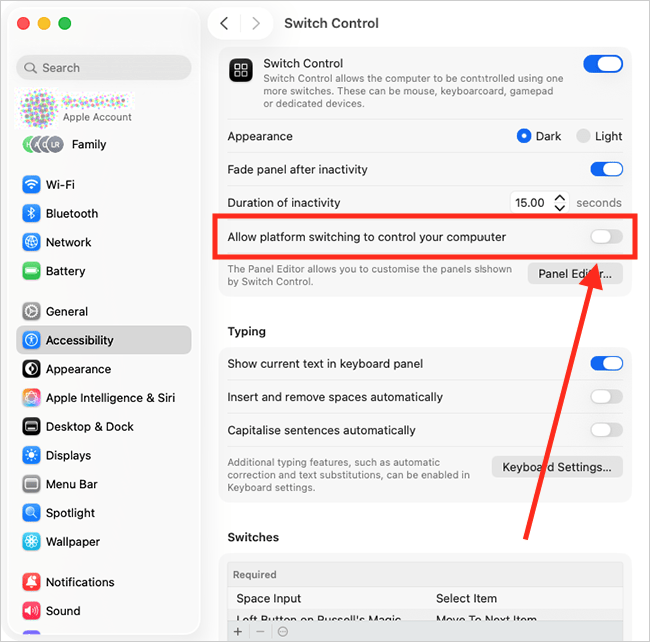
22. You can use another Apple device, such as an iPhone or iPad that is already set up to use switches, to control your computer. To enable this, click the toggle switch for Allow platform switching to control your computer to turn it on. You will be prompted to enter your password to confirm the change.
Note: Your computer and the device you wish to control must be connected to the same Wi-Fi network and signed into the same iCloud account.
Customise the Switch Control panels and create your own custom ones
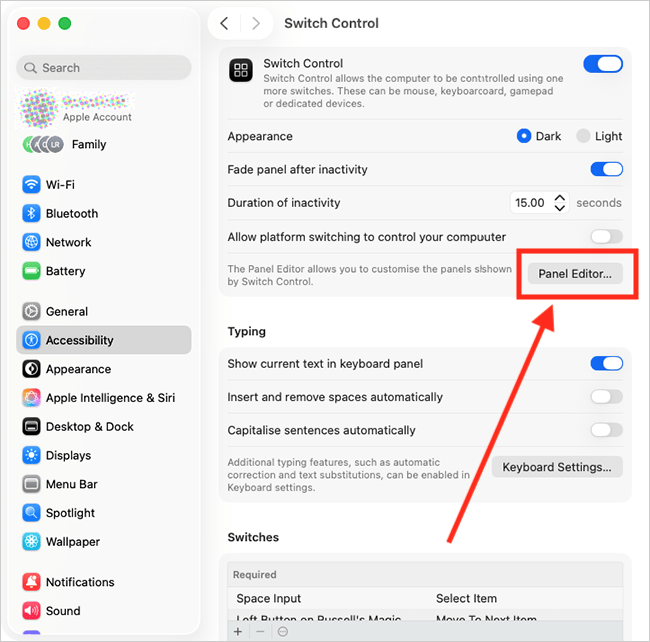
23. You can customise the Switch Control panels and create your own panels, with buttons that perform any tasks you want. These tasks might include entering pre-written text, opening apps, running shortcuts, or performing advanced mouse actions. Click the Panel Editor button to start designing your own panels.
For more information on creating your panels, see our guide How to create panels to use with Switch Control and the Accessibility Keyboard in macOS 26 Tahoe.
Typing settings
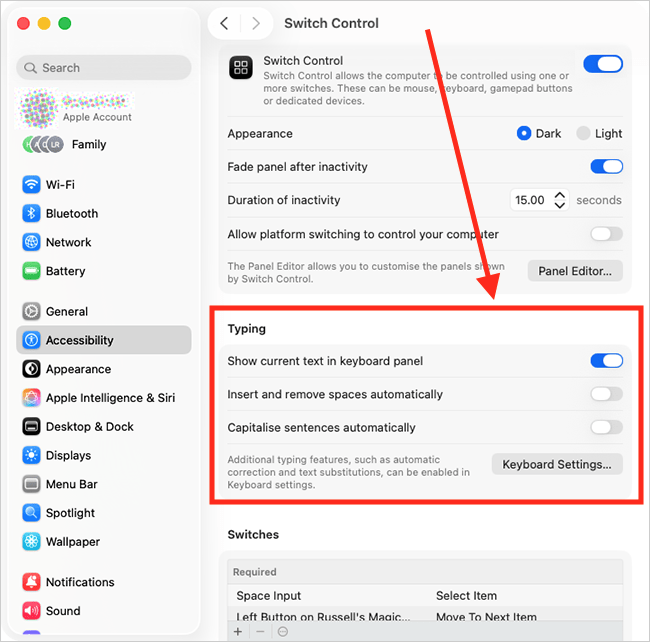
24. The Typing settings help make it easier to use the Keyboard panel. Scroll down to the Typing section, then set your preferences for the settings listed in the table below.
| Switch Control settings — Typing | |
| Show current text in keyboard panel | Show the text you are typing at the top of the on-screen keyboard. |
| Insert or remove spaces automatically | Automatically add the correct spacing after a full stop or between sentences. |
| Capitalise sentences automatically | Capitalise words based on context, for instance, capitalising the next word after a Full stop. |
Customise Switch Control navigation settings
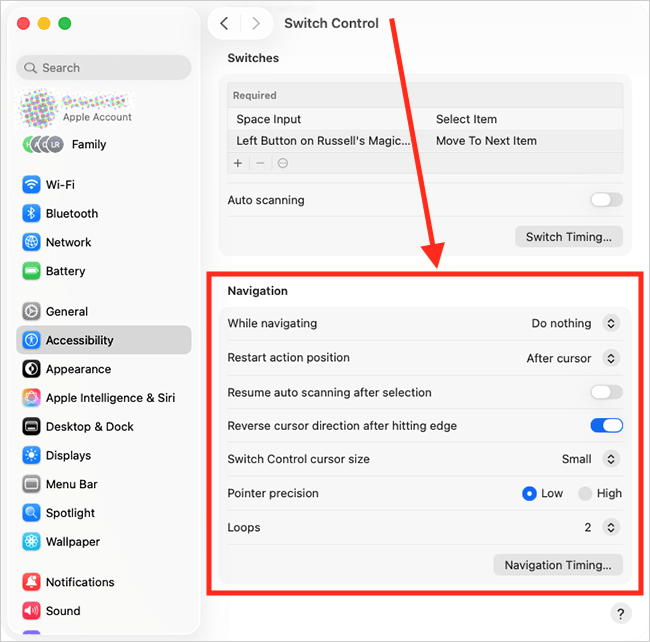
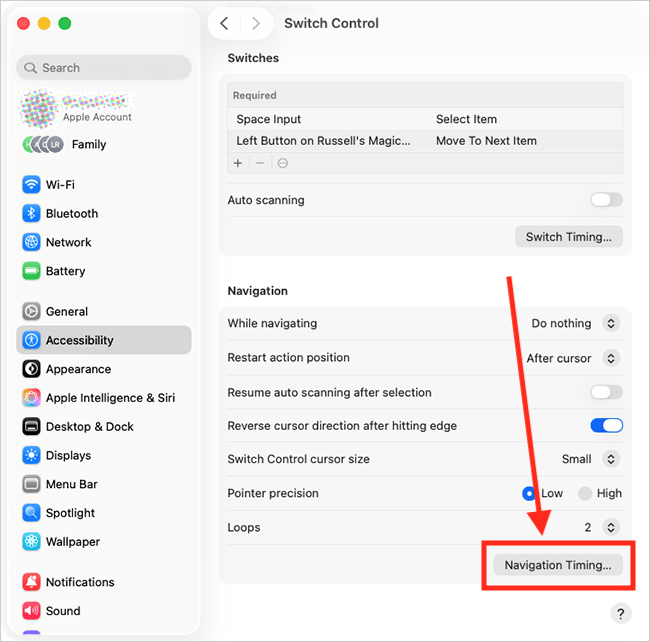
25. Scroll down to the Navigation section, then customise the settings listed in the table below.
| Switch Control settings — Navigation | |
| While navigating | Choose what type of feedback you receive as you move through items. Choose from: Do nothing, Speak selection, Play Sounds, Speak & Play Sounds. |
| Restart action position | Choose where to start scanning from when you rescan an item. Choose from: After Cursor, From start of group, From the top. |
| Resume auto scanning after selection | By default, scanning pauses when an item is selected. You'll need to press the Select Item switch again to resume scanning. If you would prefer scanning to resume automatically as soon as the selected item loads, turn on the toggle switch for Resume auto scanning after selection. |
| Reverse cursor direction after hitting edge | Choose what should happen when the pointer meets the edge of the screen — by default, nothing happens. To set it so that the cursor comes back in the opposite direction, turn on the toggle switch for Reverse cursor direction after hitting edge. |
| Switch Control cursor size | By default, a thin rectangular border is shown around the currently selectable item. To make the border easier to see, select the drop-down menu for Switch Control cursor size and select Medium or Large. |
| Pointer precision | Select High to slow down the moving blue lines used to position the pointer when you use the Move or Move and Click options. This makes it easier to accurately position the lines. |
| Loops | By default, Switch Control scans a panel, group, or window twice before stopping. You can choose to scan up to 10 times. |
Change navigation timing settings
26. To change the navigation timing settings, select the Navigation Timing button.
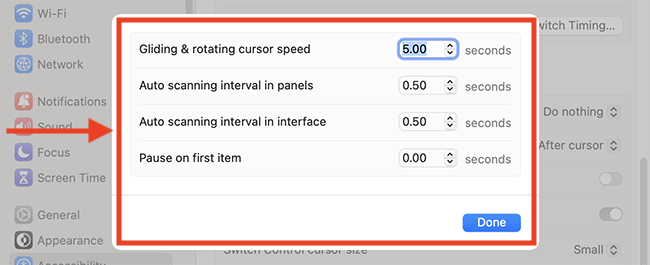
27. In the pop-up window, you can customise the settings listed in the table below. Click the Done button when you are happy with your settings.
| Switch Control settings — Navigation Timing | |
| Gliding & rotating cursor speed | The speed that the blocks and blue lines move across the screen when positioning the pointer |
| Auto scanning interval in panels | The number of seconds it takes to move from one item to another in a panel, when using auto-scanning. |
| Auto scanning interval in interface | The number of seconds it takes to move from one interface item to another when using auto-scanning. |
| Pause on first item | The number of seconds the cursor rests on the first item in a panel, group, or user interface item before auto-scanning begins. |
Close System Settings
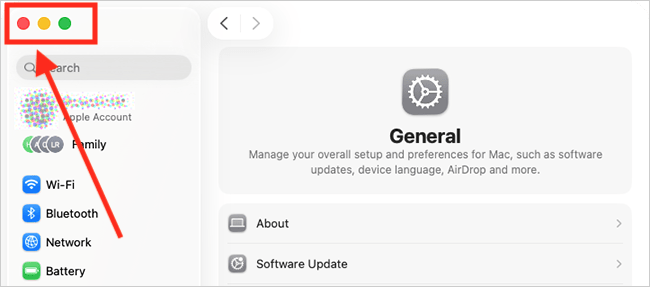
28. When you are happy with your settings, close System Settings by clicking the Close button (red circle) in the top-left corner of the window or using the Cmd + W keyboard shortcut.
Note: If this does not work it could be because your computer settings are managed by someone else (an IT department or administrator for example). If so, you will need to contact them to access these settings or for help.
Need some more help?
Call our helpline 0300 180 0028 or email enquiries@abilitynet.org.uk
Need free IT Support at Home?
If you are older or disabled and need IT support at home, you can book a free home visit.