To find out how to install Gemini and set it up as your digital assistant, see How to set up Gemini as your voice assistant in Android 16
Short guide:
- Launch the Gemini app or Gemini assistant. Tap the Gemini Live icon.
- Tap the Camera icon in the bottom left.
- Point the camera at an object and ask ‘what is this?’ to identify it.
- Ask Gemini to read any text or answer any questions you might have about the object.
Before and after

This section explains how to use Gemini Live to identify and analyse objects in Android 16. This is a step-by-step guide with pictures of the screens to help.
Launch Gemini Live
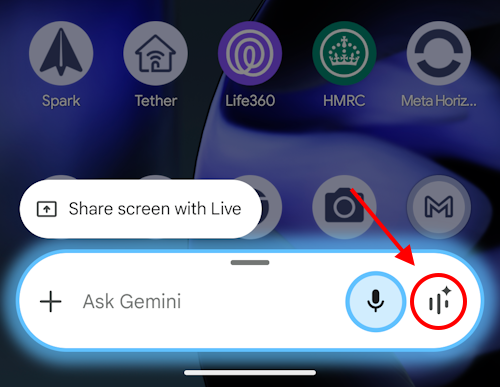
1. Start by launching the Gemini app or calling up the Gemini voice assistant. You can do this by pressing and holding the side button on your phone or tablet, or by saying ‘Hey, Google’ or ‘OK, Google.’ When the app or assistant opens, tap the icon with the three vertical bars and Gemini star on the right-hand side to launch Gemini Live.
Activate the camera
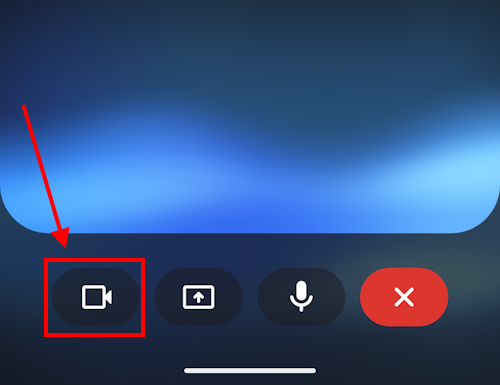
2. Gemini Live uses your device’s microphone so that you can talk to it and ask questions. It responds with its own artificial speech and through captions on your screen. To allow it to use the camera, tap the Camera icon, bottom-left.
Identifying objects
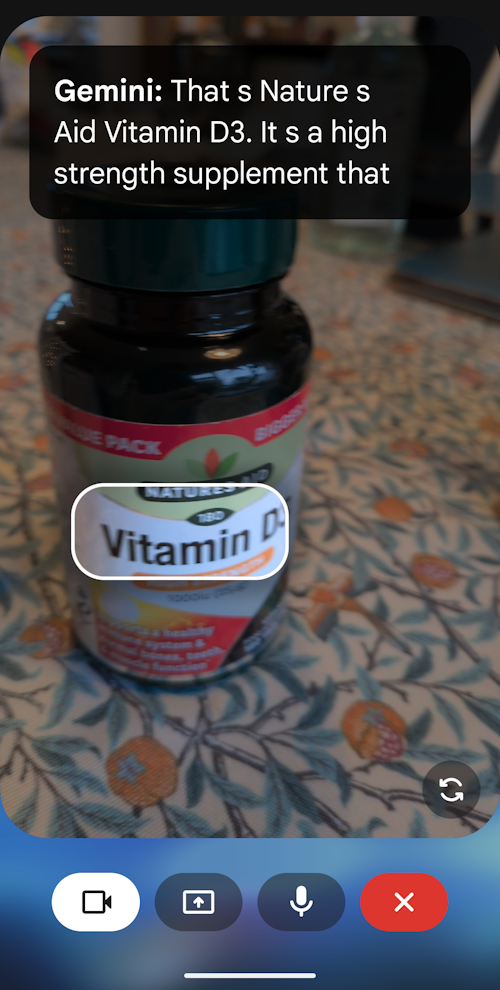
3. Point the camera at an object, a building or even a location, and you can ask Gemini questions about it. Here, for instance, we want to make sure I’ve found the right bottle of vitamins. We can ask Gemini, ‘what is this?’ and it will identify the bottle and tell me about it.
Asking questions
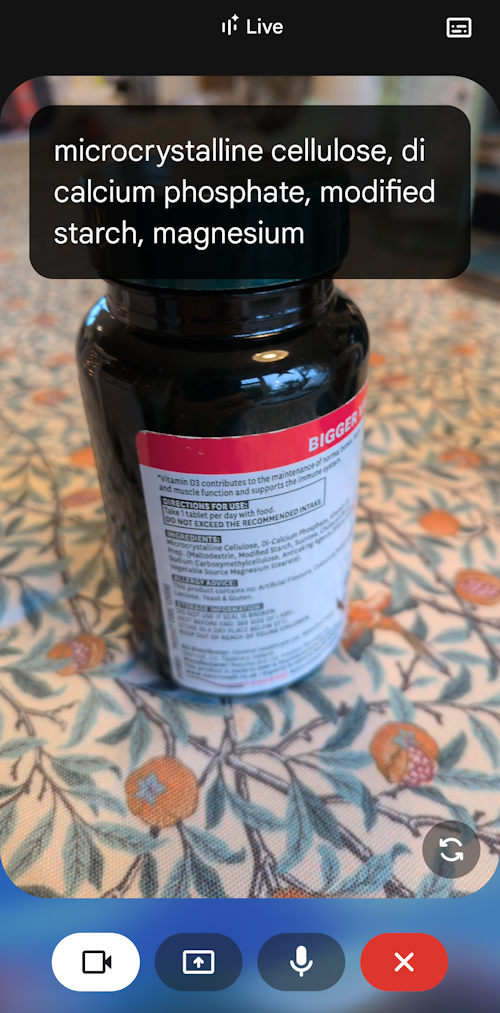
4. We can also ask Gemini for more specific information. If we turn the bottle so that the camera can see the Ingredients, we can ask Gemini to list them. We can ask Gemini to find instructions, or tell us about any warnings on the bottle.
Reading small text
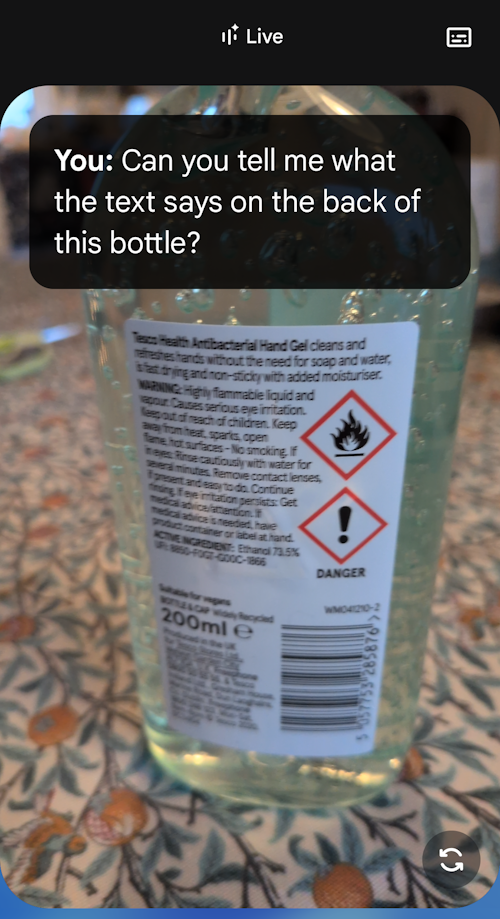
5. Gemini can also read small text. Here we’re pointing the camera at the back of a bottle of hand sanitizer, and we can ask ‘Can you tell me what the text says on the back of the bottle.’ Sometimes Gemini will summarize the text, but you can also ask it to read the text in full, or answer questions such as ‘Are there any warnings on the bottle?’ or ‘Are there ingredients that might irritate my skin?’. Gemini can use its own data and information found online to answer any questions.
Note: We have written these instructions for devices running the standard version of the Android operating system. You may find some minor presentation differences if the manufacturer has customised the theme.
Need some more help?
Call our helpline 0300 180 0028 or email enquiries@abilitynet.org.uk
Need free IT Support at Home?
If you are older or disabled and need IT support at home, you can book a free home visit.